Purpose and conditions before calculating
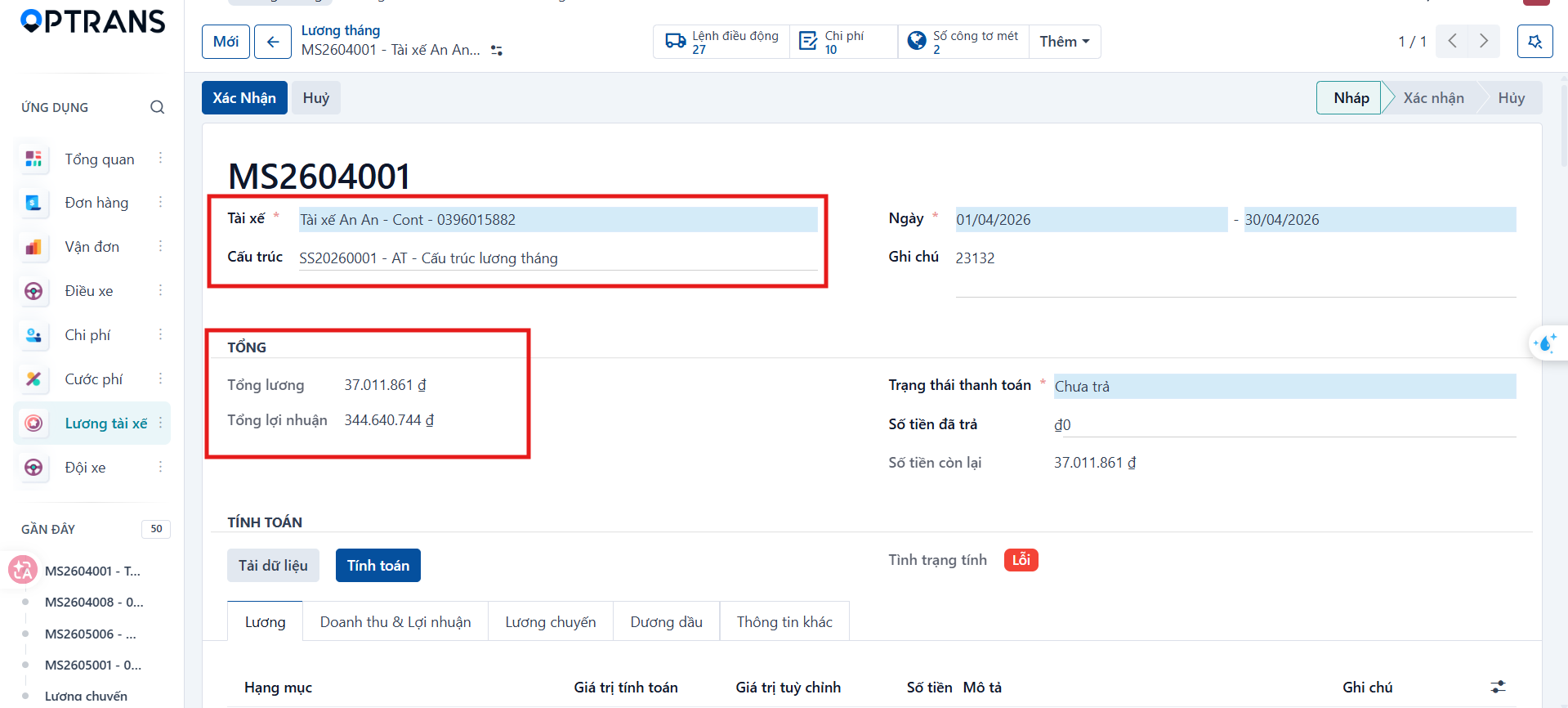
Monthly salary consolidates a driver’s trip salary, base salary and related amounts for the month. This screen also lets you follow the salary calculation status, the payment status and the trips that need handling before the salary is closed.
Before calculating, handle the trip salary records so that they are OK and Confirmed. The related configurations are salary standards, salary structures and, where it applies, monthly default salary.
Note: A trip with an error or one that is unconfirmed does not produce a clean monthly salary result. Handle those trips before closing and recalculating the monthly salary.
Accessing and viewing the data
Step 1
Go to the Driver salary > Monthly salary menu.
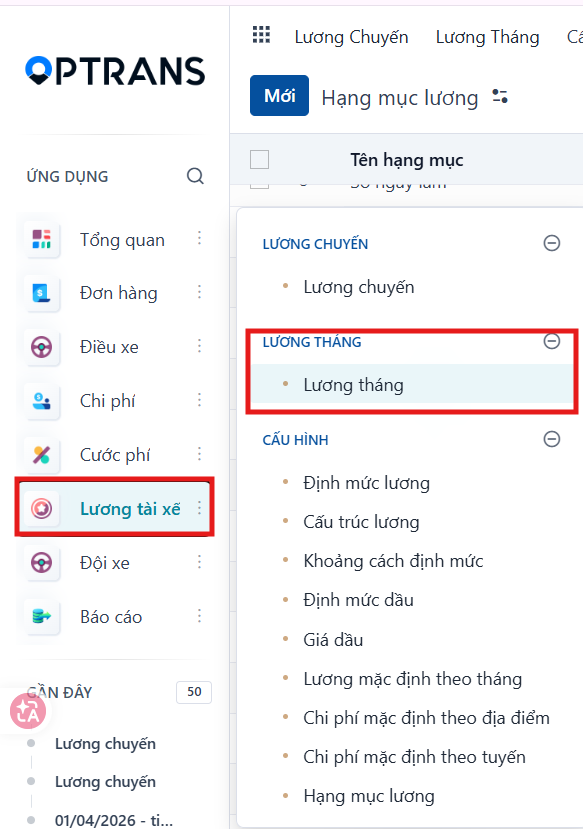
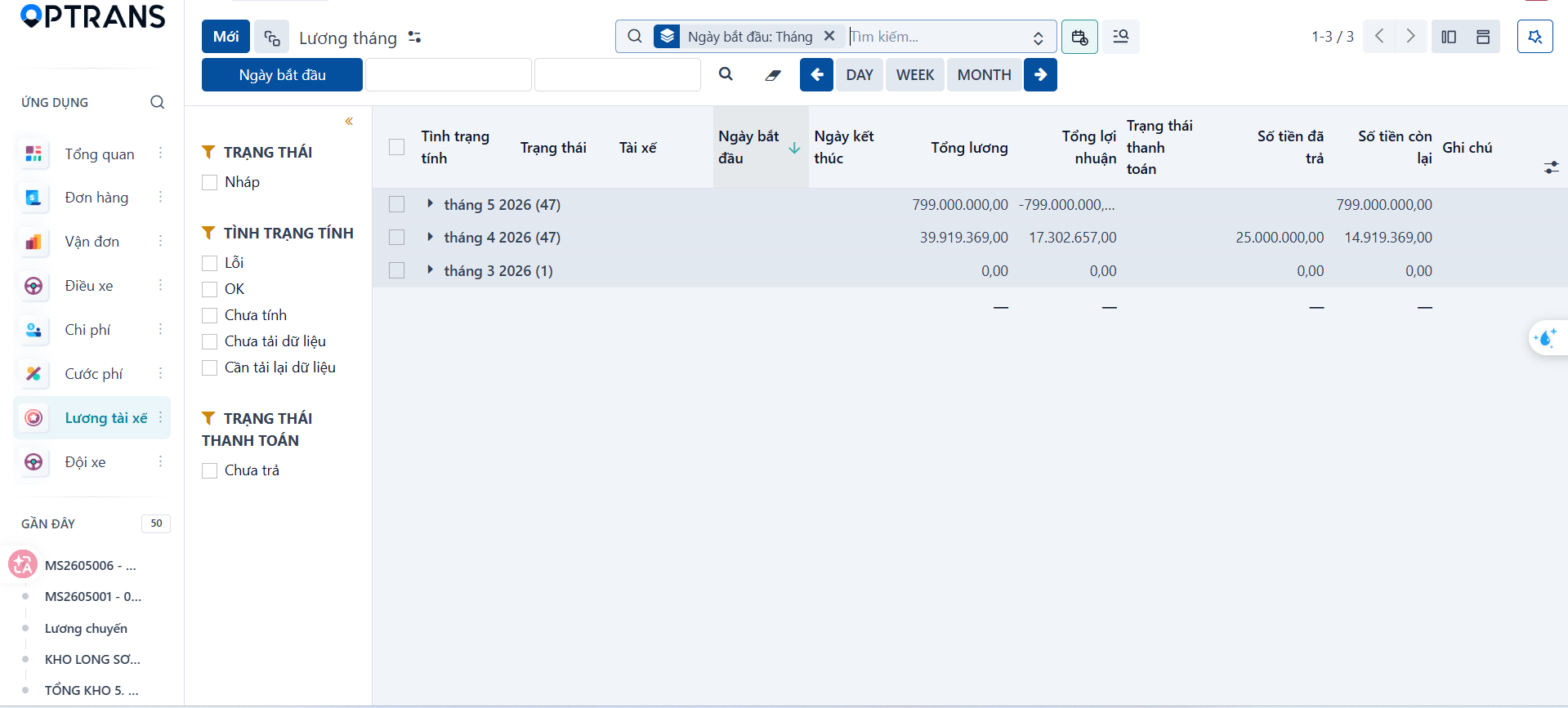
The list shows the monthly payslips of the drivers.
Step 2
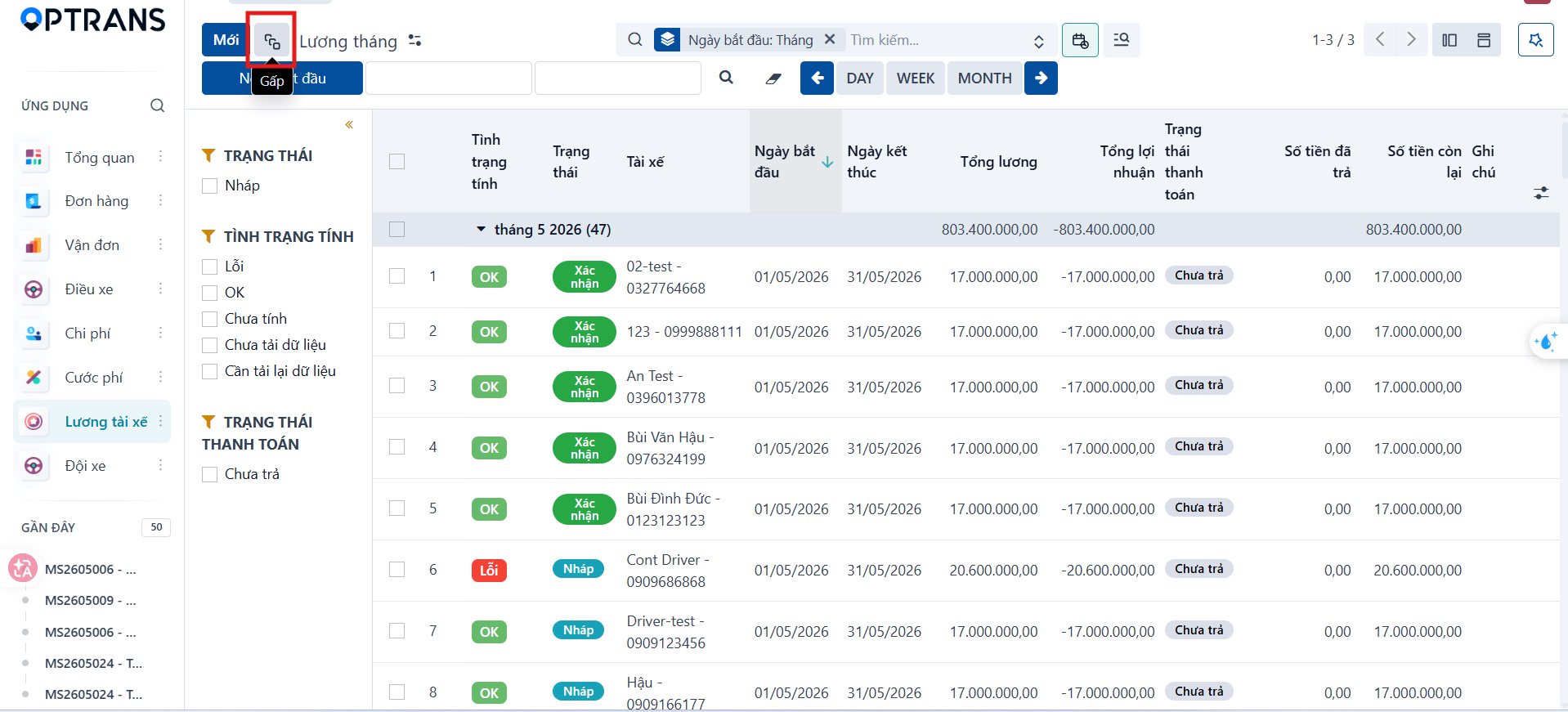
Click the expand icon to see the detailed data of a monthly salary row when you need it.

Option 1: Quick calculation from the list
Step 1
On the monthly salary list, select one or more rows to calculate.
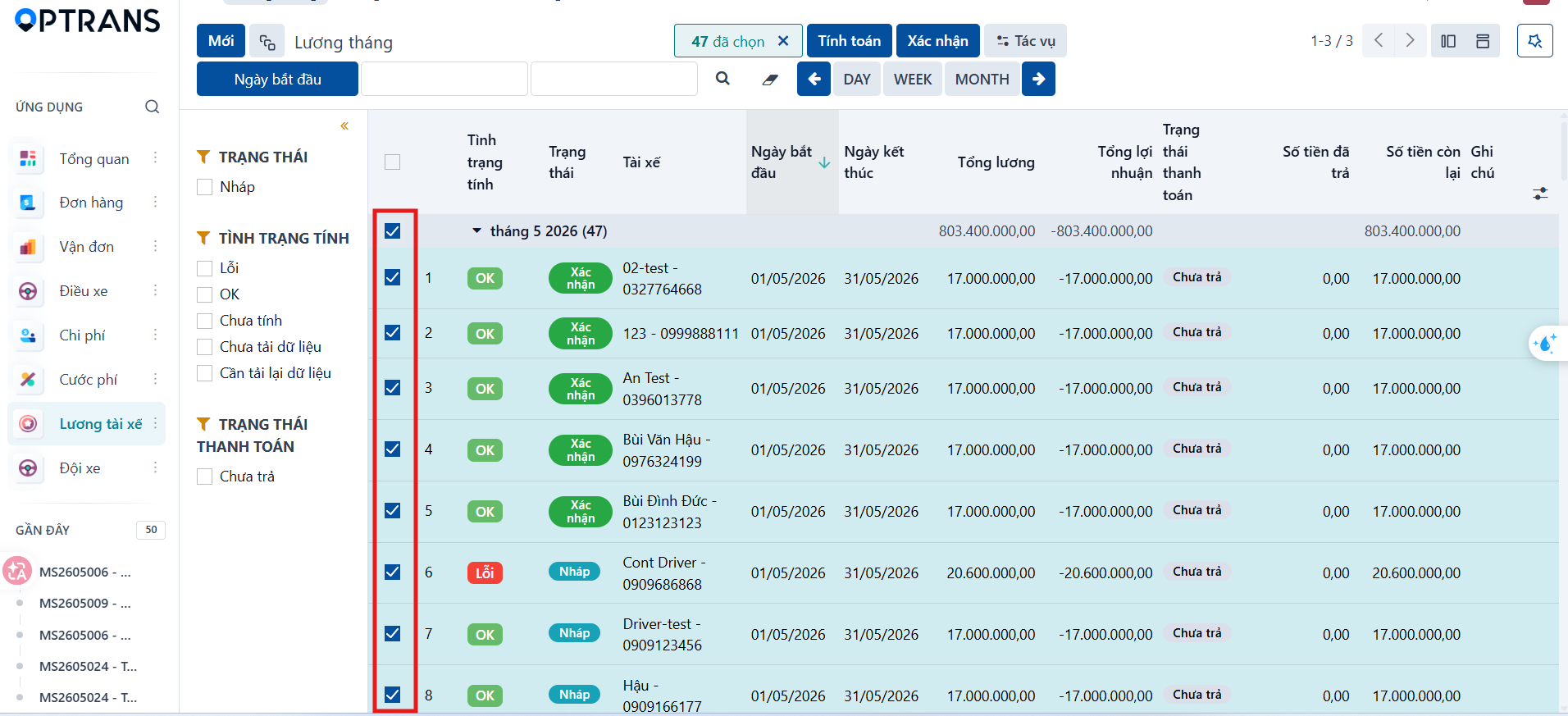
Step 2
Click Calculate. The system calculates the salary for the selected payslips automatically.
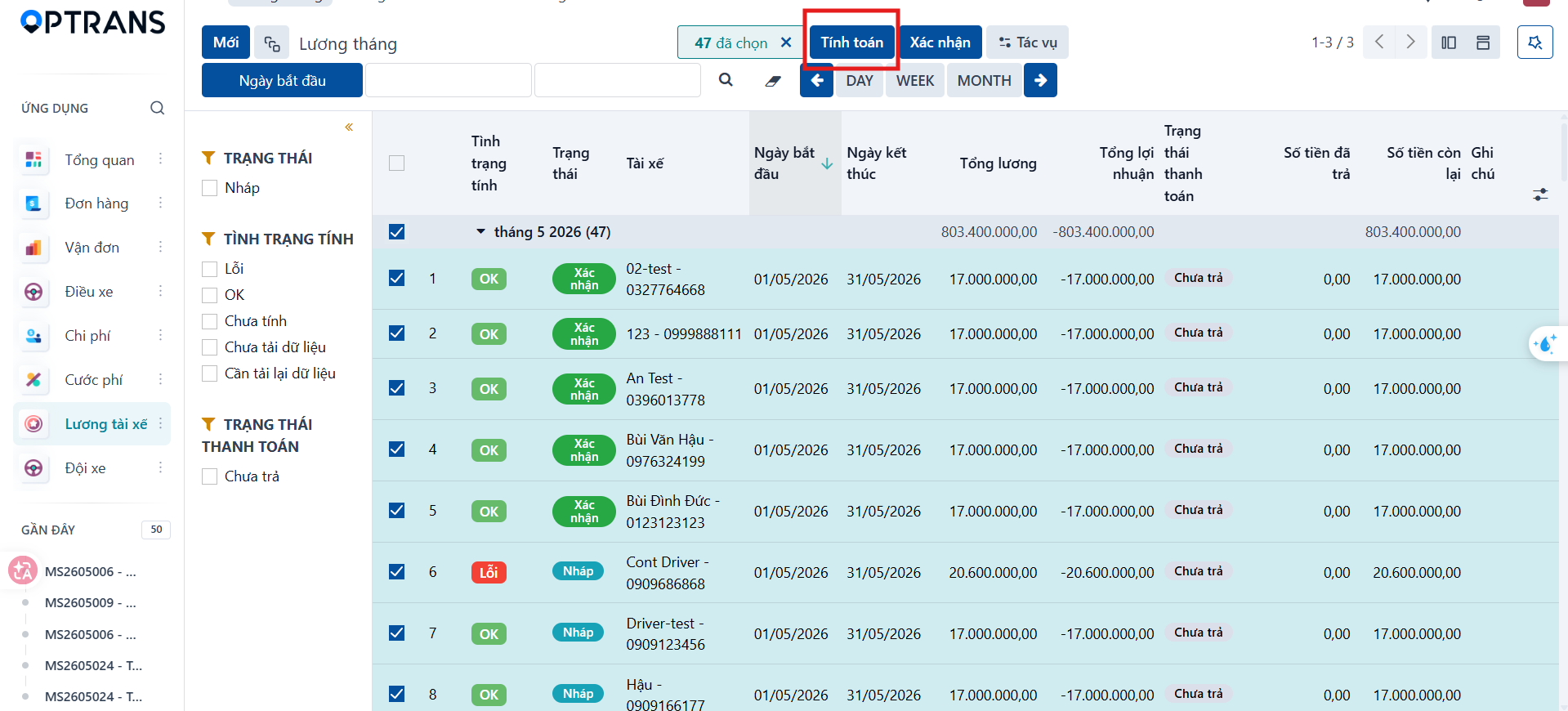
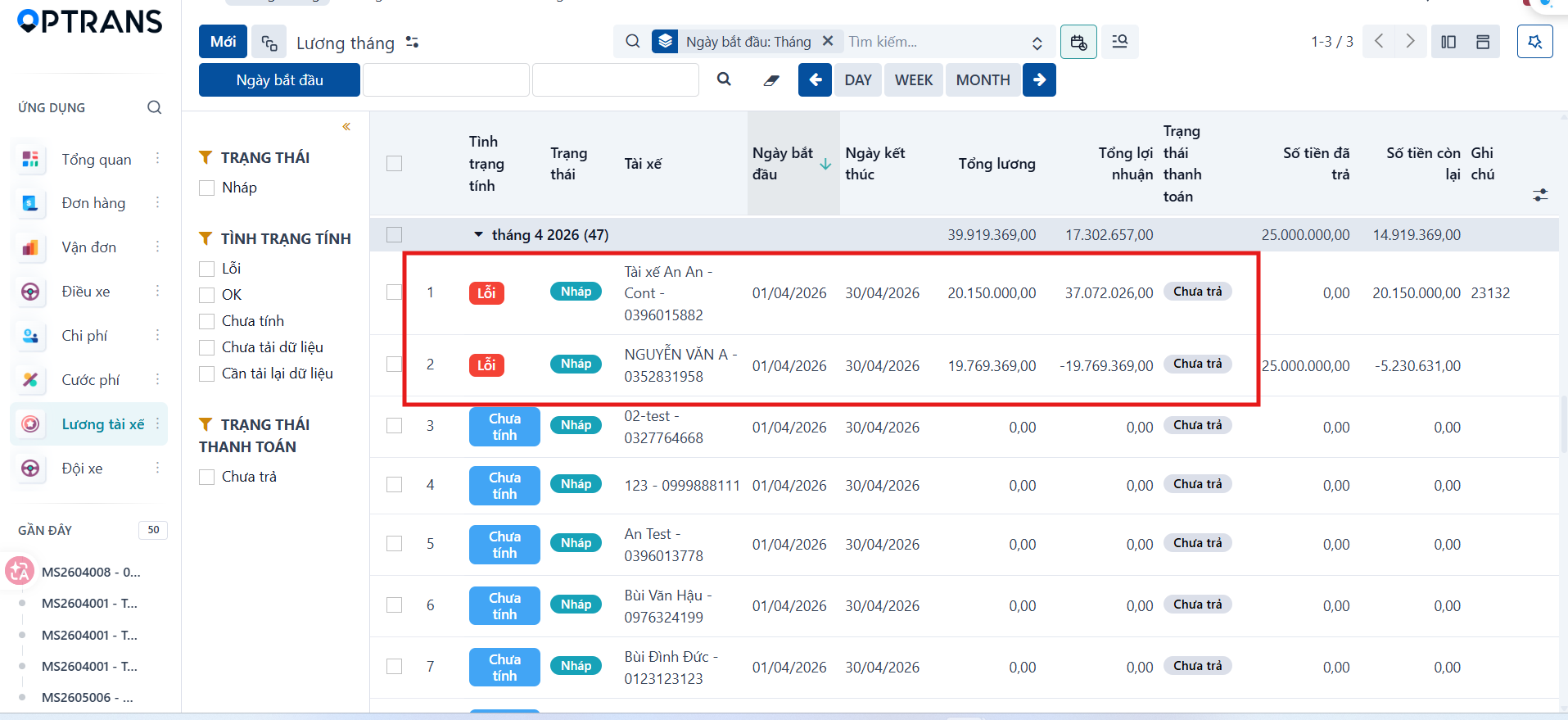
Only valid trips are calculated. If any trip still has an error or is unconfirmed, the status shows an error; switch to option 2 to check and handle each trip.
Option 2: Checking and handling within the payslip details
Step 1
Select a monthly salary row to open its details.
Step 2
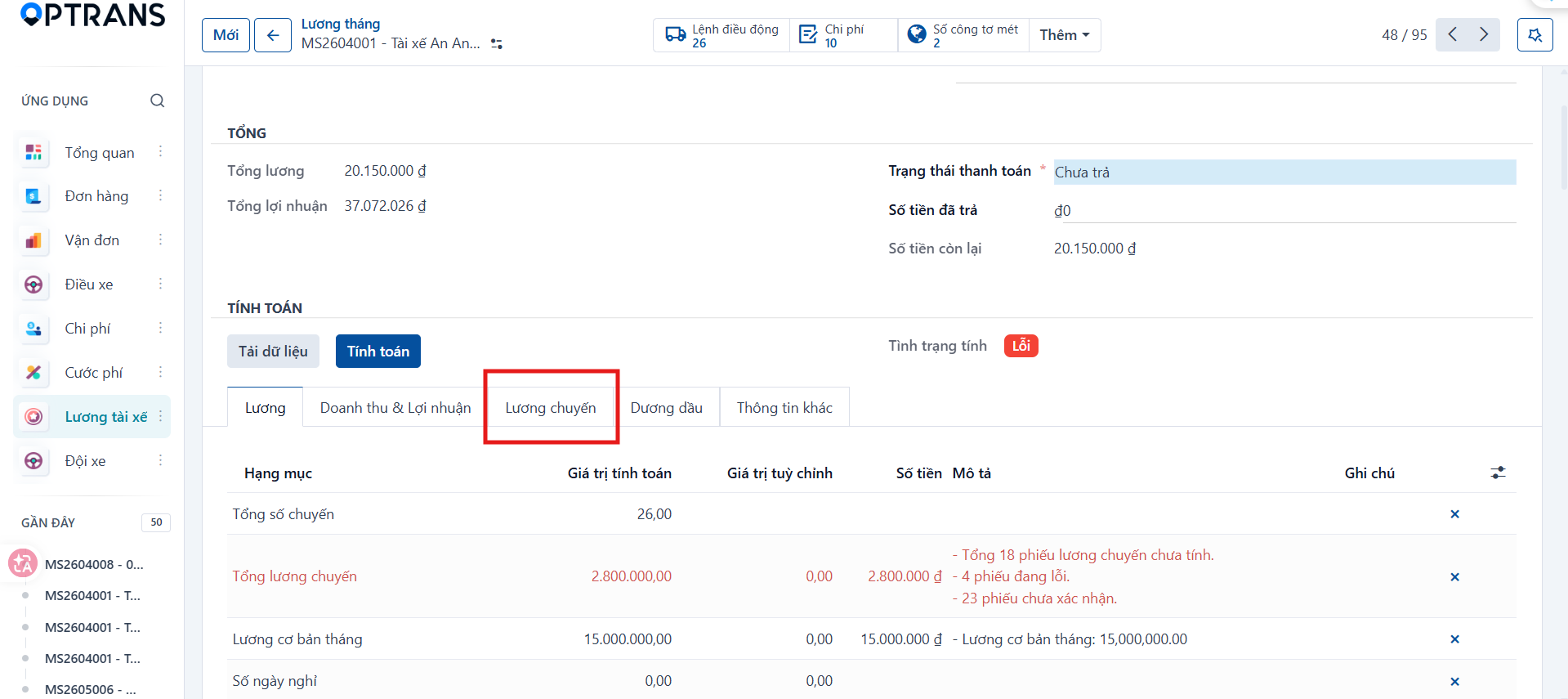
On the Salary tab, review the summary and the cause of any error.
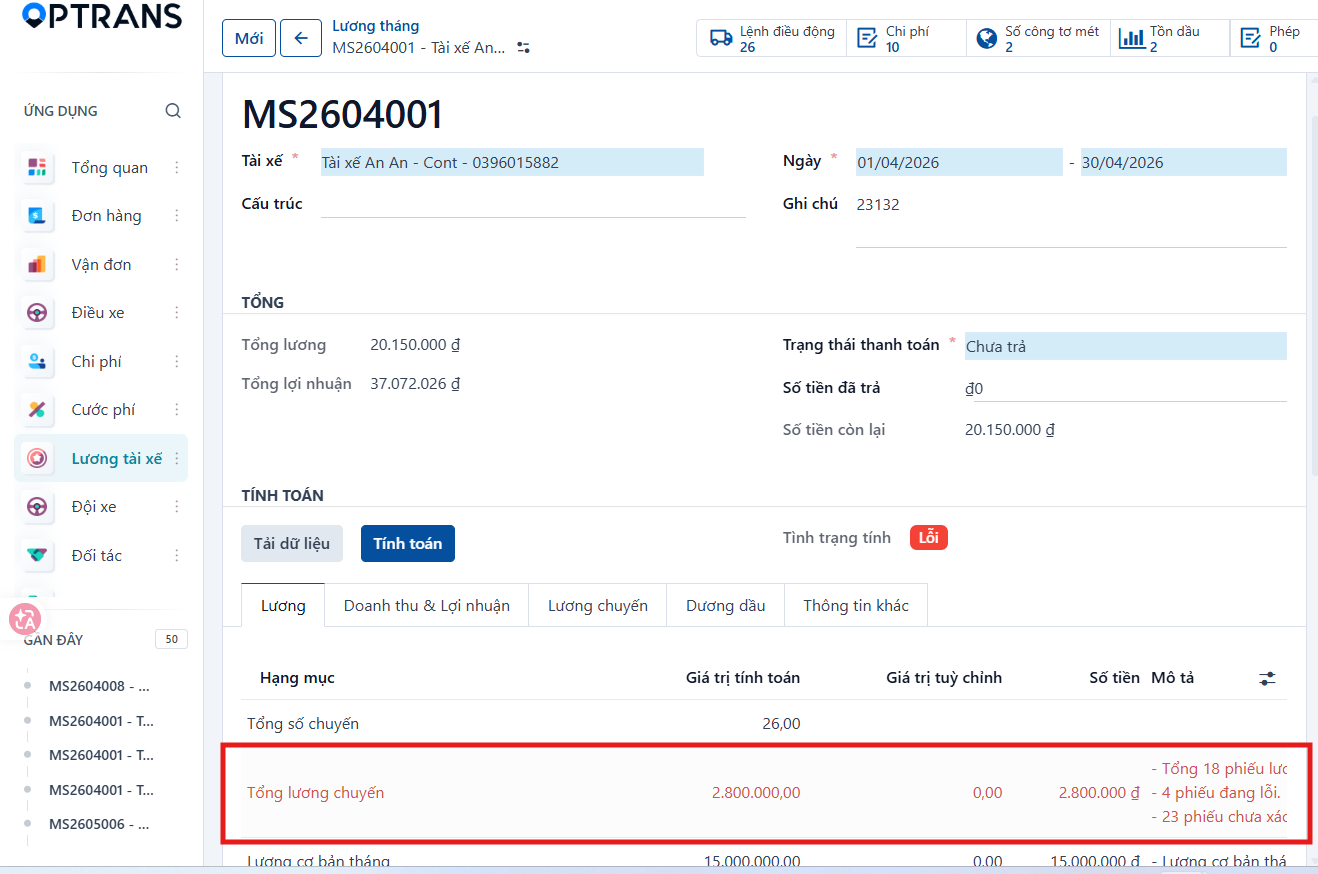
For example, the source screen shows 18 salary records, 4 records with errors and 23 unconfirmed records: these are the figures of that illustration, not a fixed limit of the system. In that example, 4 trips need recalculating and 23 trips are not yet OK or not yet confirmed.
Step 3
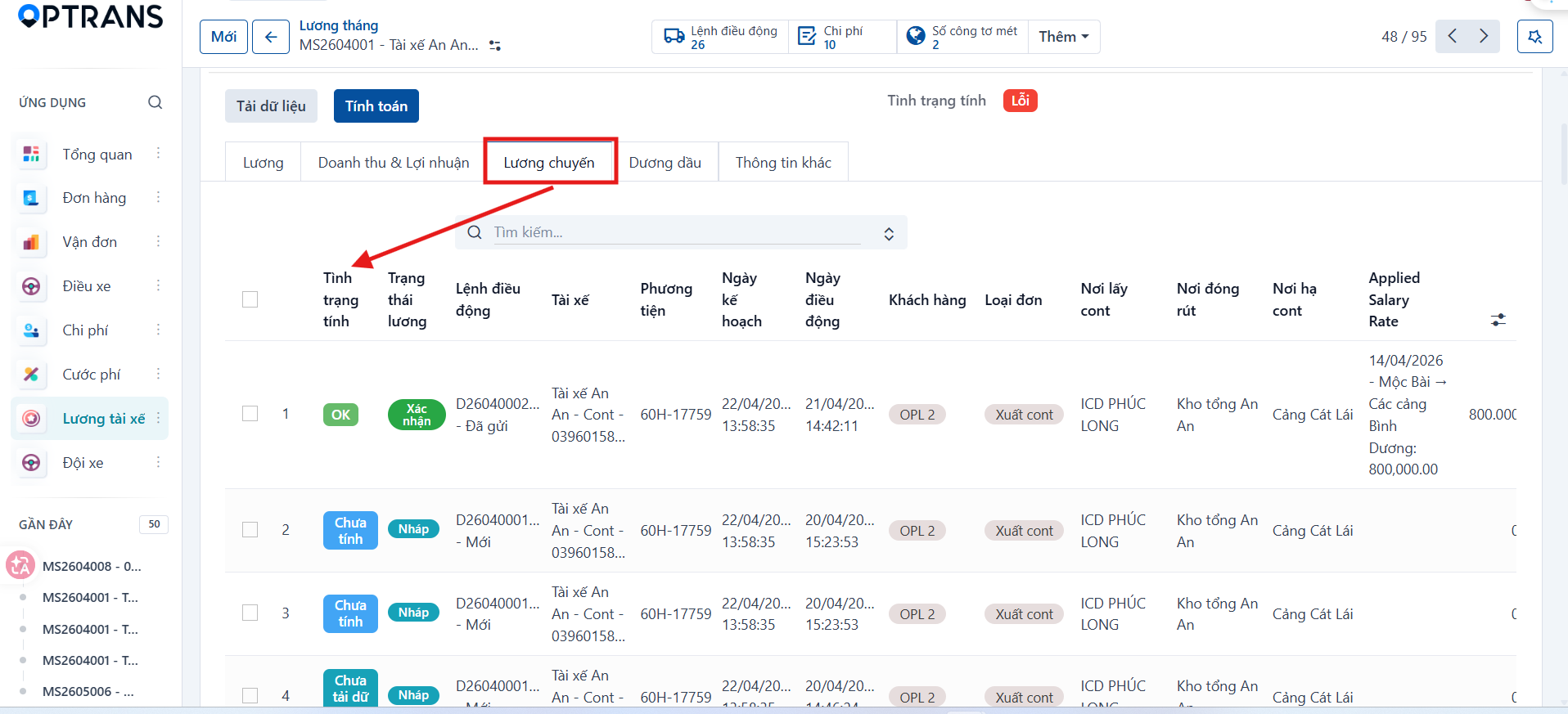
Switch to the Trip salary tab to manage the driver’s dispatch orders and check the status of each trip.
Step 4
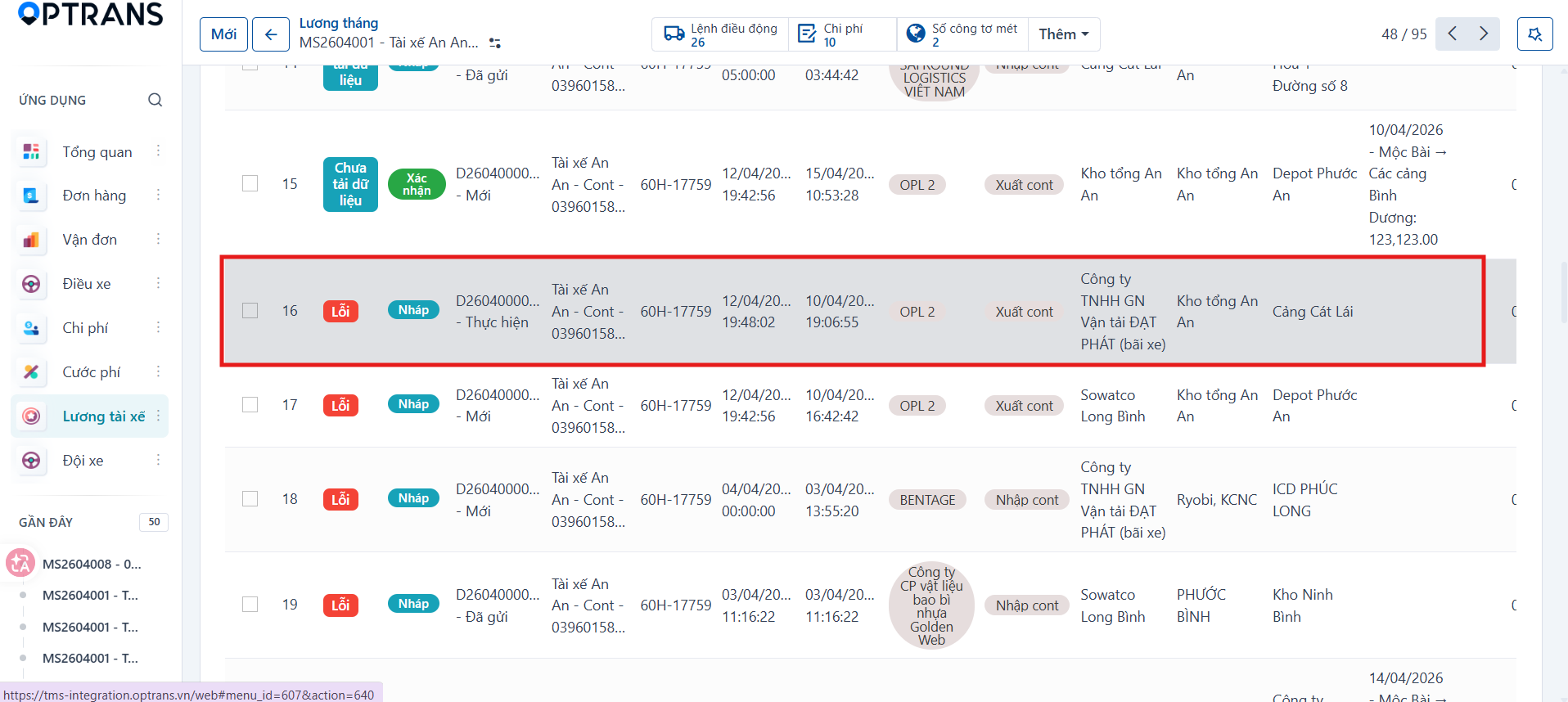
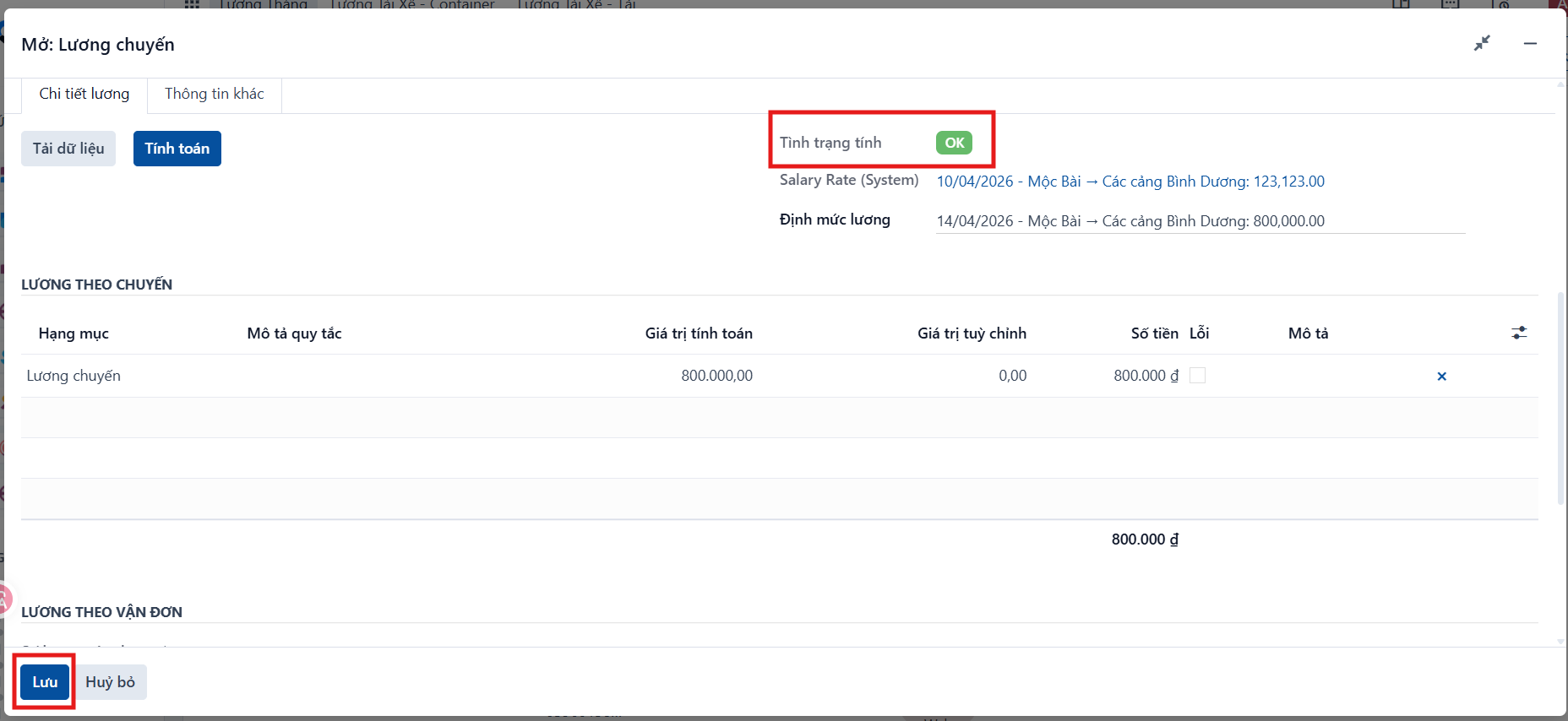
For a row with an error, open it to see the details, select the matching Salary standard, then click Calculate to recalculate.
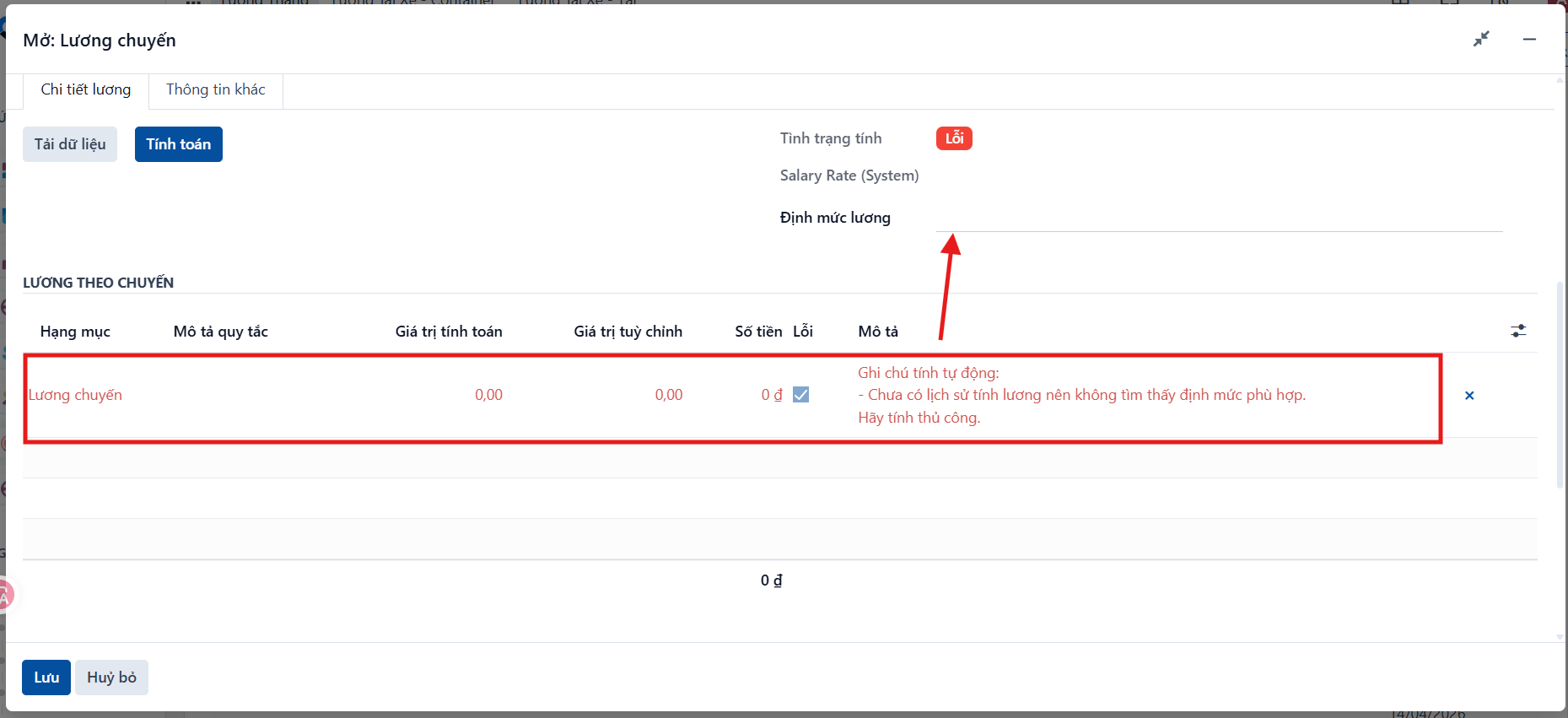
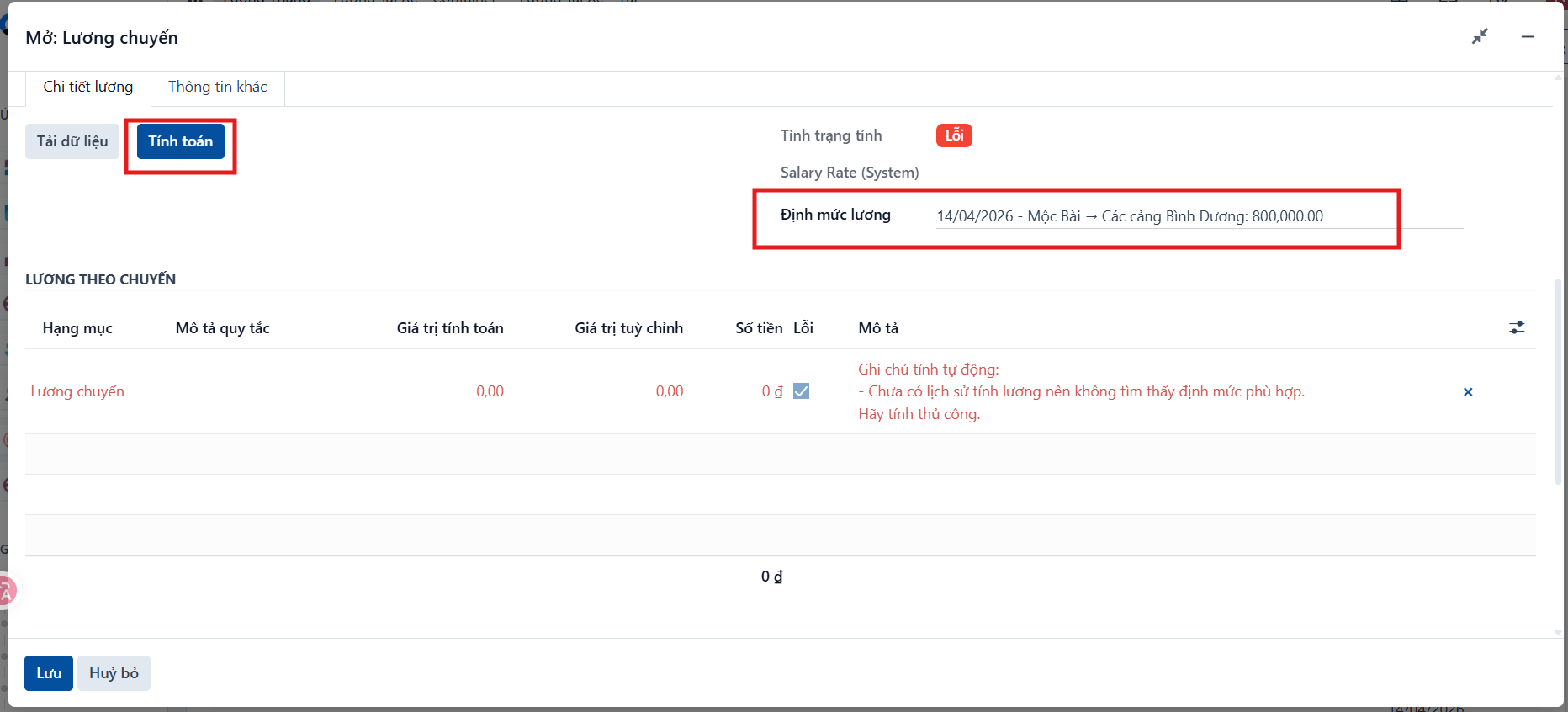
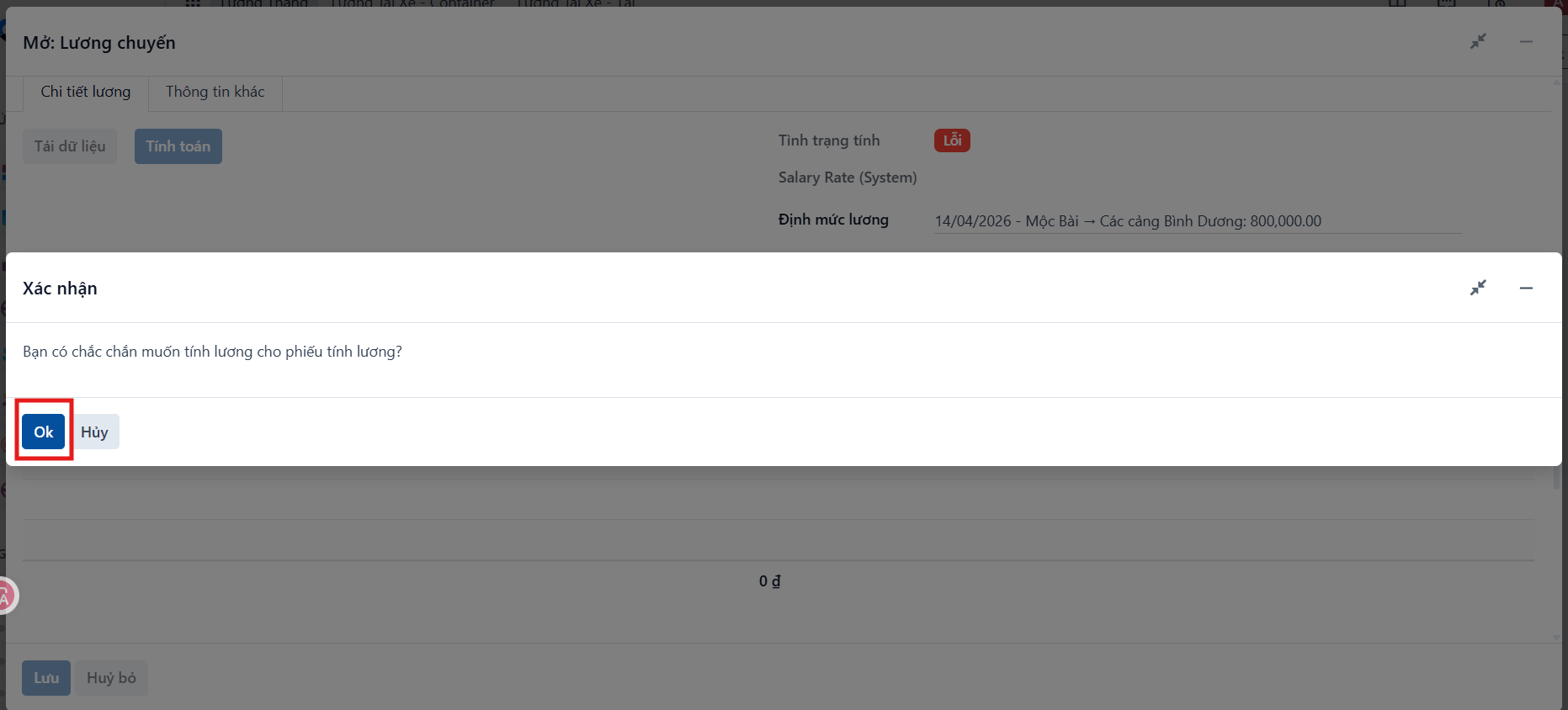
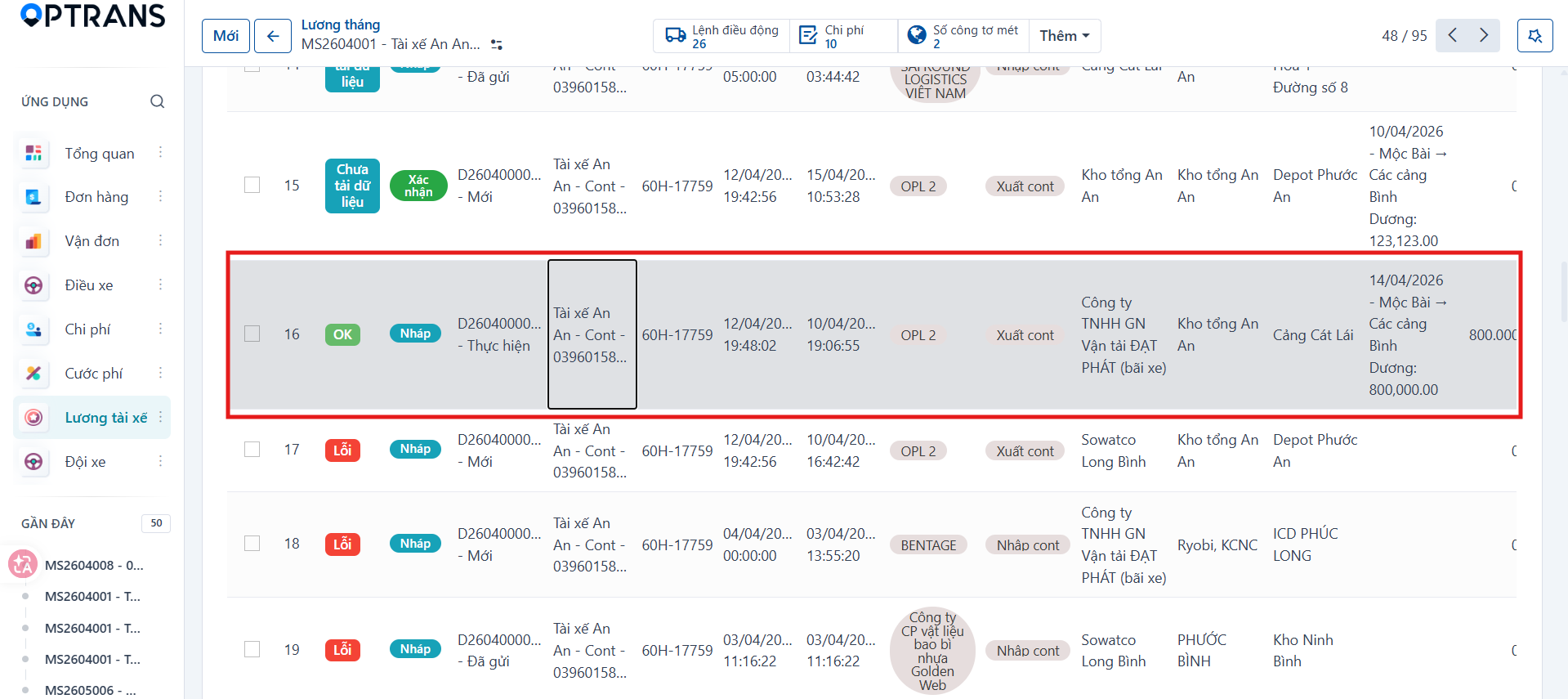
Once the status is OK, click Save to finish handling that row. Repeat for the remaining rows with errors.
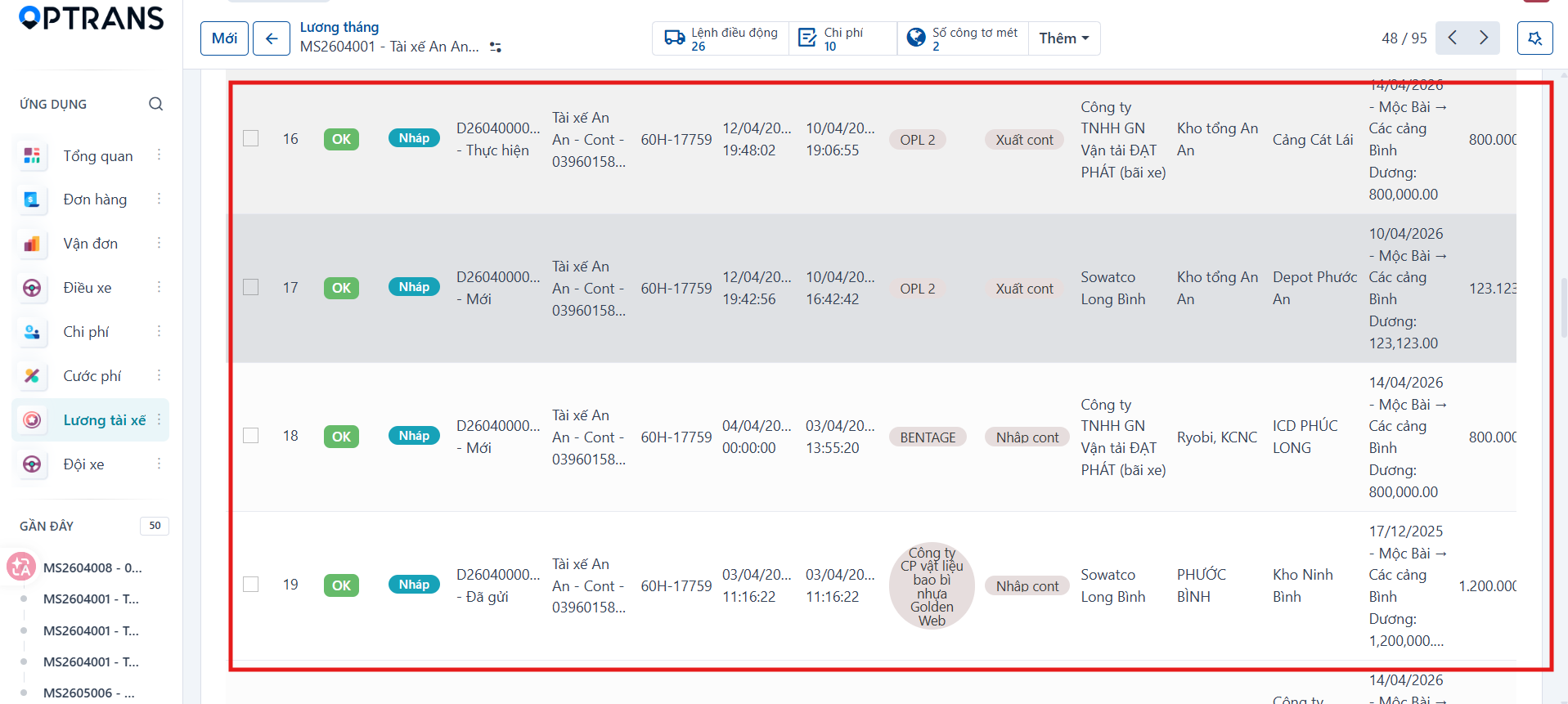
Bulk actions, confirmation and the end-of-month calculation
Step 1
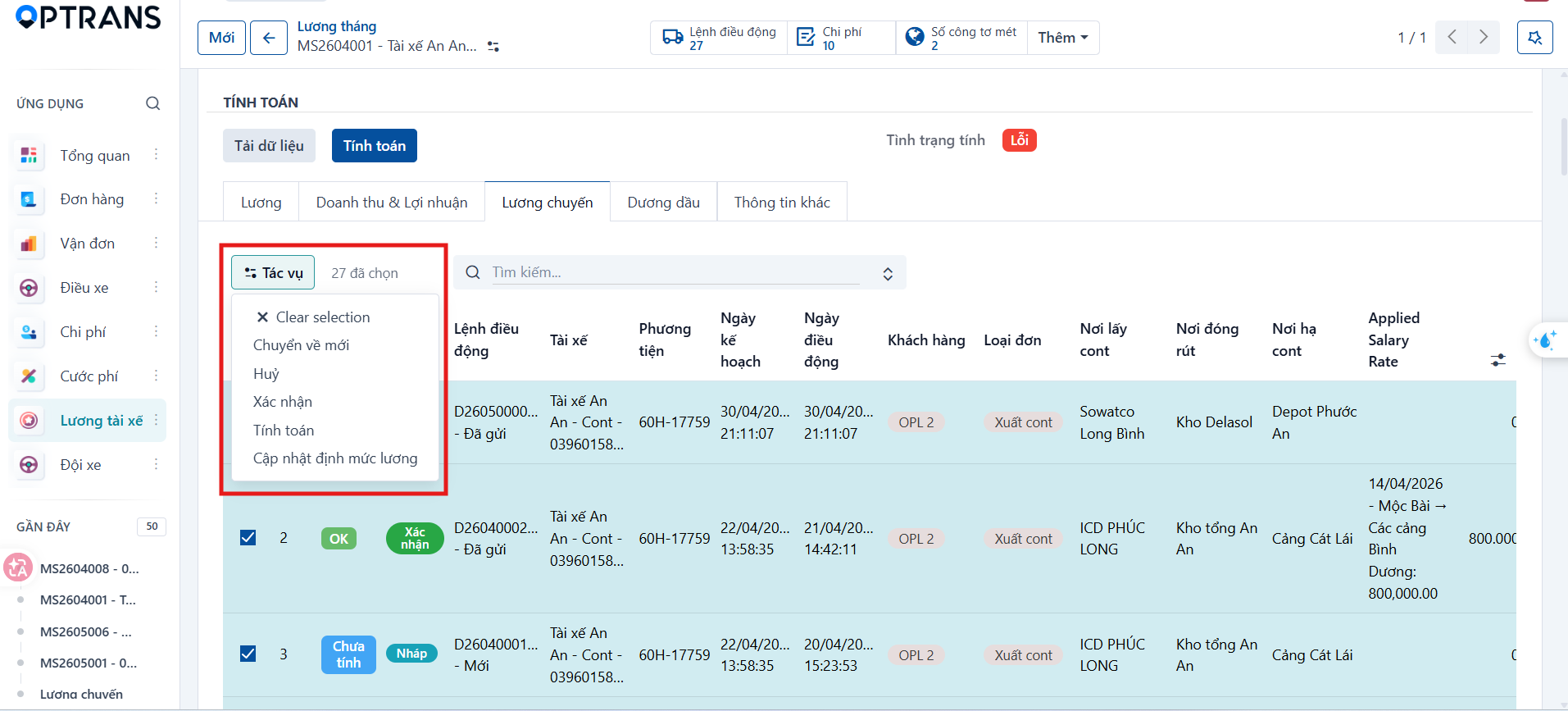
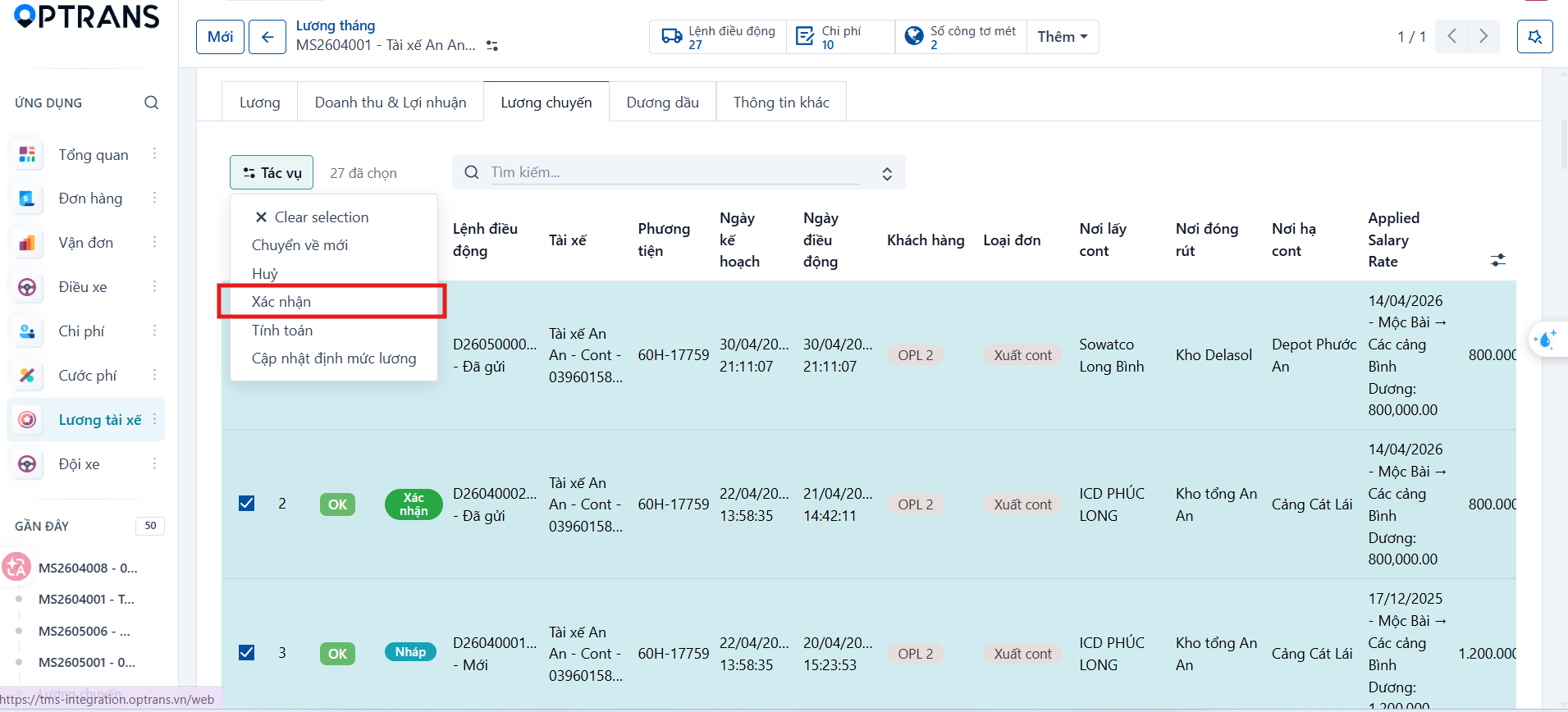
Select all the trip salary records you need to handle, then click Actions.
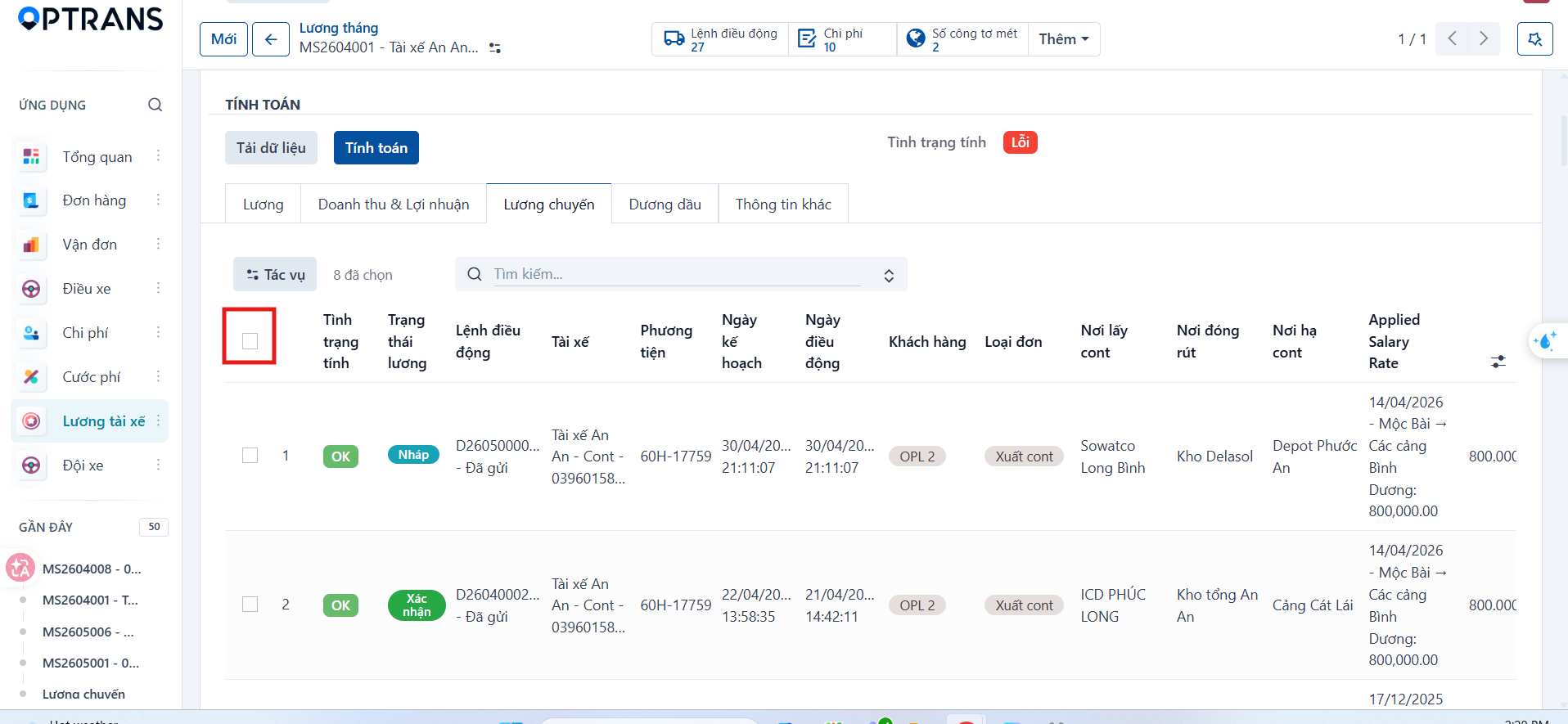
The quick actions are:
- Reset to draft: return the data to the draft state so it can be edited or recalculated.
- Cancel: cancel the salary data that was created.
- Confirm: confirm the salary data.
- Calculate: calculate the selected rows in bulk.
- Update salary standard: reload the latest standard configuration.
Step 2
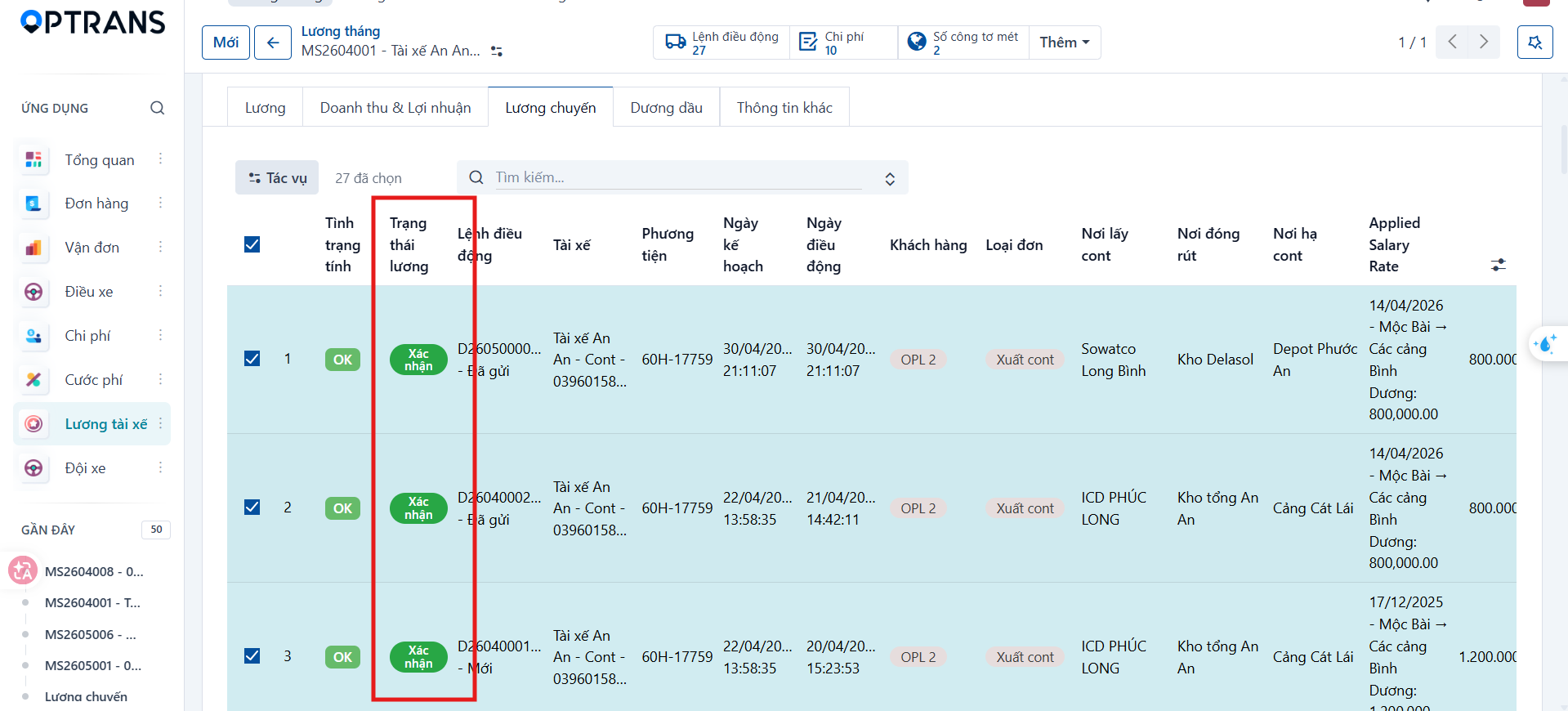
Once the valid rows are OK, select Confirm to confirm them in bulk.
Step 3
Click Calculate for the driver’s monthly payslip to complete the monthly consolidation.
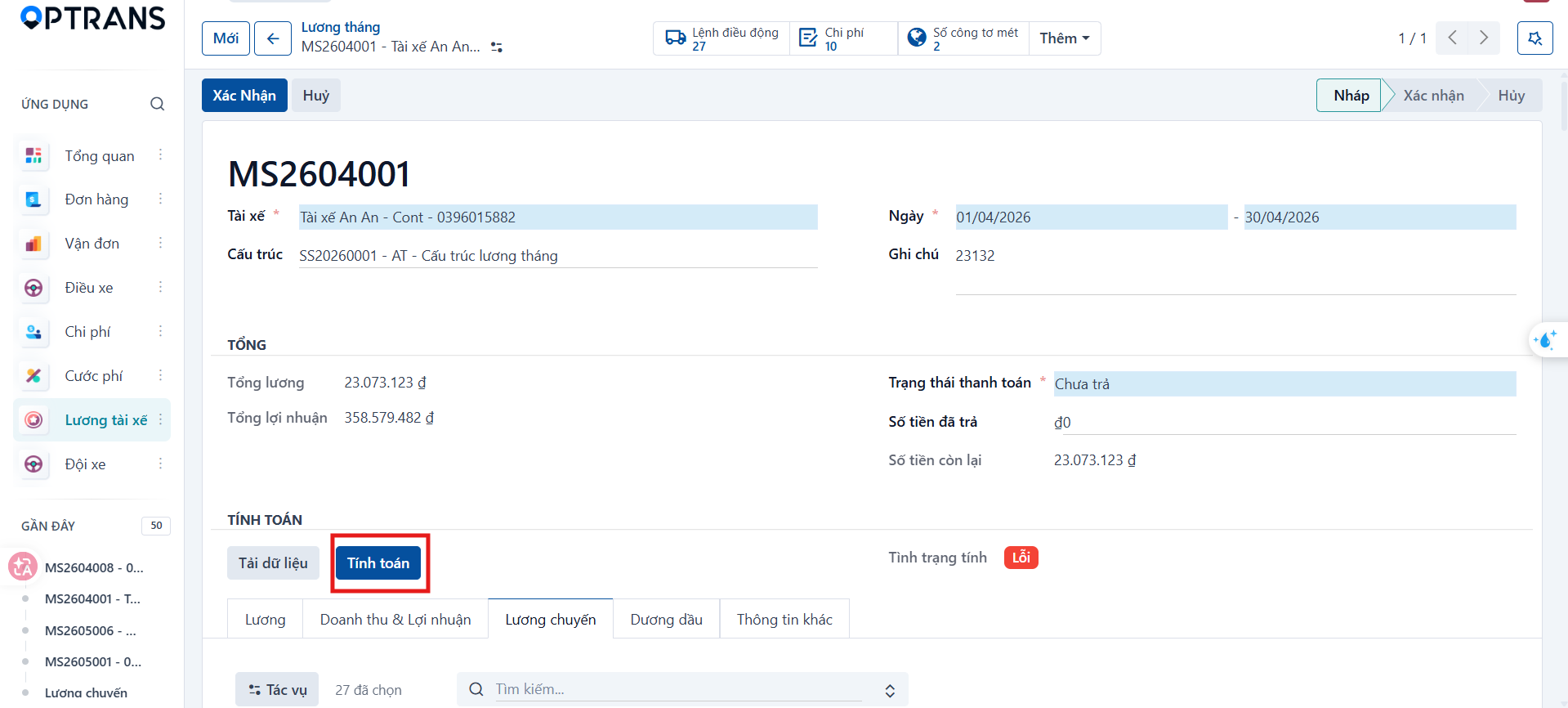
The result shows the total salary the driver receives for the month.