Overview
Calculating waybill charges works the same way as calculating order charges. The system calculates automatically based on the configured charge structure, the freight rate for the route, the waybill information, and the confirmed surcharges.
Accessing and selecting a waybill
Step 1
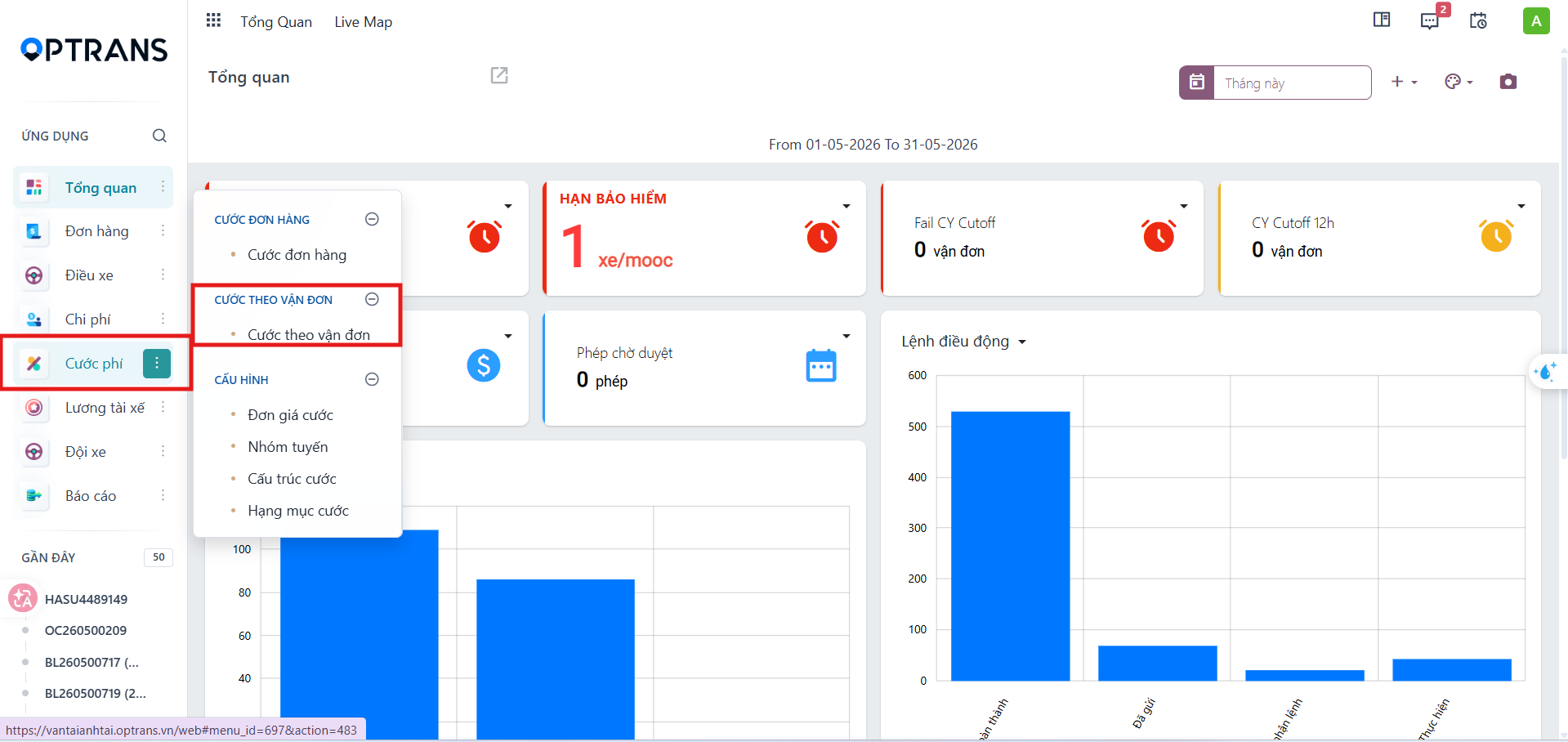
Go to the Freight charges > Waybill charges menu.
Step 2
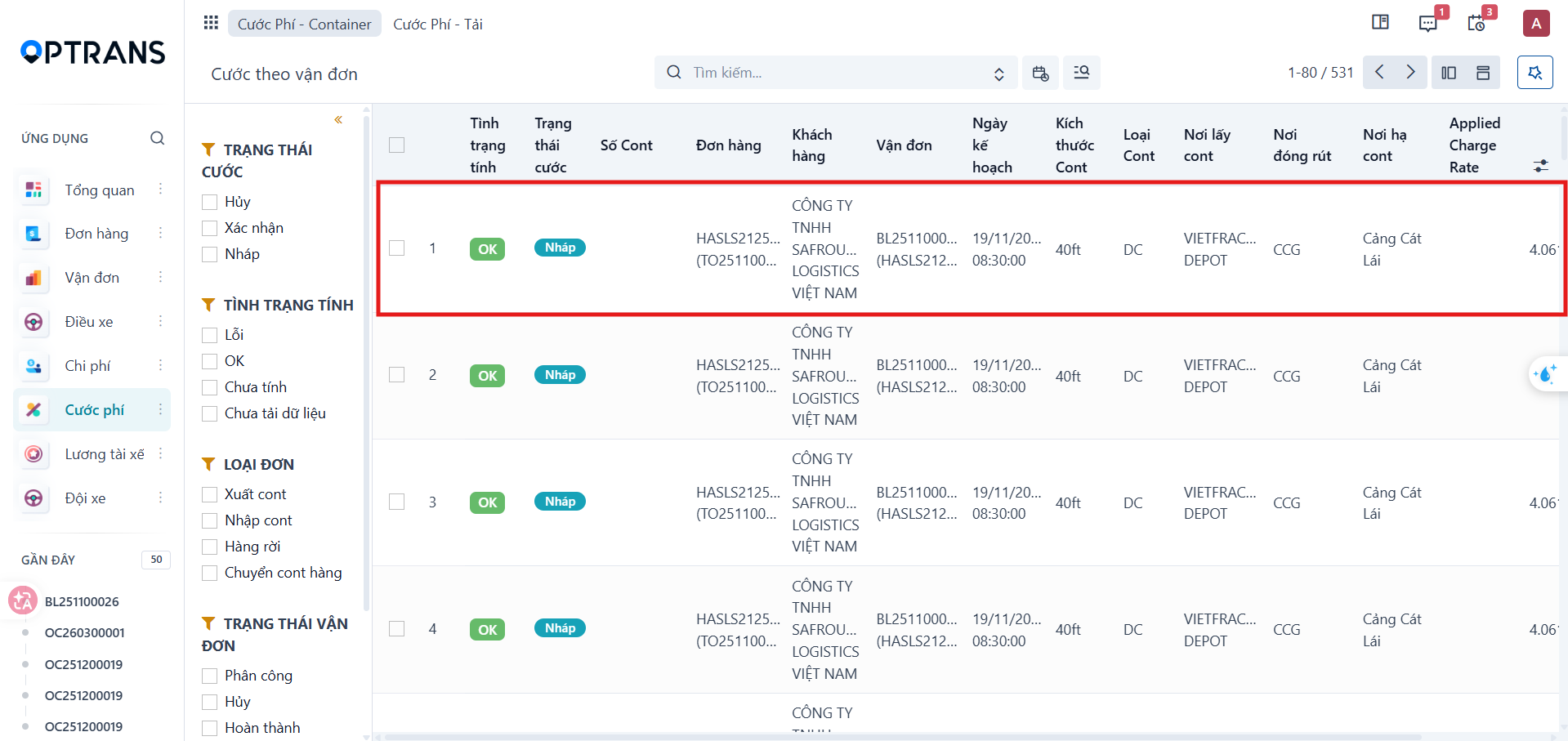
On the waybill charge management list, select the waybill you want to calculate.
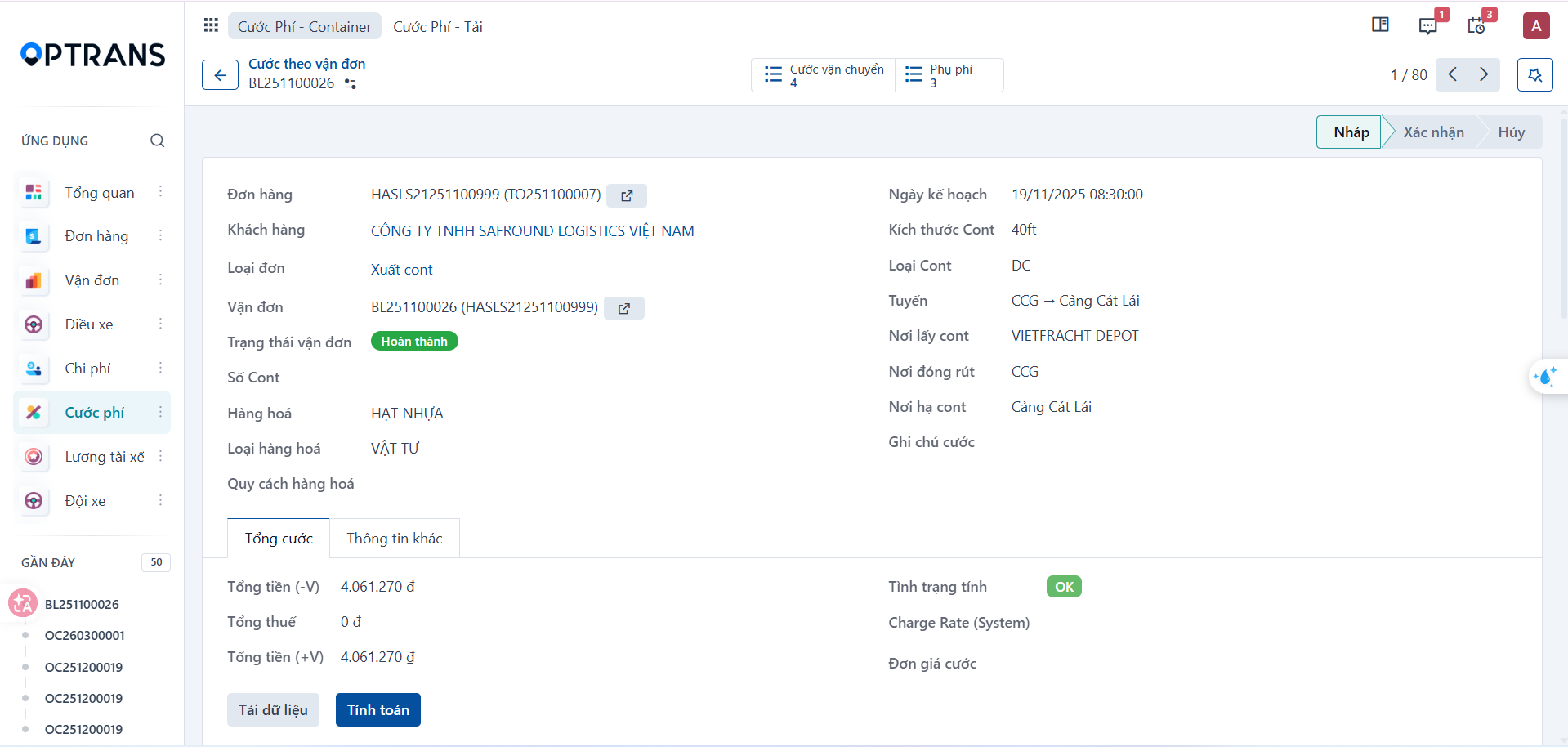
The screen opens the charge details for the selected waybill.
Conditions to check before calculating
Before calculating charges, check that:
- The correct charge structure is selected.
- A matching freight rate exists.
- All surcharges have been confirmed.
- The waybill data is correct.
Note: For a route or a customer that appears for the first time, check and update the rate before calculating. Once the configuration is done, the system remembers it and applies it the next time.
Loading the data
Step 1
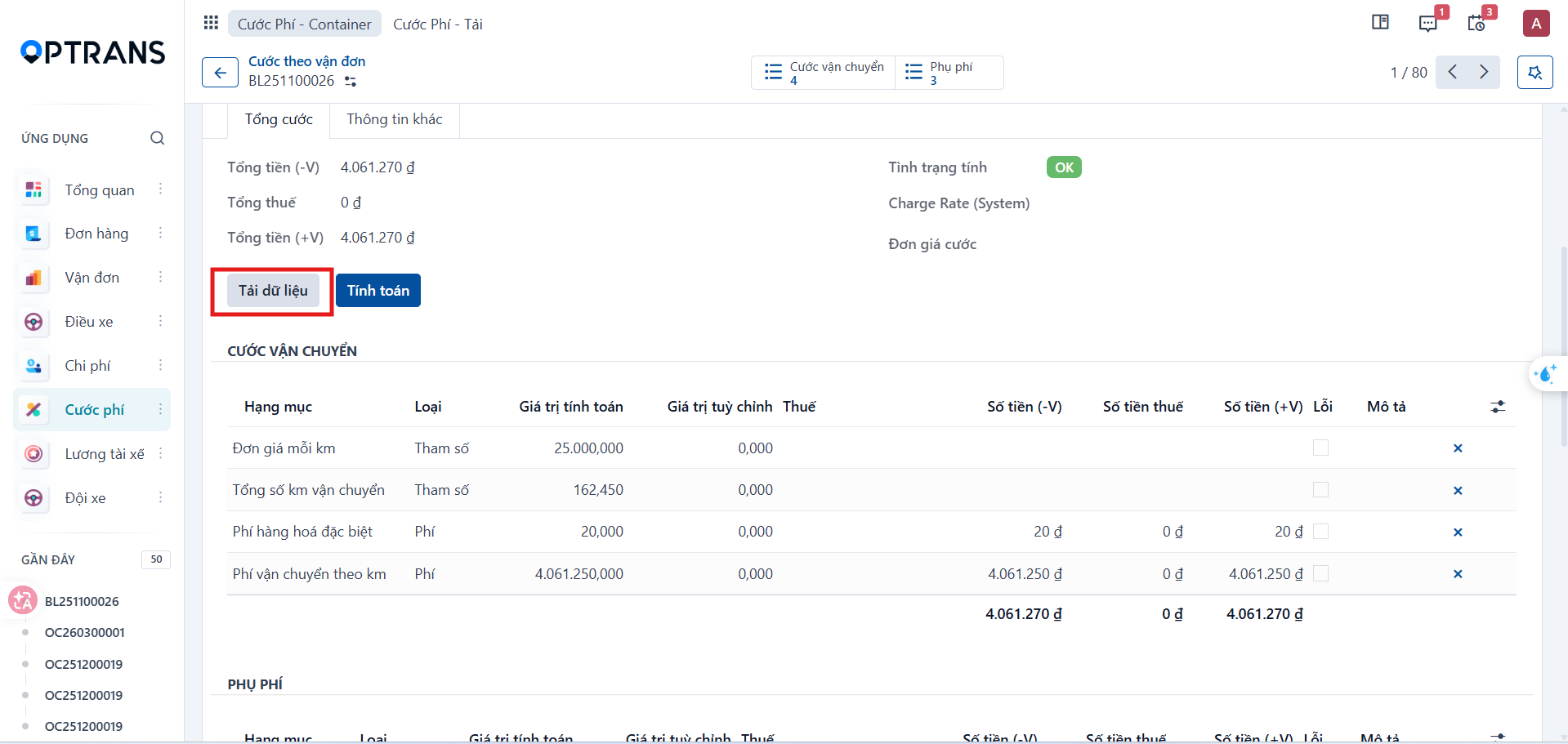
Click Load data on the waybill charge details screen.
Step 2
Confirm the load action when the system shows the dialog.

Once the data has loaded, the charge items appear on the waybill charge details screen.
Calculating
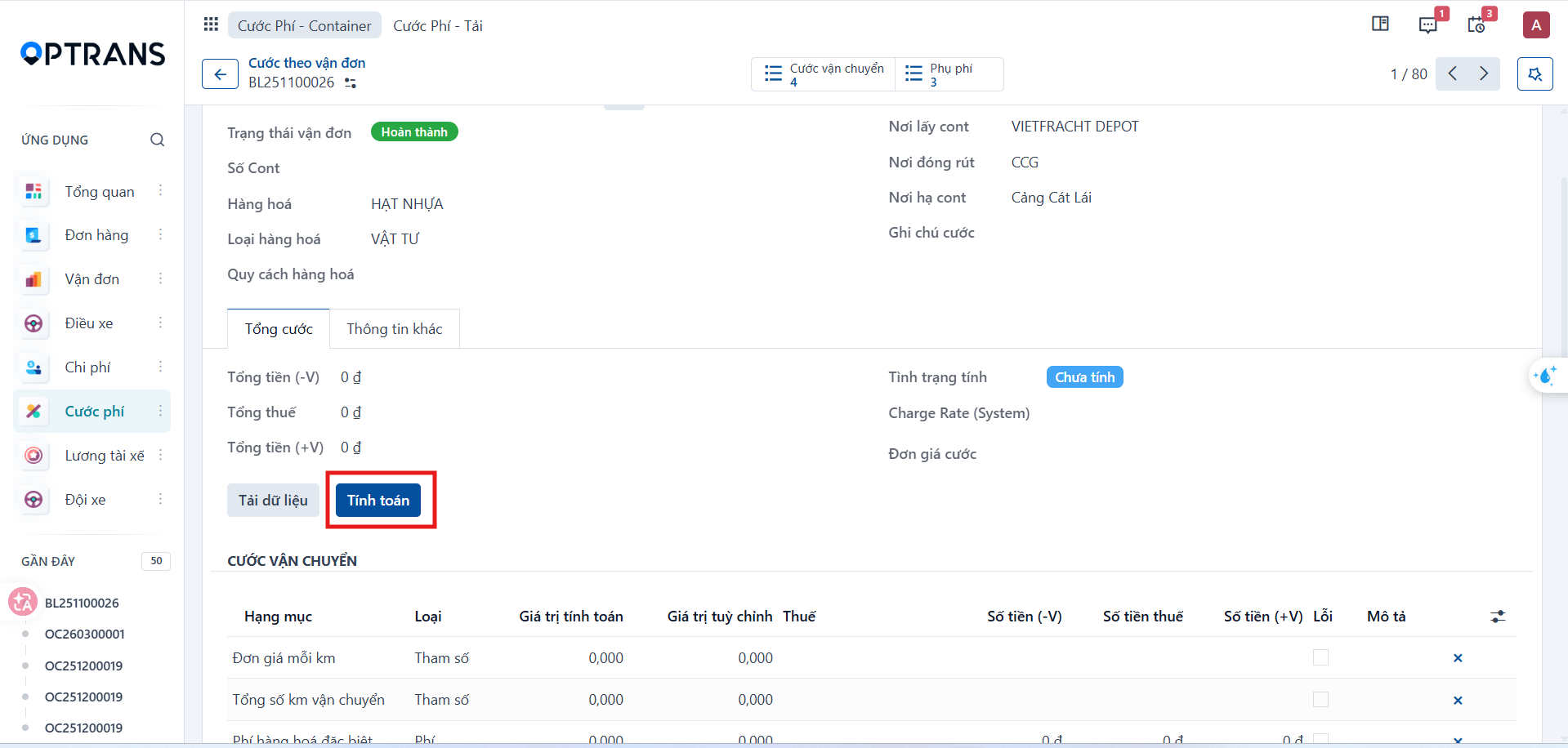
Click Calculate so the system calculates the charges from the loaded data.
OK and Error statuses
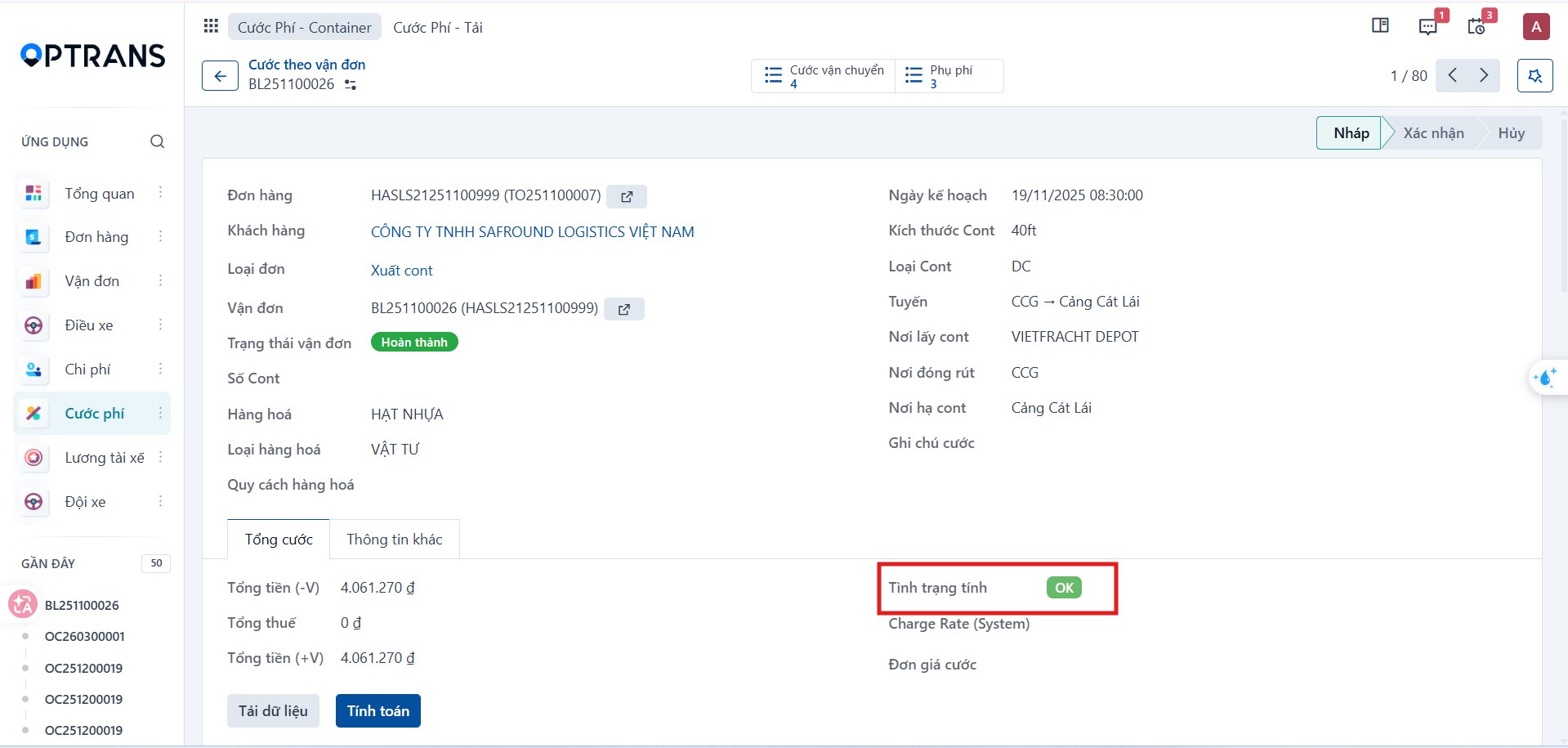
When the calculation finishes, the status shows OK if the data is valid and the total freight amount is updated automatically.
If the status shows Error, check:
- The charge structure.
- The freight rate.
- The surcharges.
- The related waybill information.
Fix the data, load it again and recalculate before confirming.
Confirming the charges
Once you have checked that the result is correct and the status is OK, click Confirm to complete the waybill charge calculation.