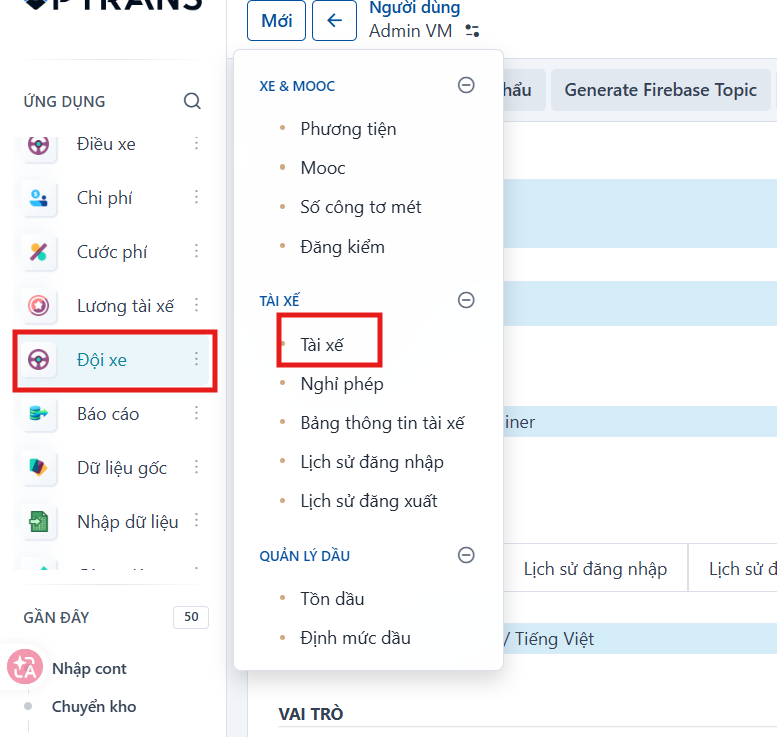
Steps
Step 1
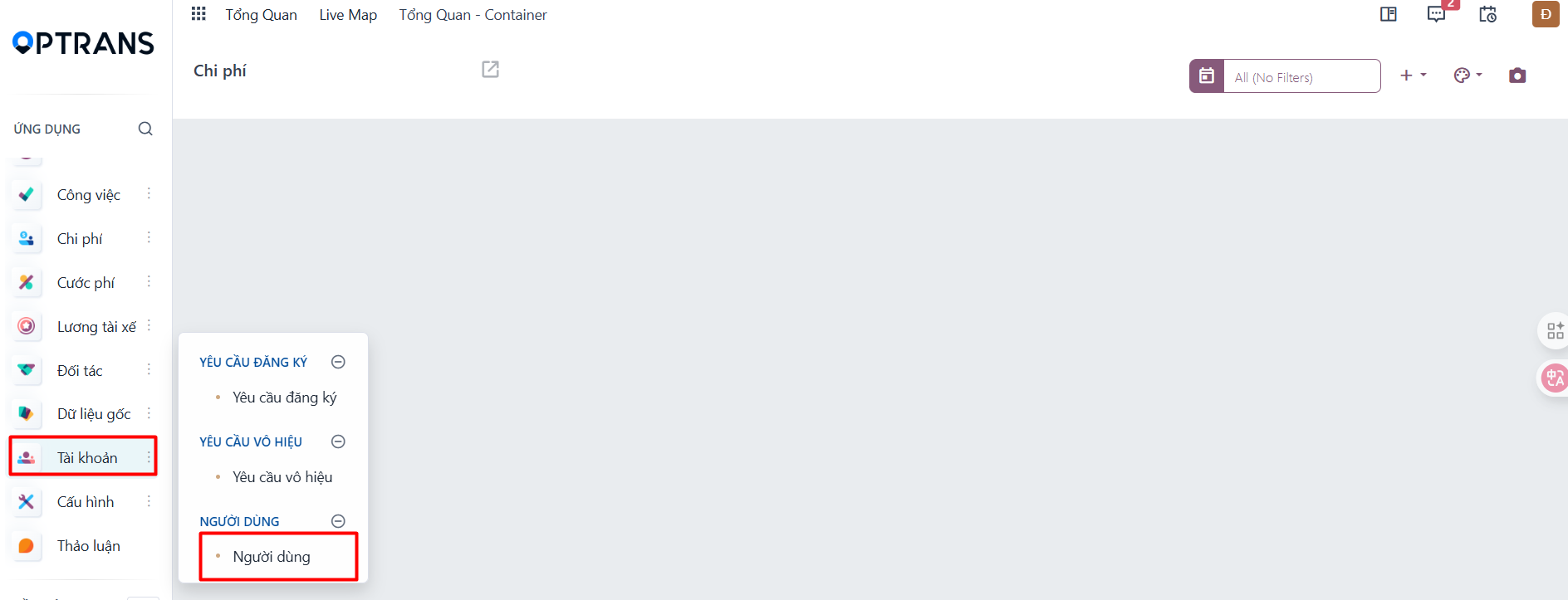
Go to the Account module → open the Users menu → click the New button

Step 2
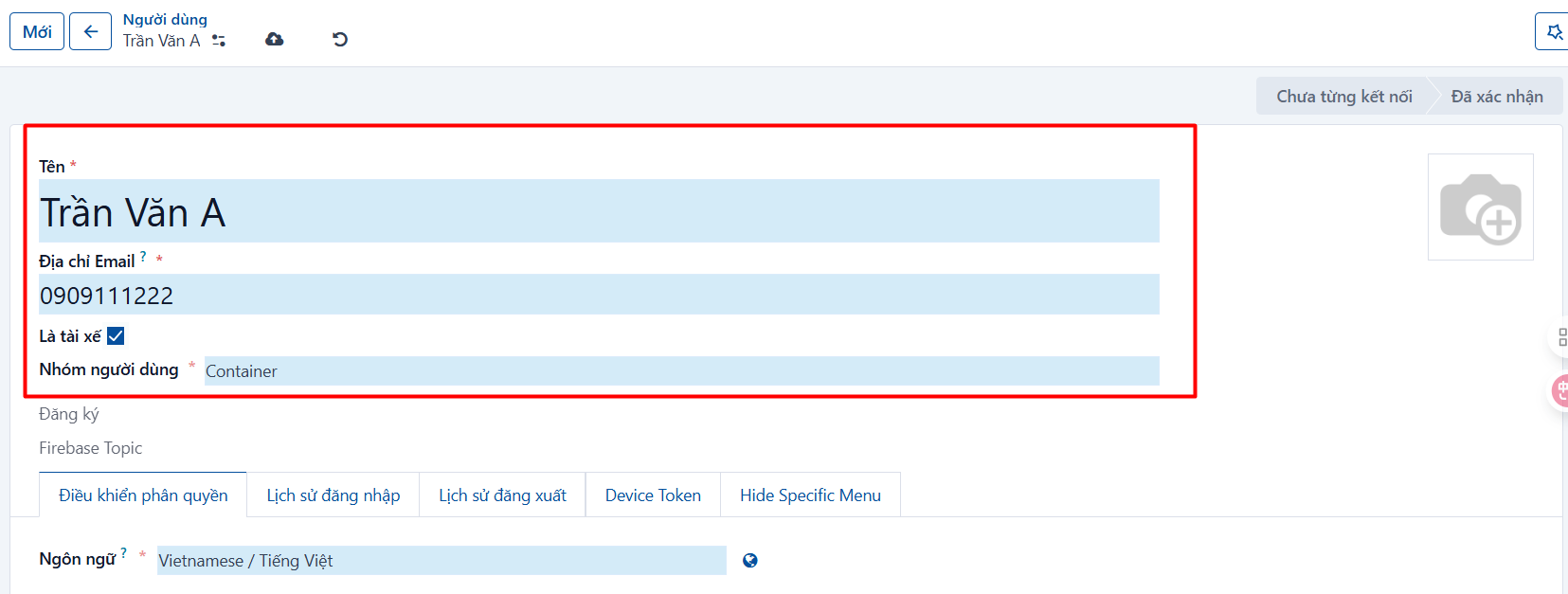
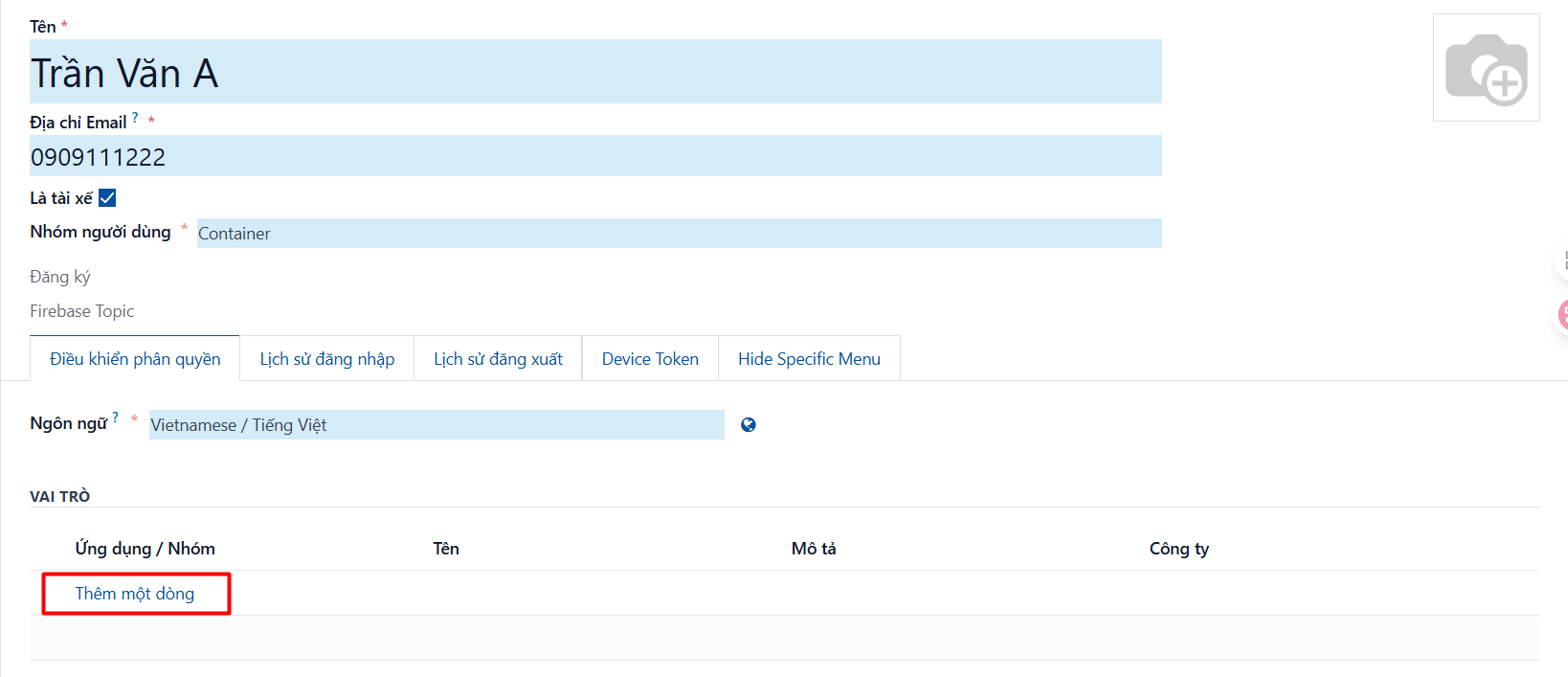
Enter the login information
- Name: enter the driver’s name
- Email Address: enter the driver’s phone number (this is the phone number the driver uses to sign in to the mobile app)
- User Group: defaults to “Container”
- Is Driver: check this field if this is a driver account
Step 3
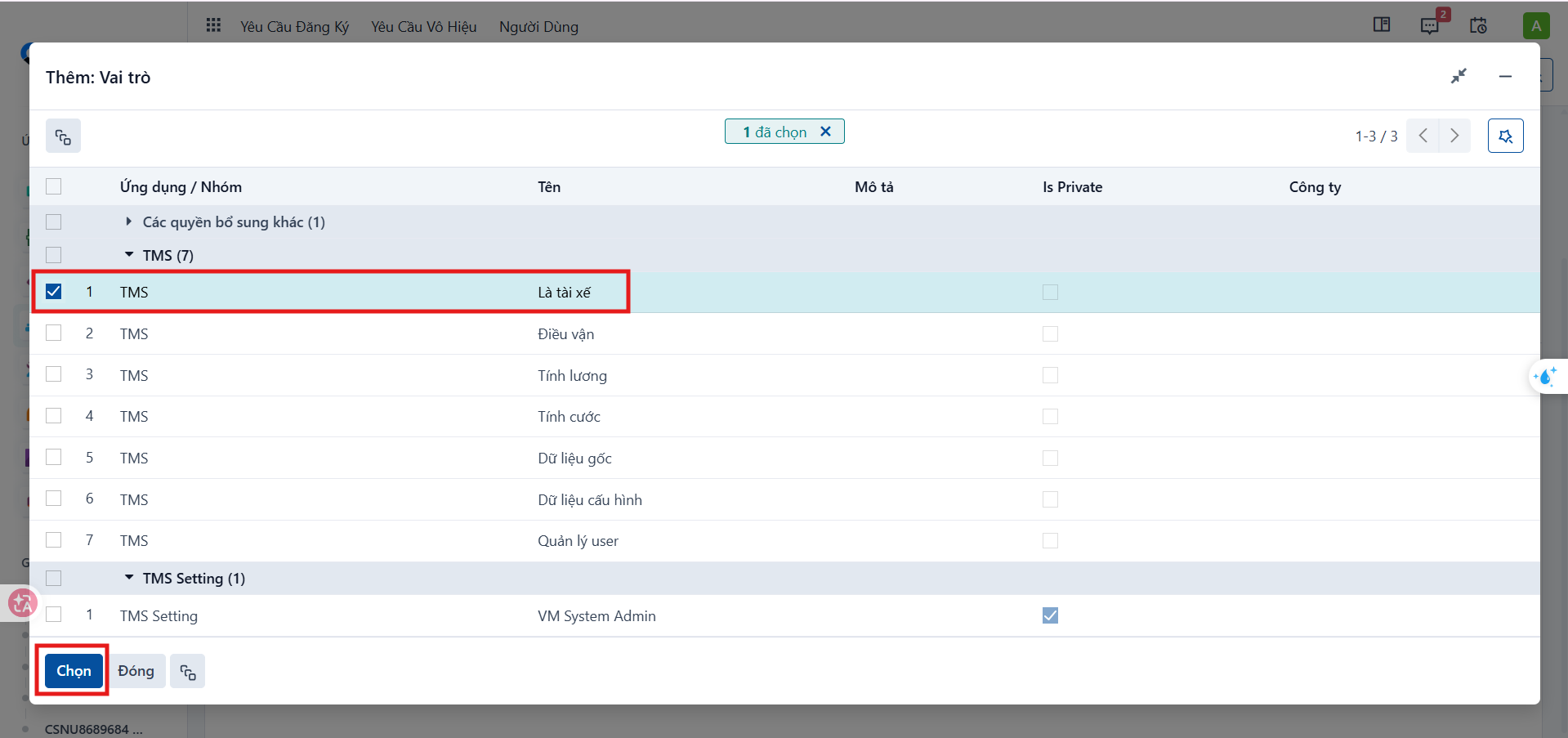
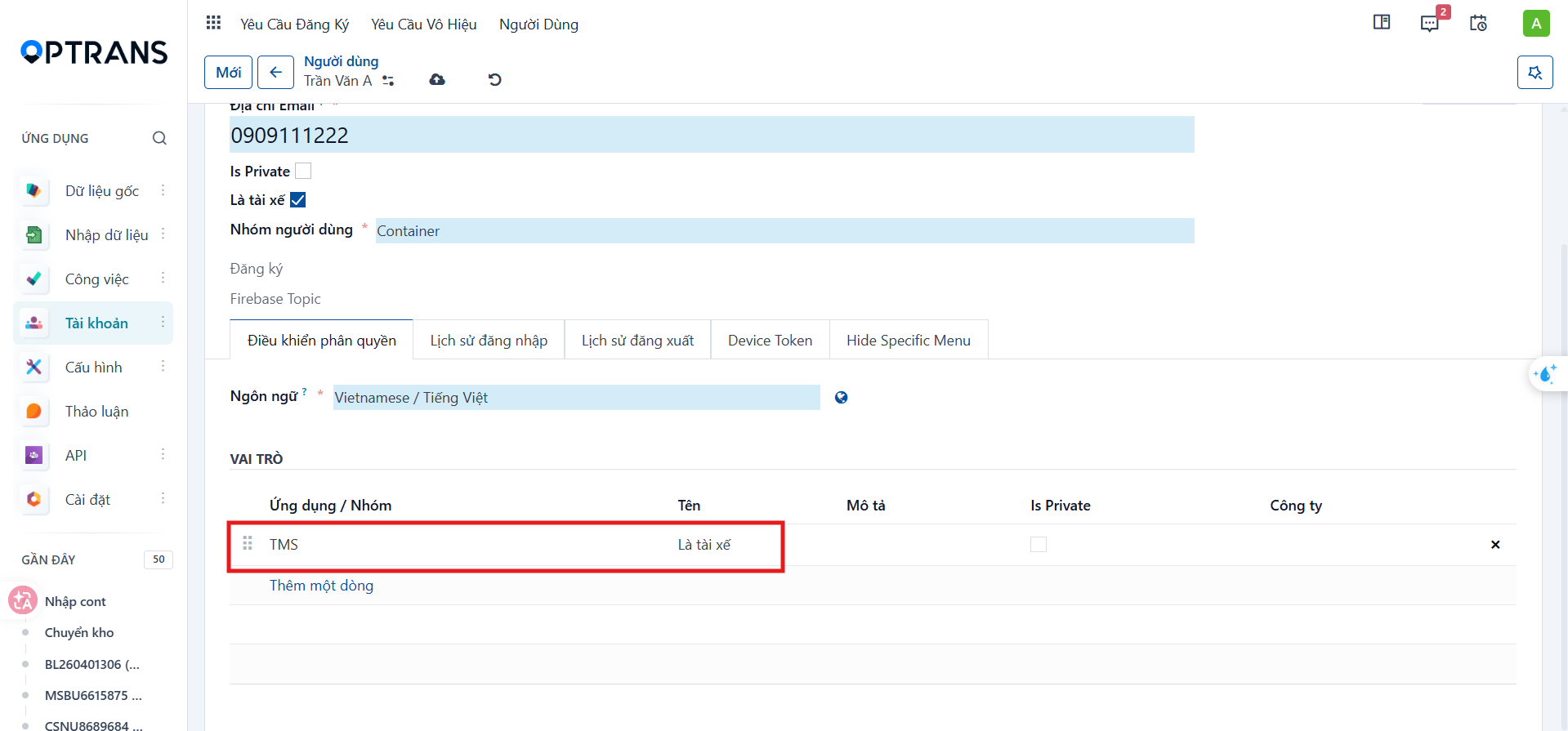
Click Add a line → find and select the “Driver” role
Step 4
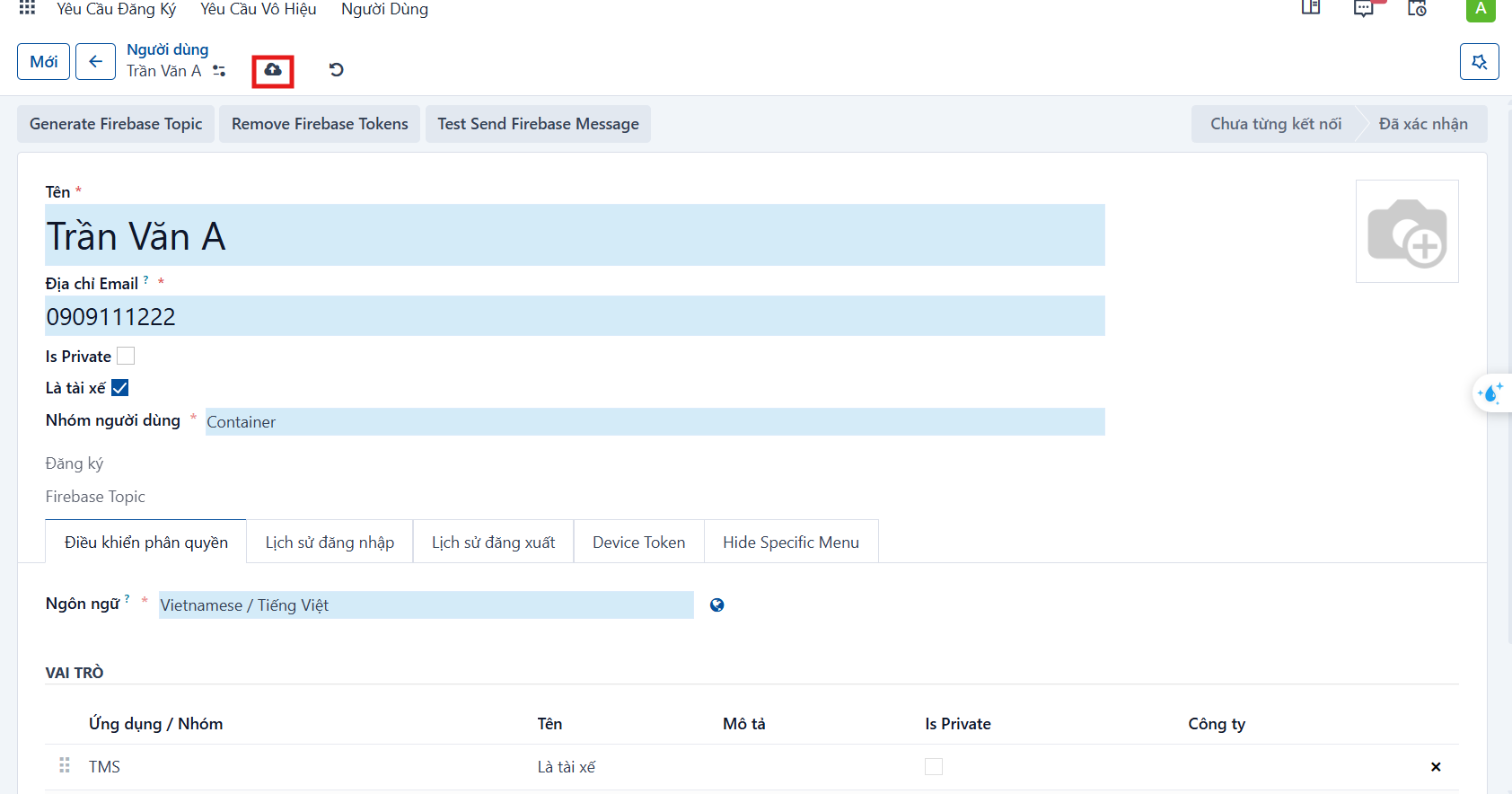
Click the Save button, or press CTRL + S, or click the  manual-save indicator to finish creating the account.
Step 5
Set an initial password for the account
-
Click the action button
 → select “Change Password”: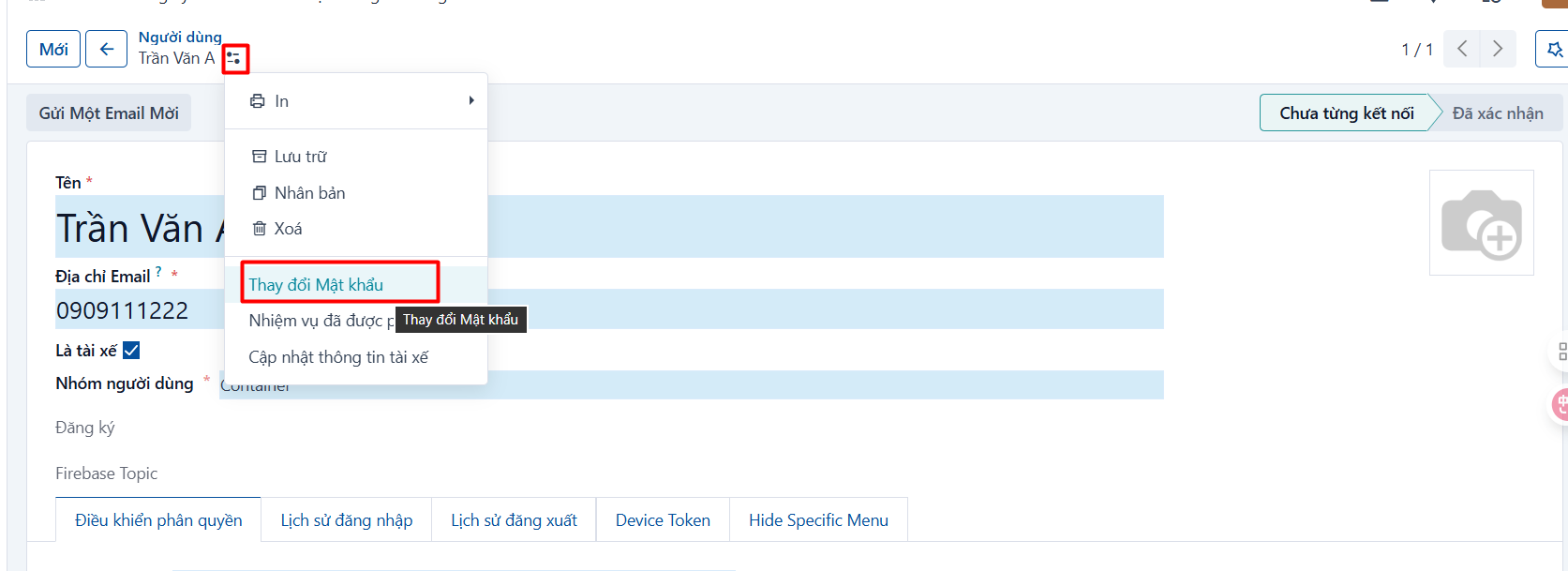
-
The change-password popup appears → enter the new password in the “New Password” field and click CHANGE PASSWORD
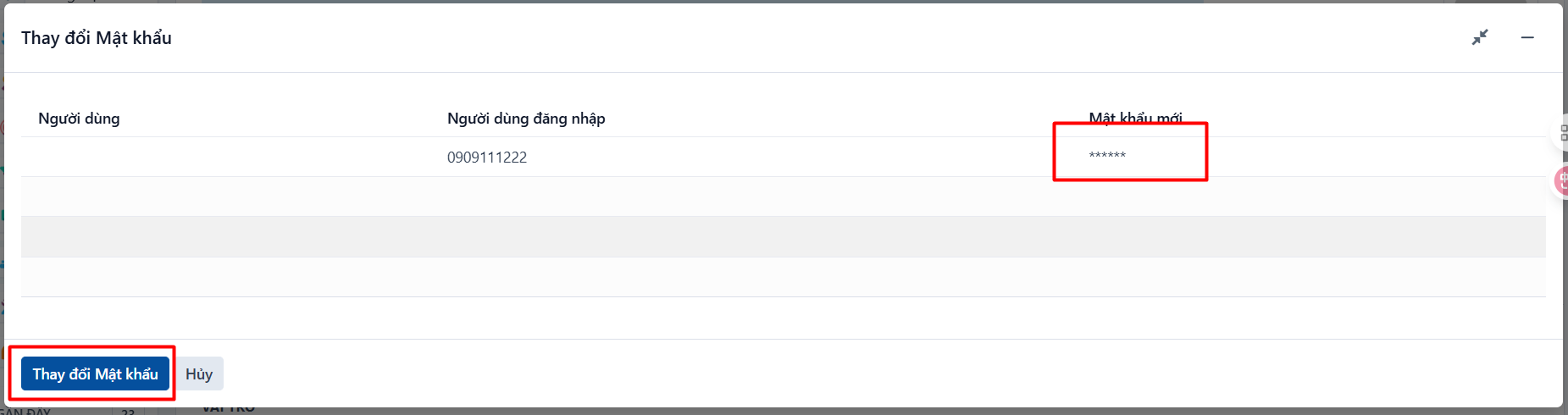
→ The driver account has been created. The driver will sign in to the mobile app using this phone number and the password just set.
Step 6
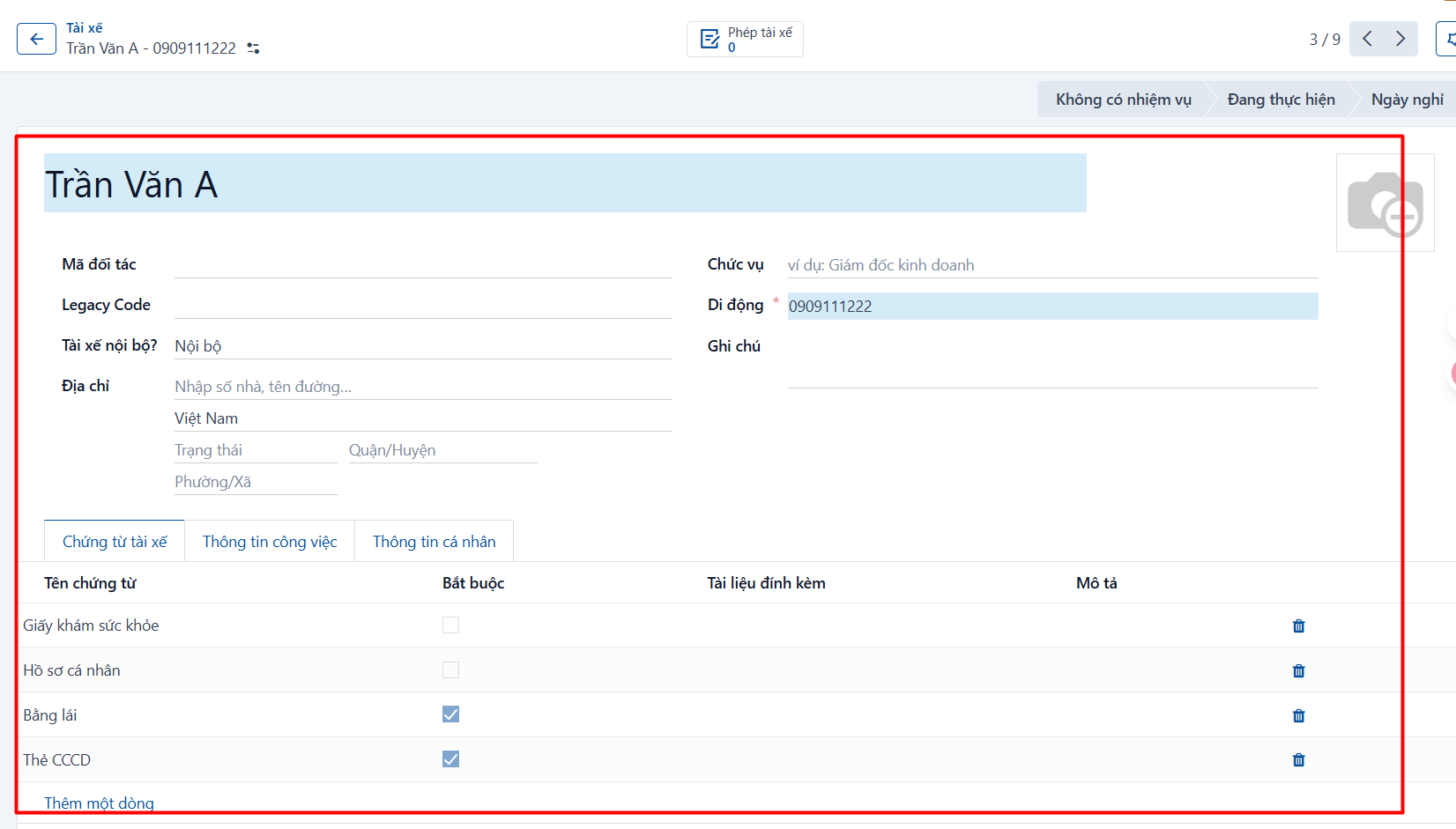
The user administrator notifies the dispatch department that the driver account has been created. The dispatcher then goes to the system, opens the Driver menu, and fills in the driver’s personal information.