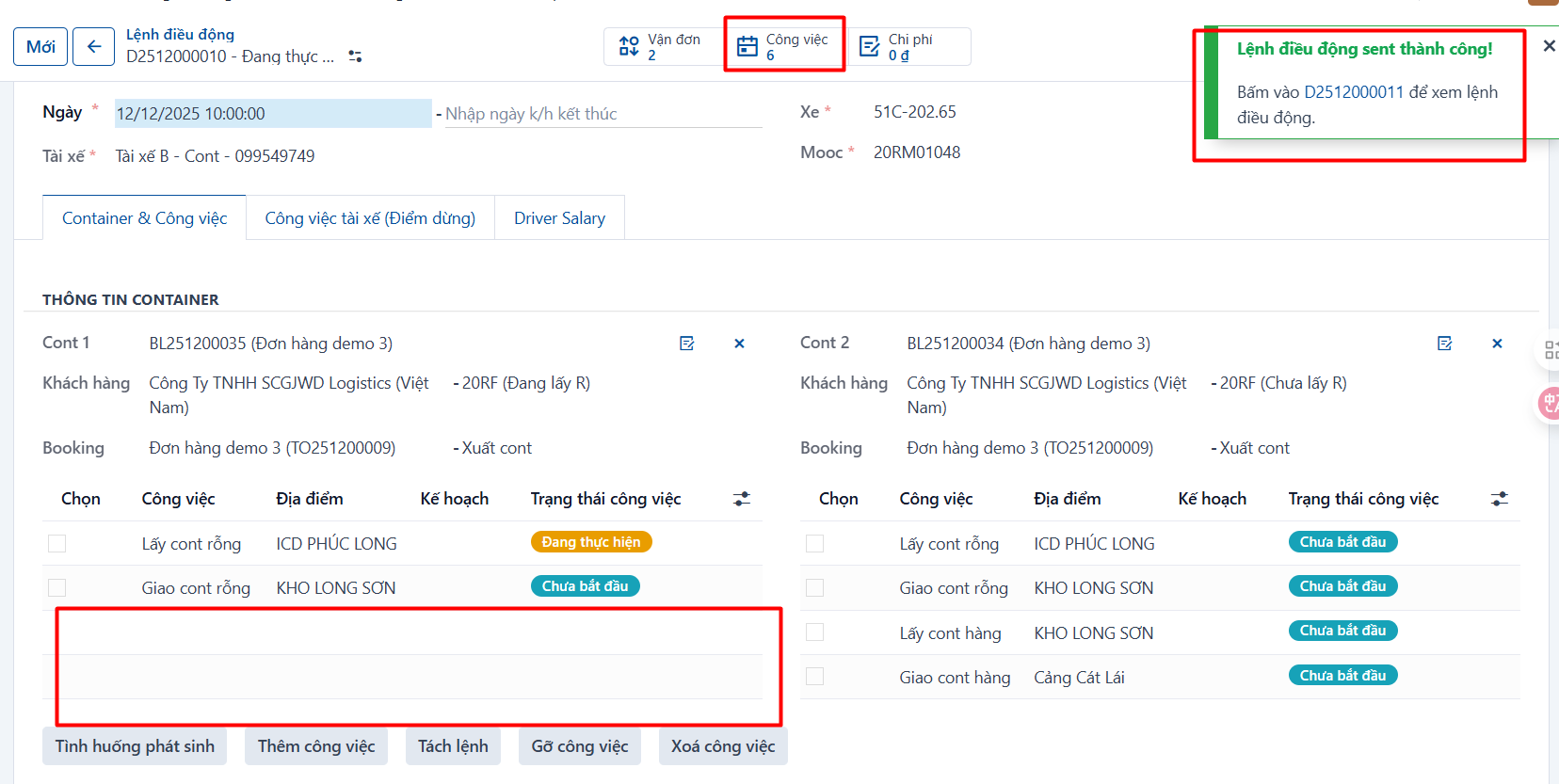
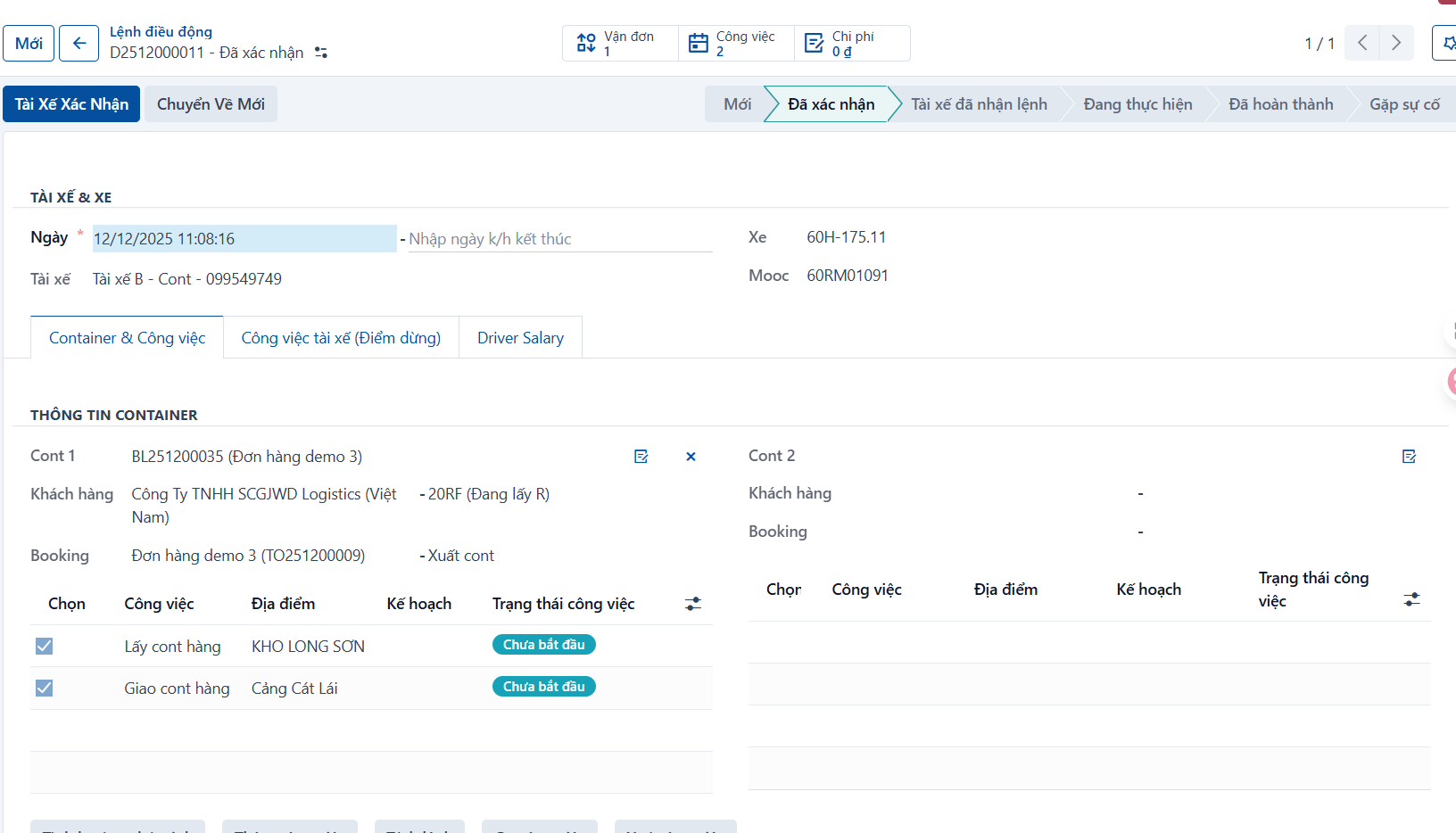
There are two ways to split tasks out of a dispatch order:
Case 1: Removing tasks from a dispatch order
Step 1
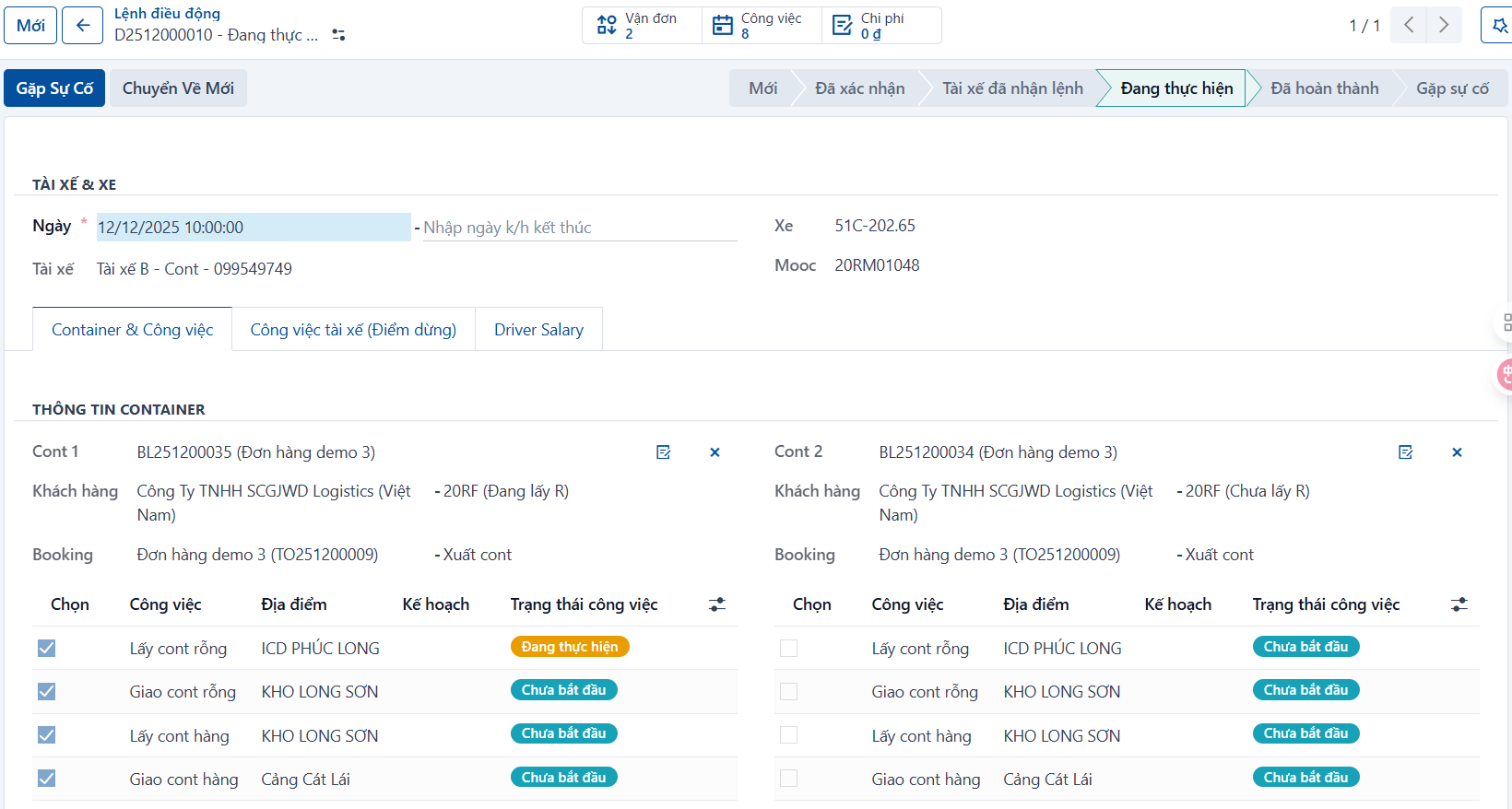
The dispatcher selects the dispatch order with the tasks to remove.
Step 2
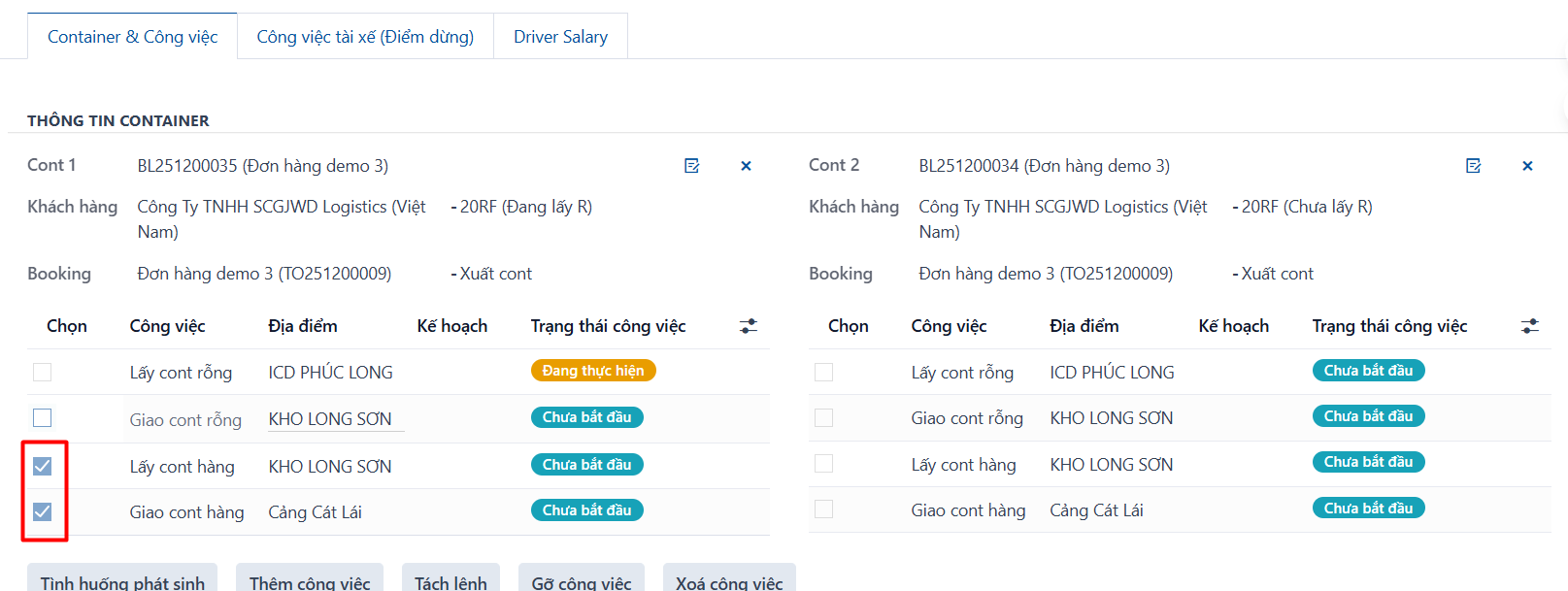
Select the tasks to remove on the “Container & Tasks” tab. Only select tasks in the “Not started” state.
Step 3
Click “Remove task” and confirm.
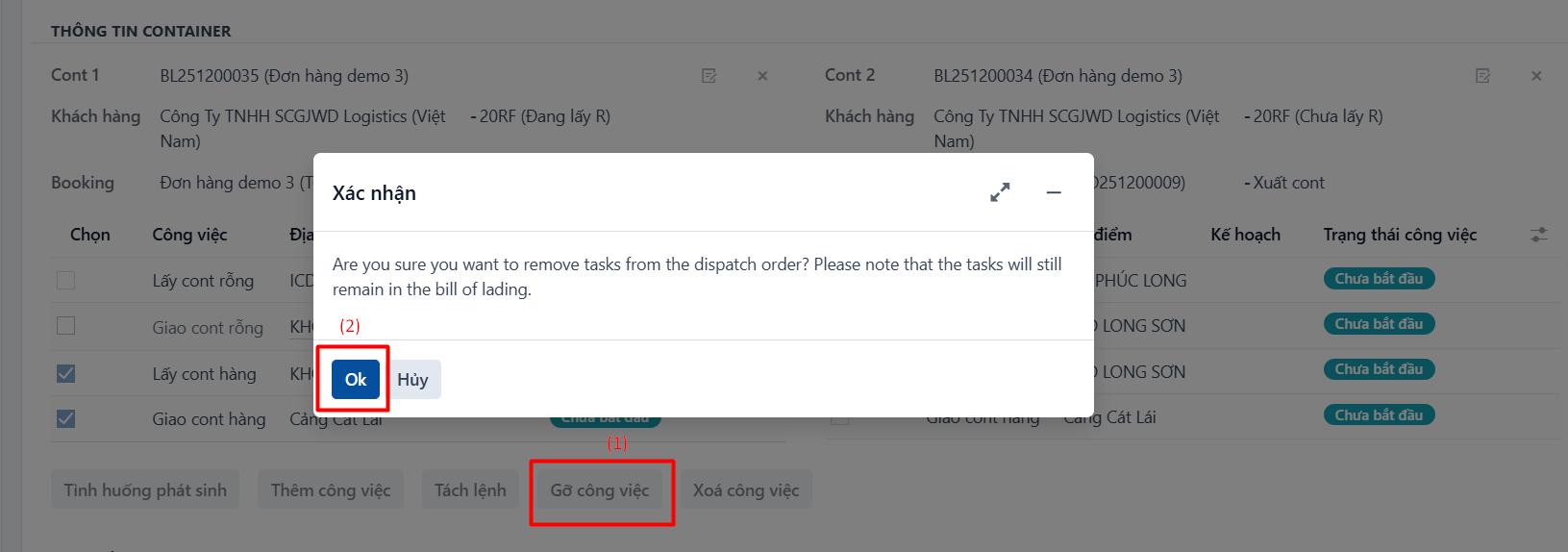
Result: the system removes the tasks that have not started from that dispatch order. Those tasks still belong to the waybill, though, and still have to be completed.
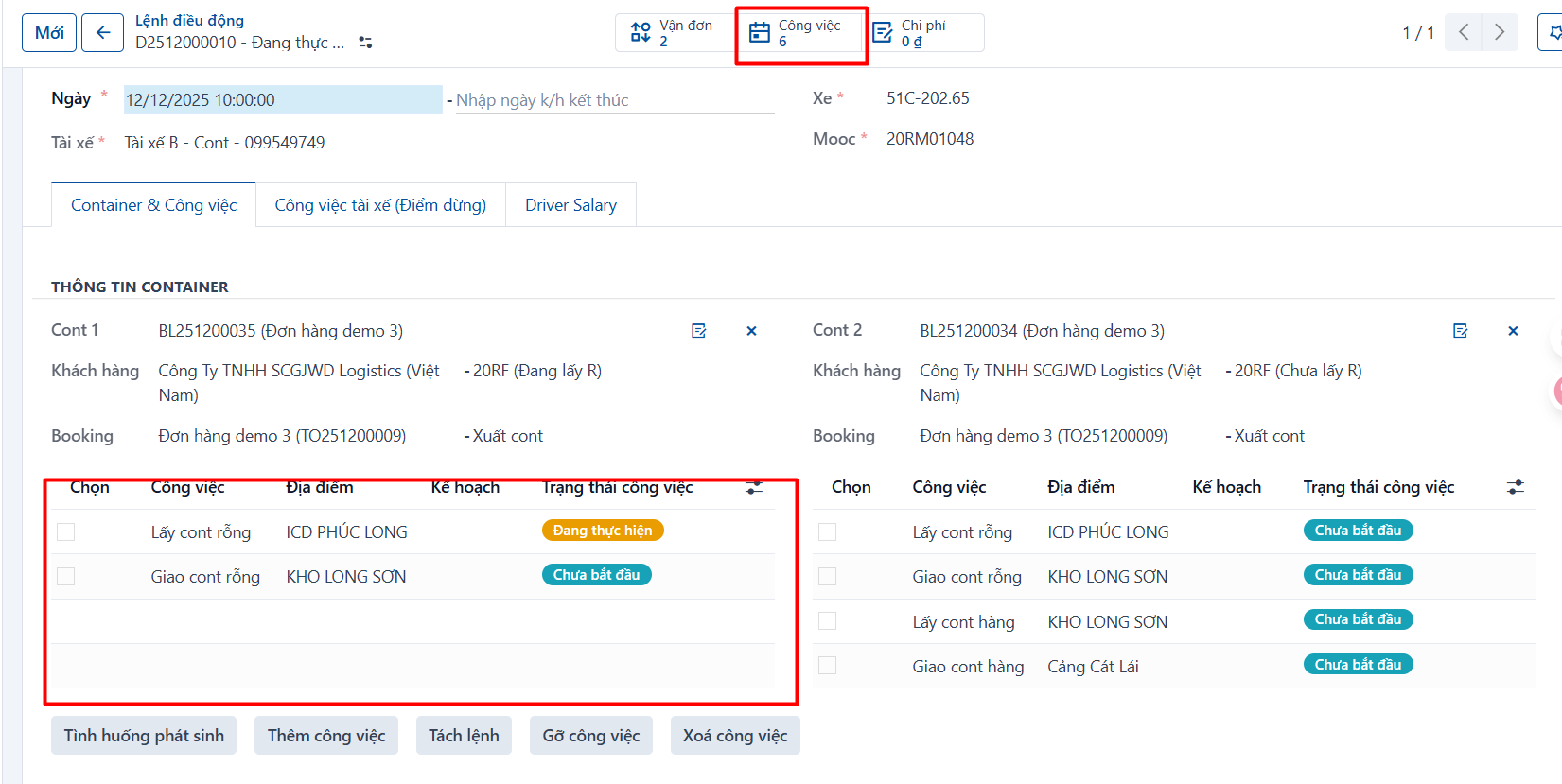
Case 2: Splitting some tasks out and assigning them to another order
Step 1
The dispatcher selects the dispatch order with the tasks to split.
Step 2
Select the tasks to split on the “Container & Tasks” tab. Only select tasks in the “Not started” state.
Step 3
Click “Split order”.
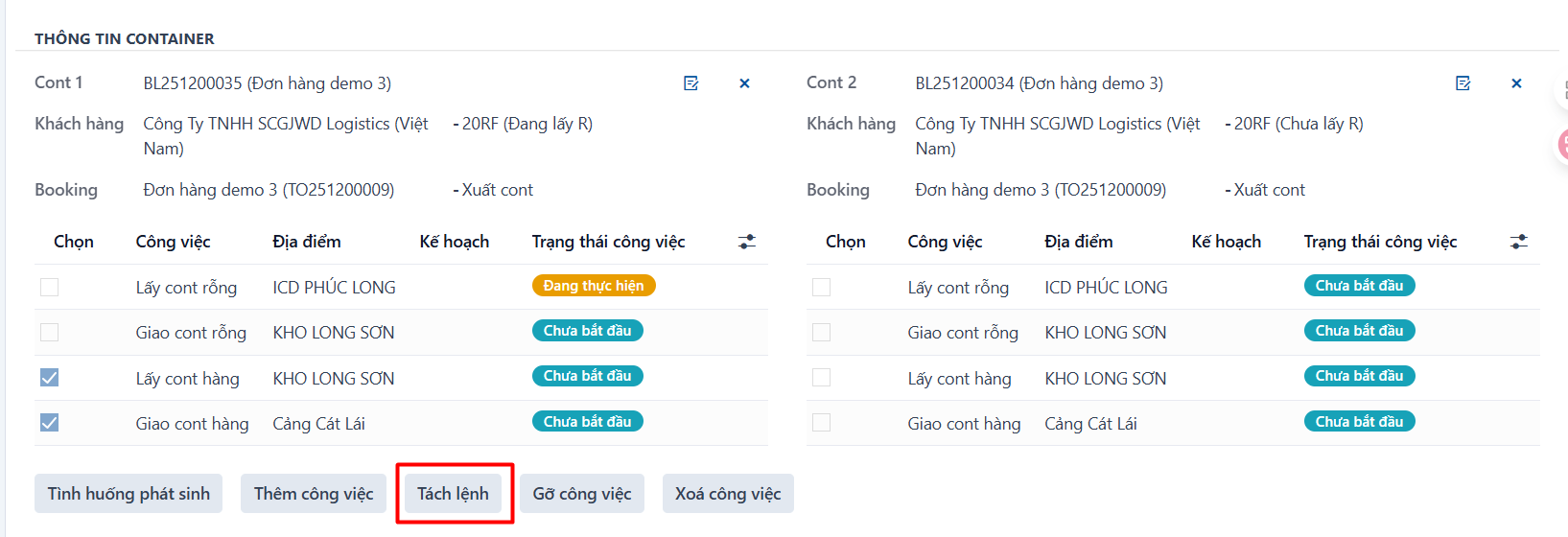
Step 4
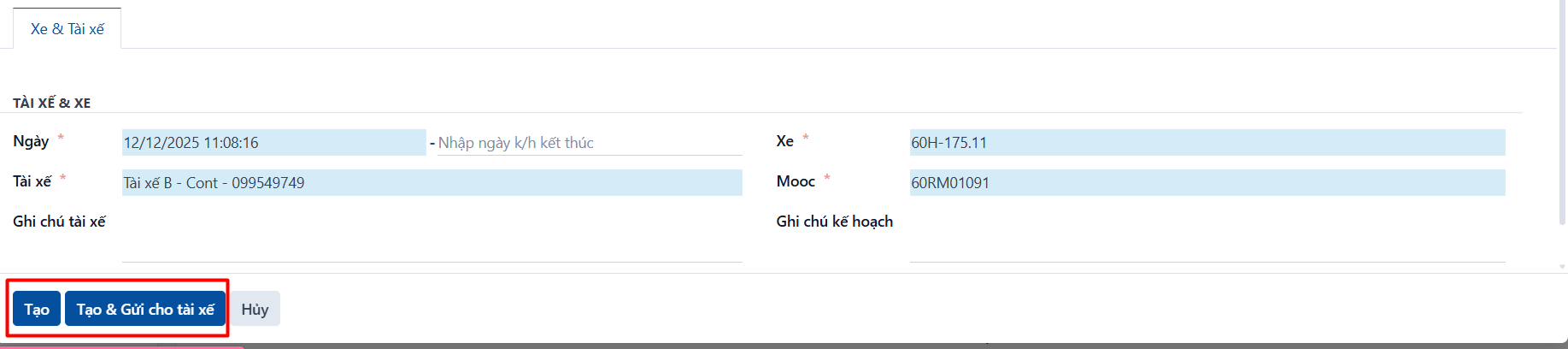
Assign an order to the tasks you selected: choose the date, the driver, and the vehicle and trailer.
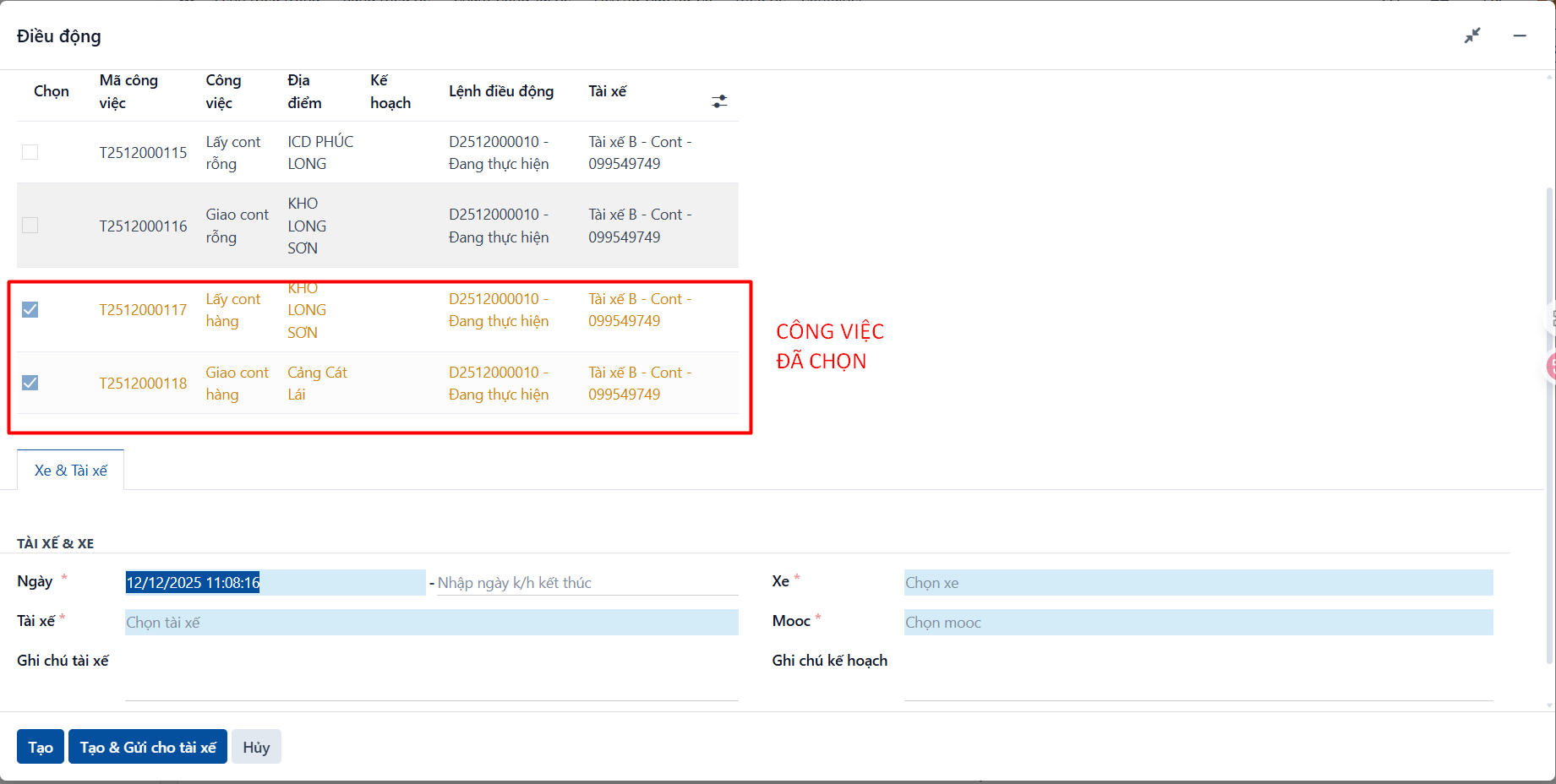
Step 5
Click the create button. “Create” makes a dispatch order in the “New” state; “Create & Send to driver” makes the order and sends it to the driver, in the “Awaiting confirmation” state.
-
If you click “Create”: the system creates a new dispatch order, does not send it to the driver, and opens its screen.
-
If you click “Create and send to driver”: the system creates a new dispatch order, sends it to the driver, and opens its screen.
Result: the tasks have been split out of the dispatch order. The number of linked tasks drops by the number you split out, and those tasks are assigned to the dispatch order that was just created.