Purpose
A salary structure defines the components of a driver’s salary and how it is calculated. A structure can only be used for calculation when it is Approved.
Access
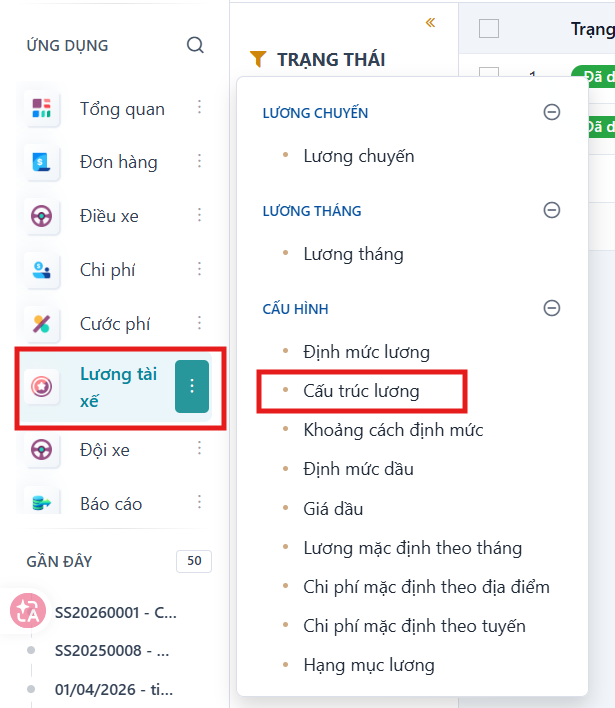
Menu: Driver salary > Salary structures
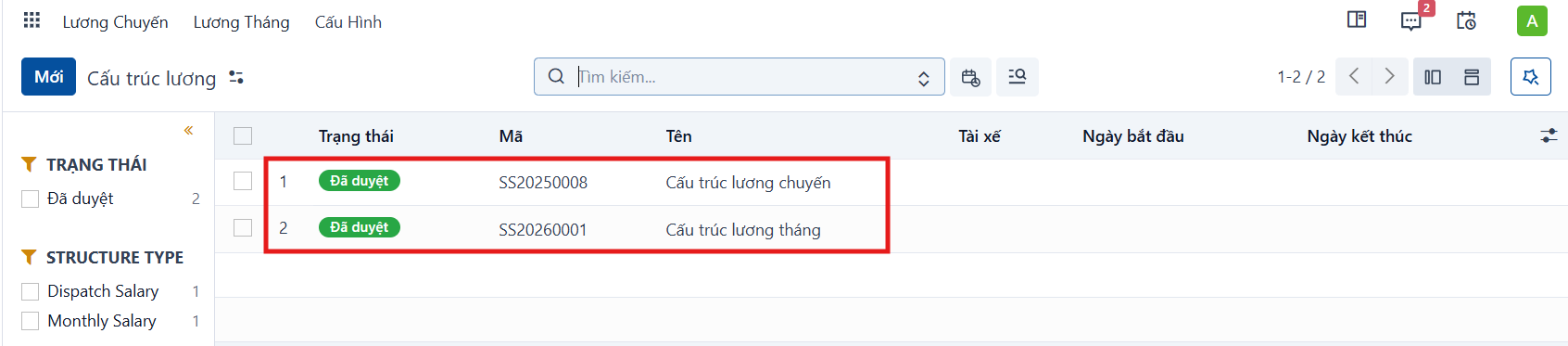
Types of salary structure
The system has two types of structure:
- Dispatch Salary: the trip salary structure.
- Monthly Salary: the monthly salary structure.
Choose the correct Structure Type before configuring the salary components.
Creating a salary structure
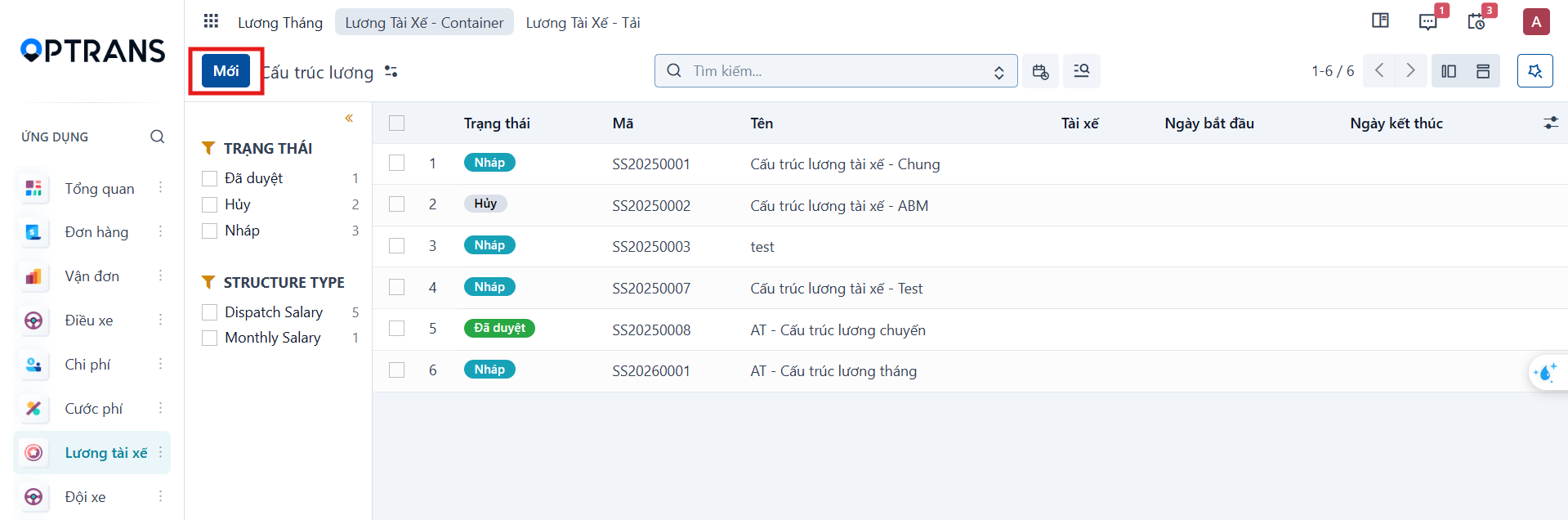
Step 1
Click New.
Step 2
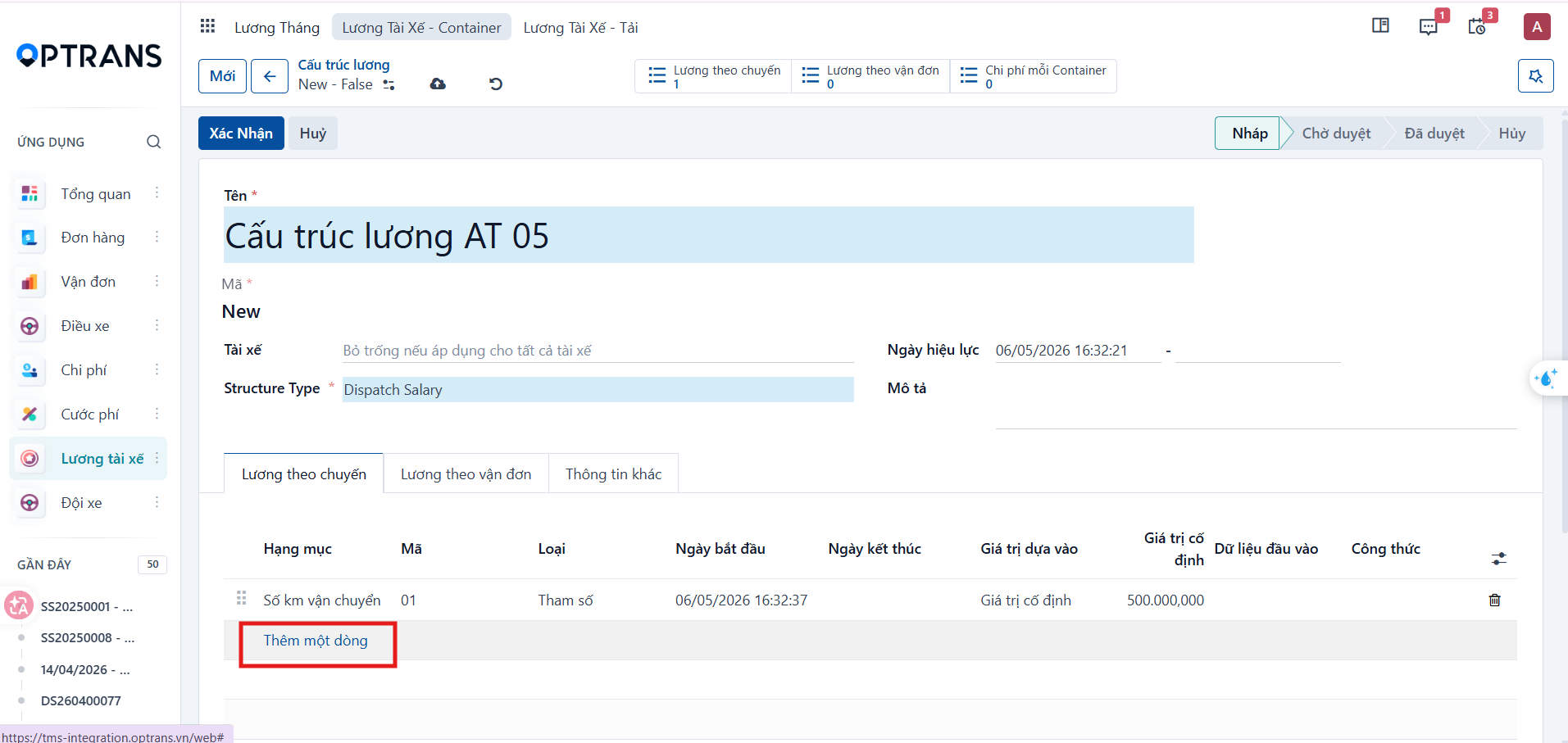
Enter the general information and choose the Structure Type.
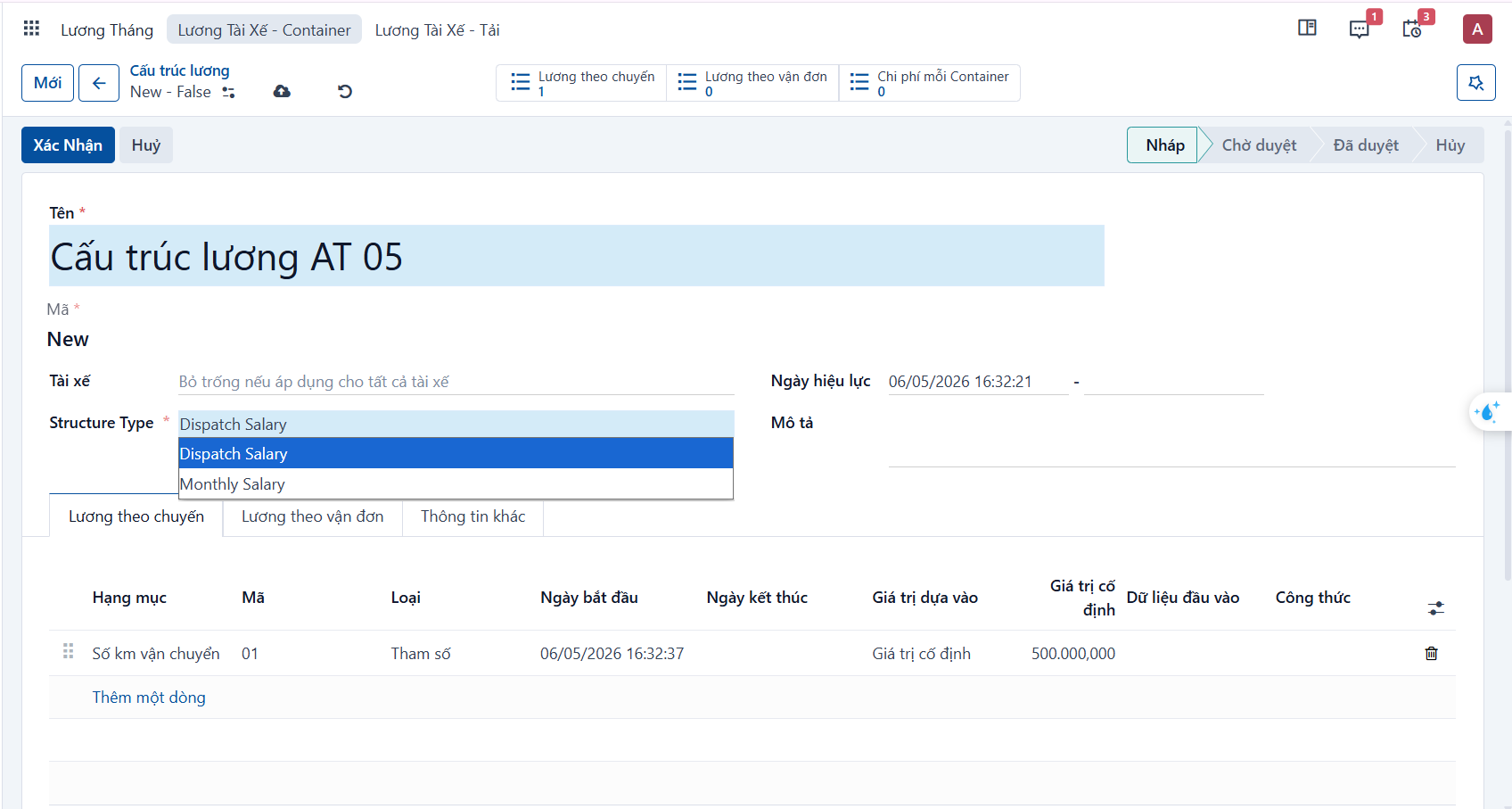
| Field | Meaning |
|---|---|
| Name | Name of the salary structure. |
| Code | Generated by the system or entered manually. |
| Driver | Leave empty to apply to all drivers; select a driver to apply to that driver only. |
| Structure Type | Choose Dispatch Salary or Monthly Salary. |
| Effective date | Date the structure starts applying. |
| Description | Additional notes, if any. |
Step 3
On the relevant component tab, click Add a line.
Step 4
Declare the salary component on the trip salary creation screen.
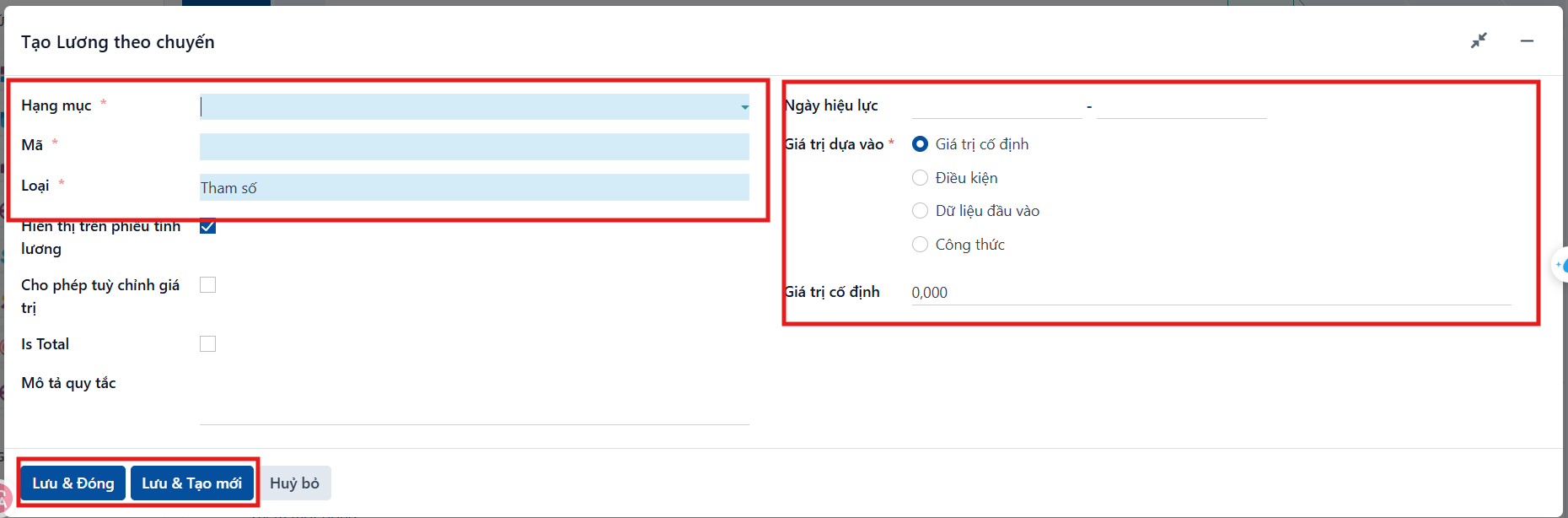
| Field | Meaning |
|---|---|
| Item | Select the item, for example Transport distance, Trip salary or Vehicle standby. Items are declared under Salary items. |
| Code | Code of the item. |
| Type | Choose Parameter or Formula. |
| Effective date | Period during which the component applies. |
| Value based on | System data used as the input. |
| Fixed value | Fixed value or amount that applies. |
| Input data | Data used to calculate the component. |
| Formula | Formula for calculating the salary, when the type is Formula. |
Step 5
Choose one of these ways to save the component line:
- Save & Close: create one data line and close the screen.
- Save & New: create one data line and keep the screen open to create another.
Step 6
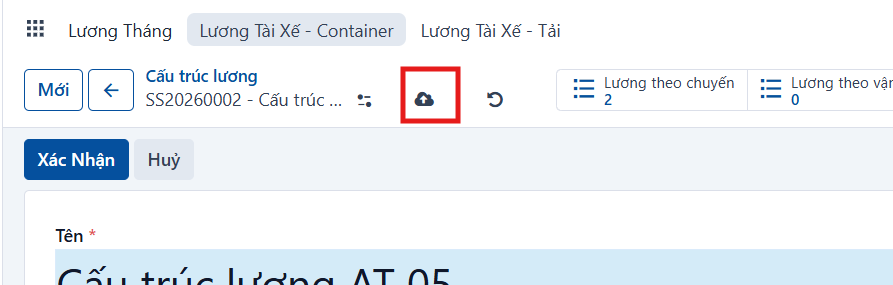
Click Save manually to save the salary structure.
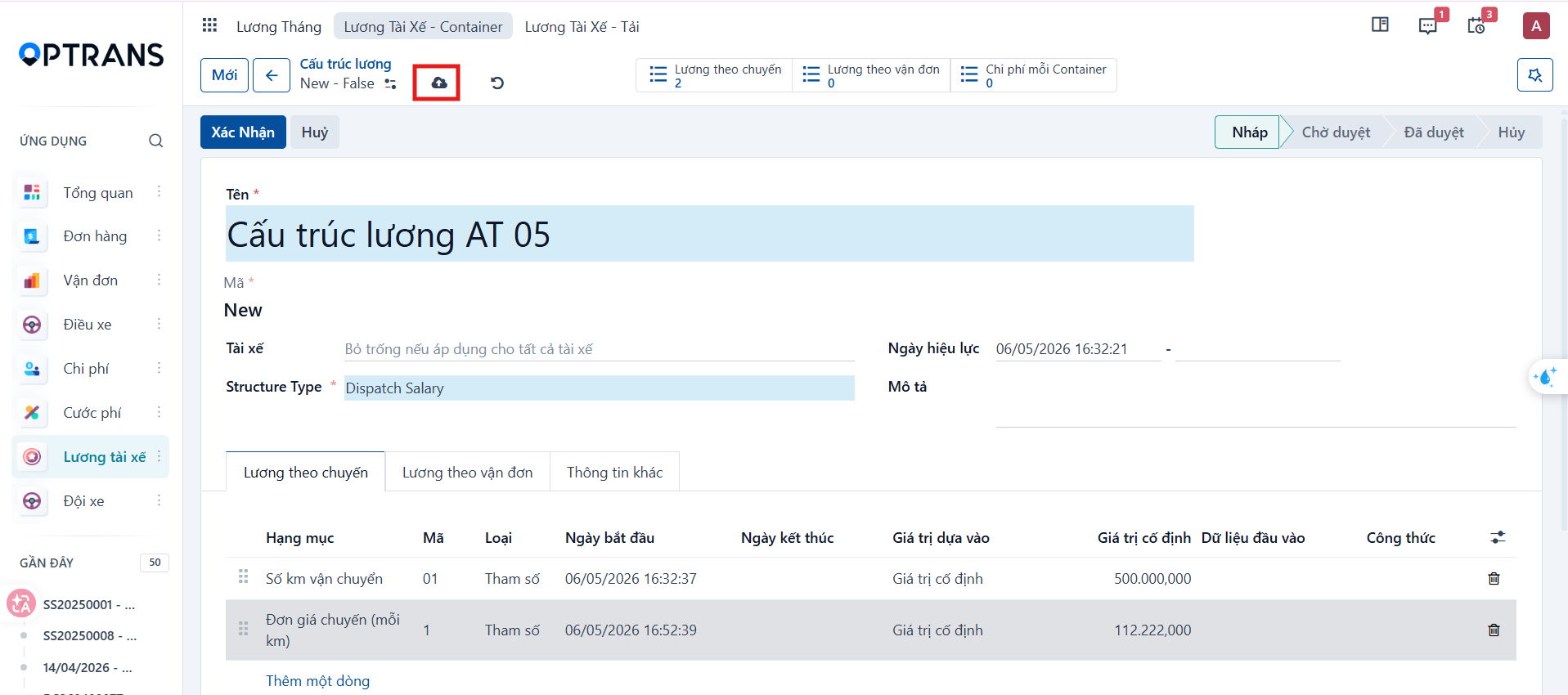
A new structure is only in the Draft state. Without salary components, the system cannot calculate a salary. When calculating a salary from a structure, the system uses the salary standard that matches the applicable conditions.
Approving a salary structure
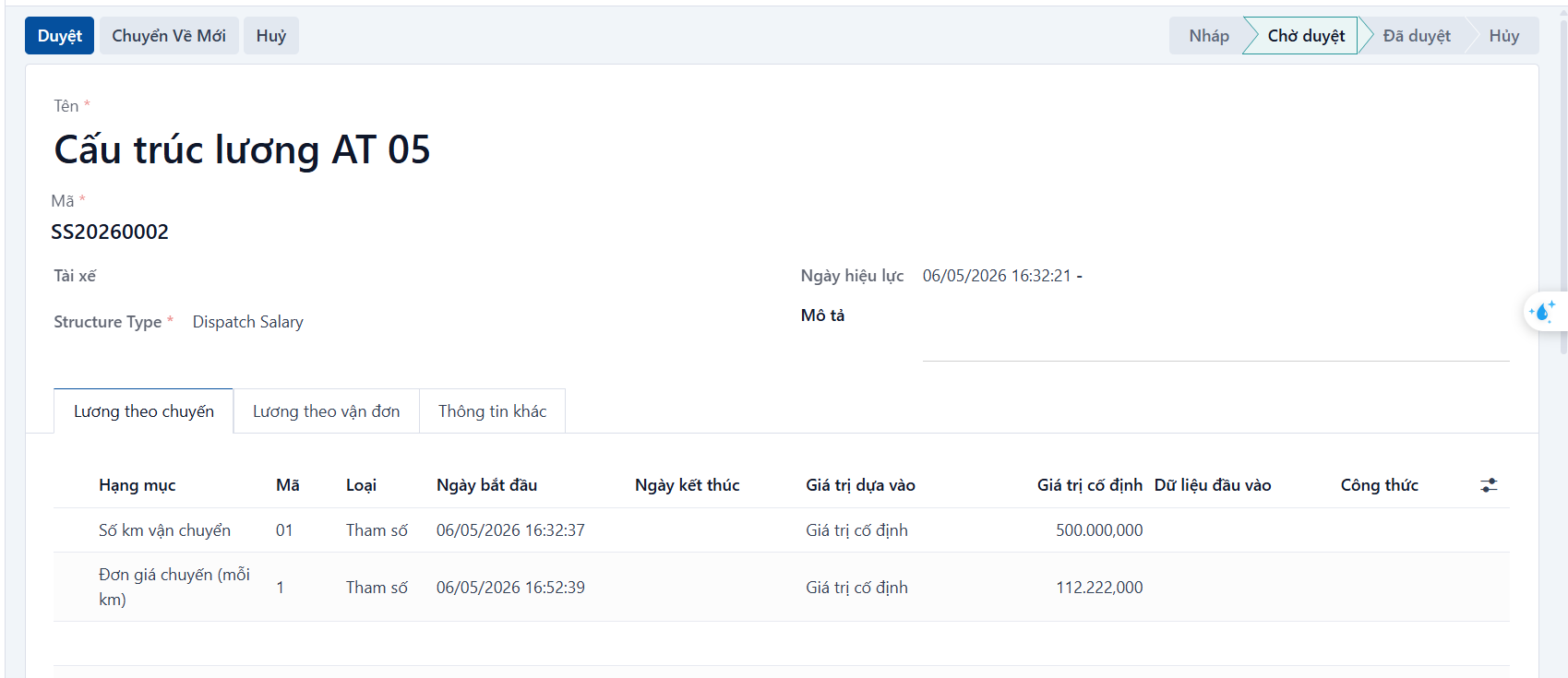
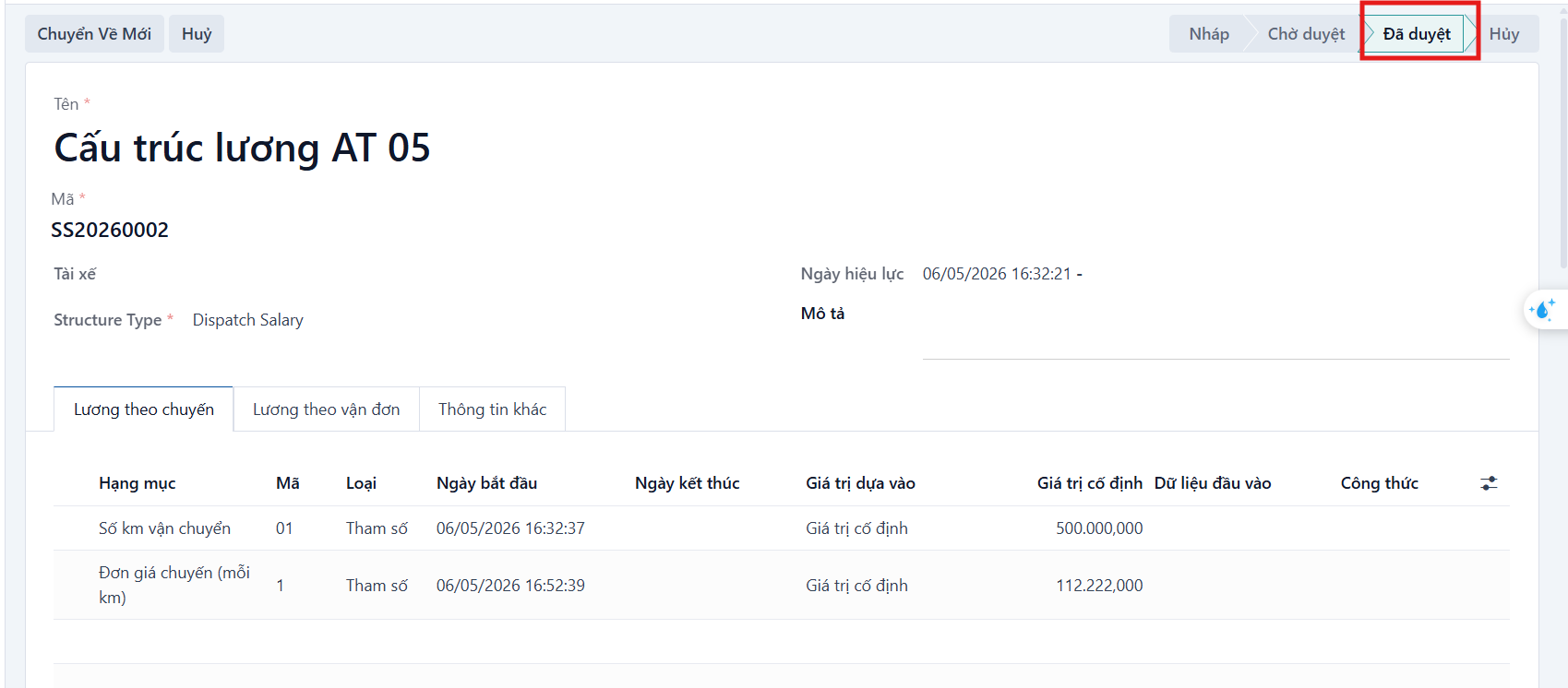
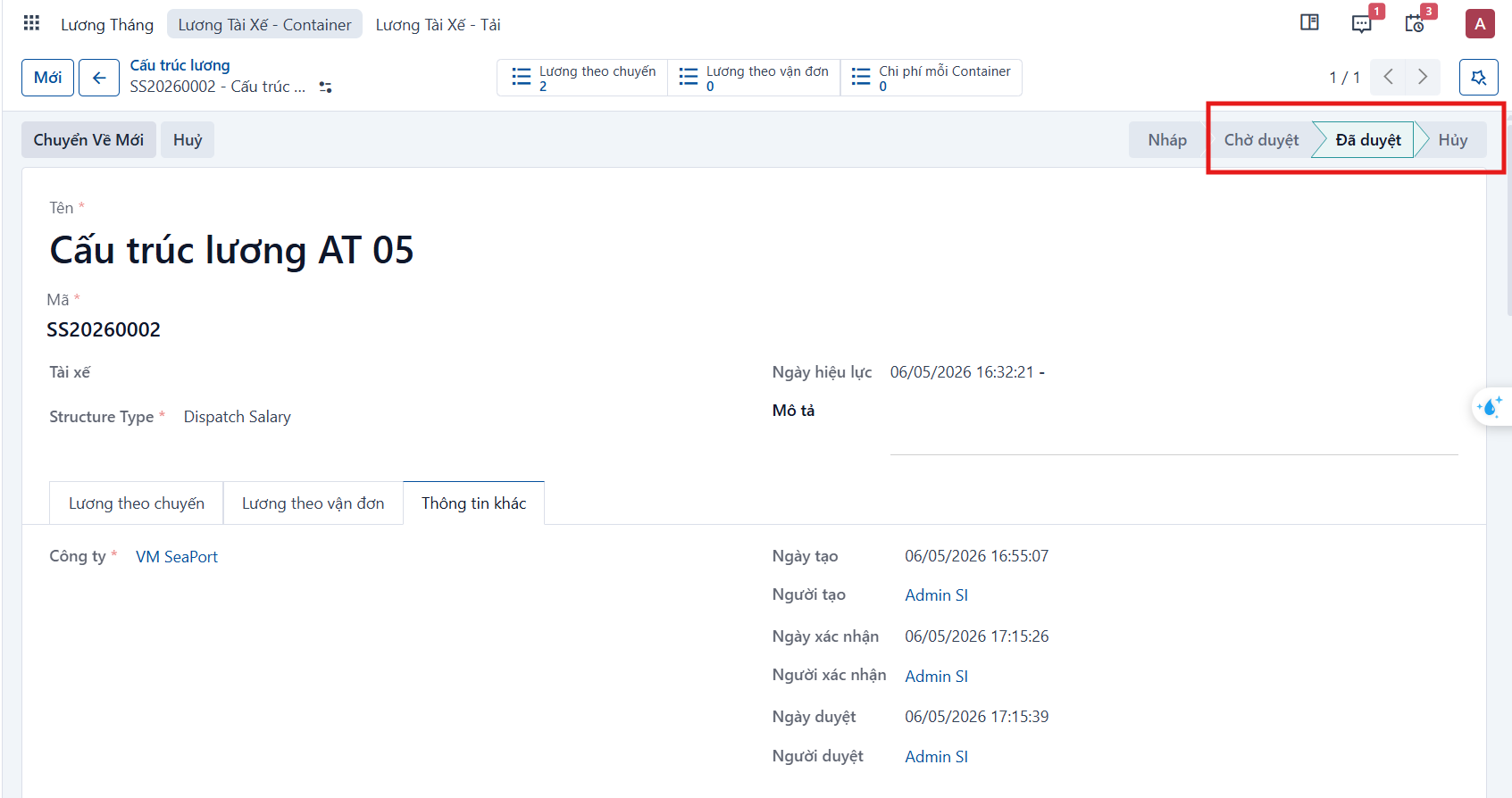
The structure lifecycle is Draft → Waiting for approval → Approved. A Draft structure is not applied yet, one Waiting for approval is awaiting confirmation, and an Approved one is used to calculate salaries.
Step 1
In the Draft state, click Confirm to move the structure to Waiting for approval.


Step 2
In the Waiting for approval state, click Approve.
Step 3
Confirm the approval.
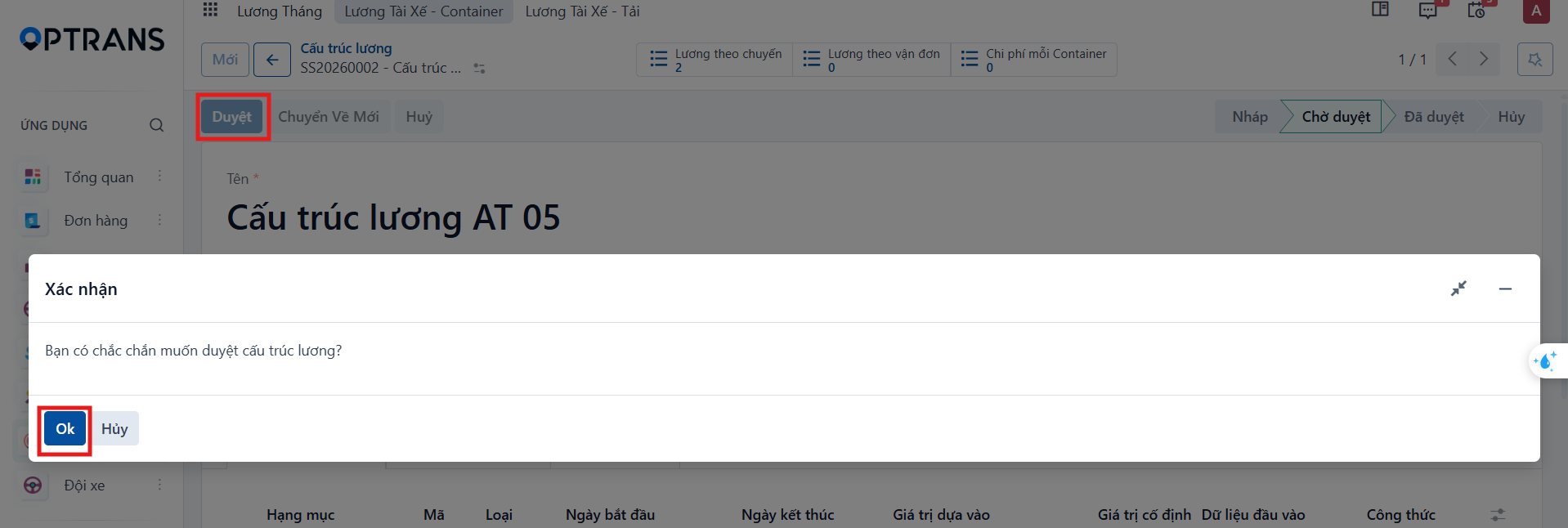
The structure moves to the Approved state and can be used to calculate salaries.
Canceling a salary structure
Step 1
Click Cancel.
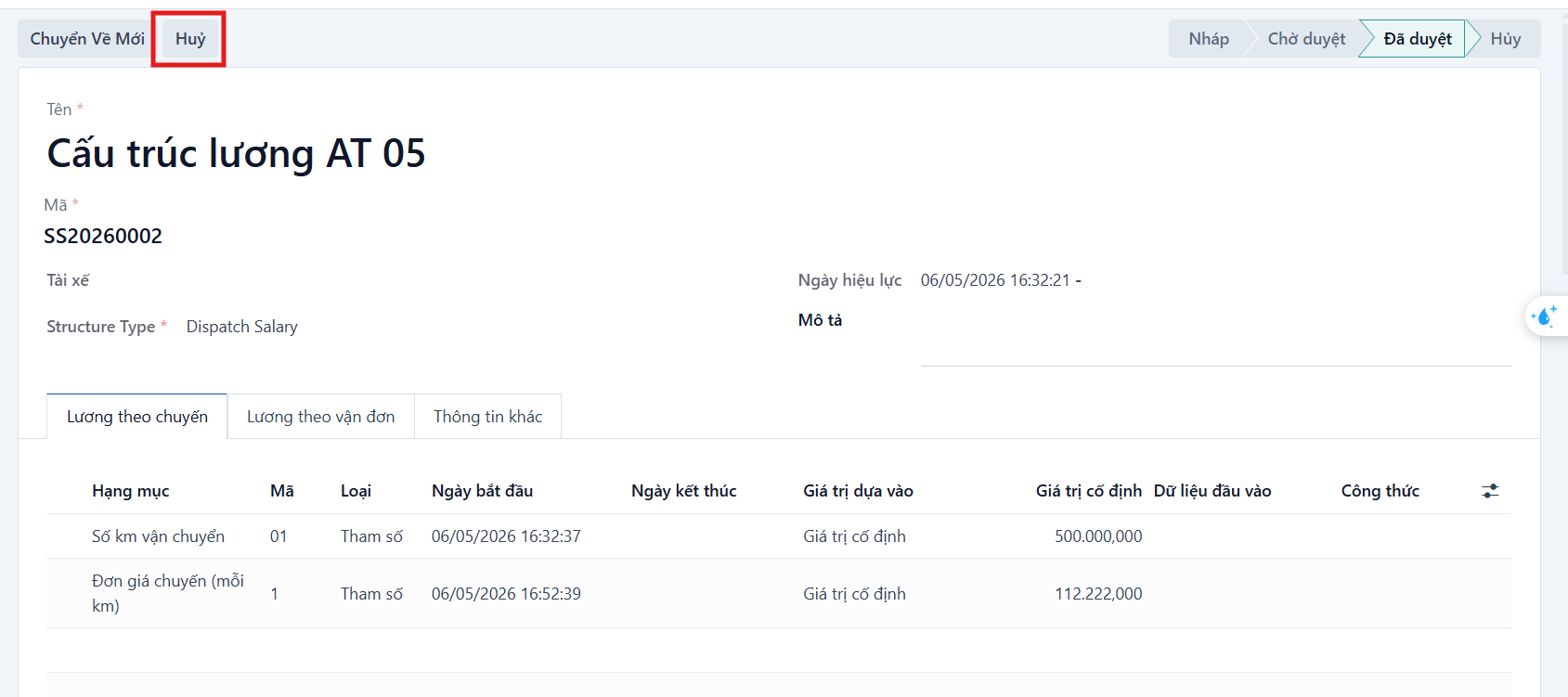
Step 2
Confirm with the OK button.

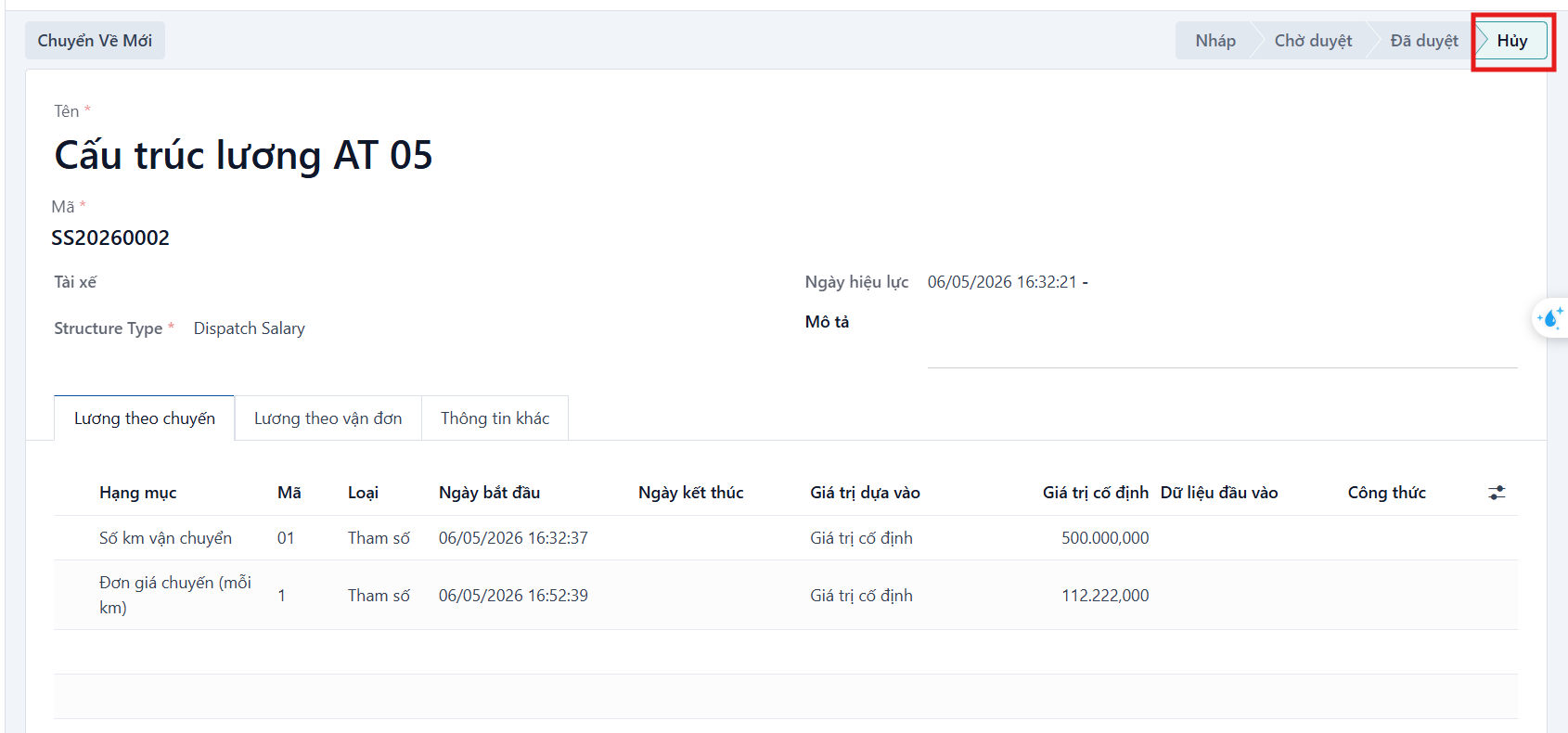
The structure then moves to the Canceled state.
Editing and re-approving
A structure cannot be edited while it is Waiting for approval, Approved or Canceled. Any change must be returned to Draft and approved again before it applies.
Step 1
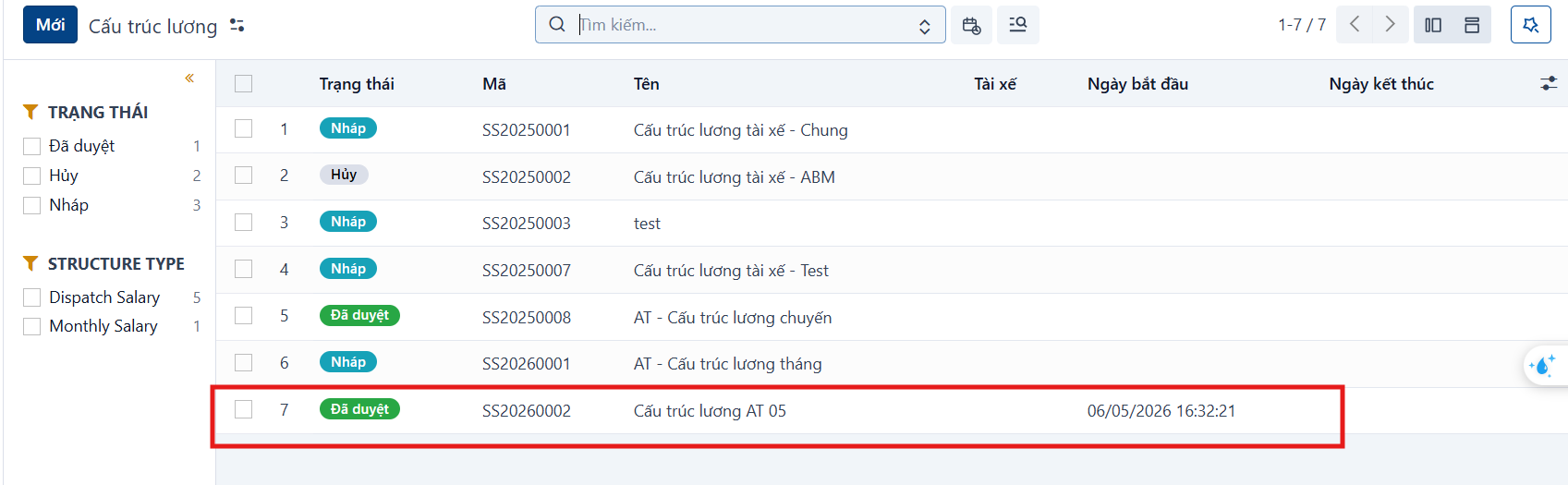
Select the structure you want to edit.
Step 2
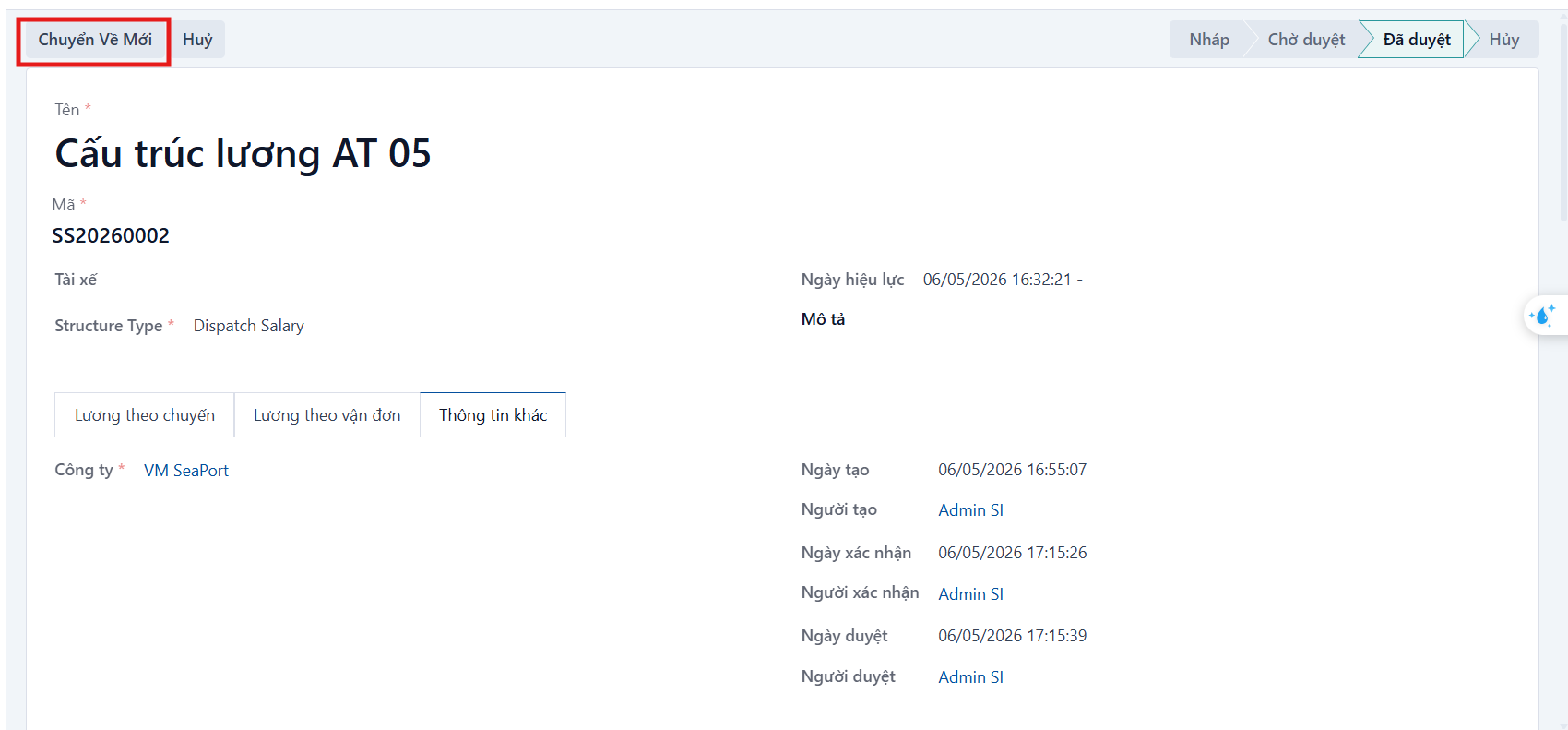
Click Reset to draft to return the structure to the Draft state.
Step 3
Confirm with the OK button.

Step 4
Change the information you need.
Step 5
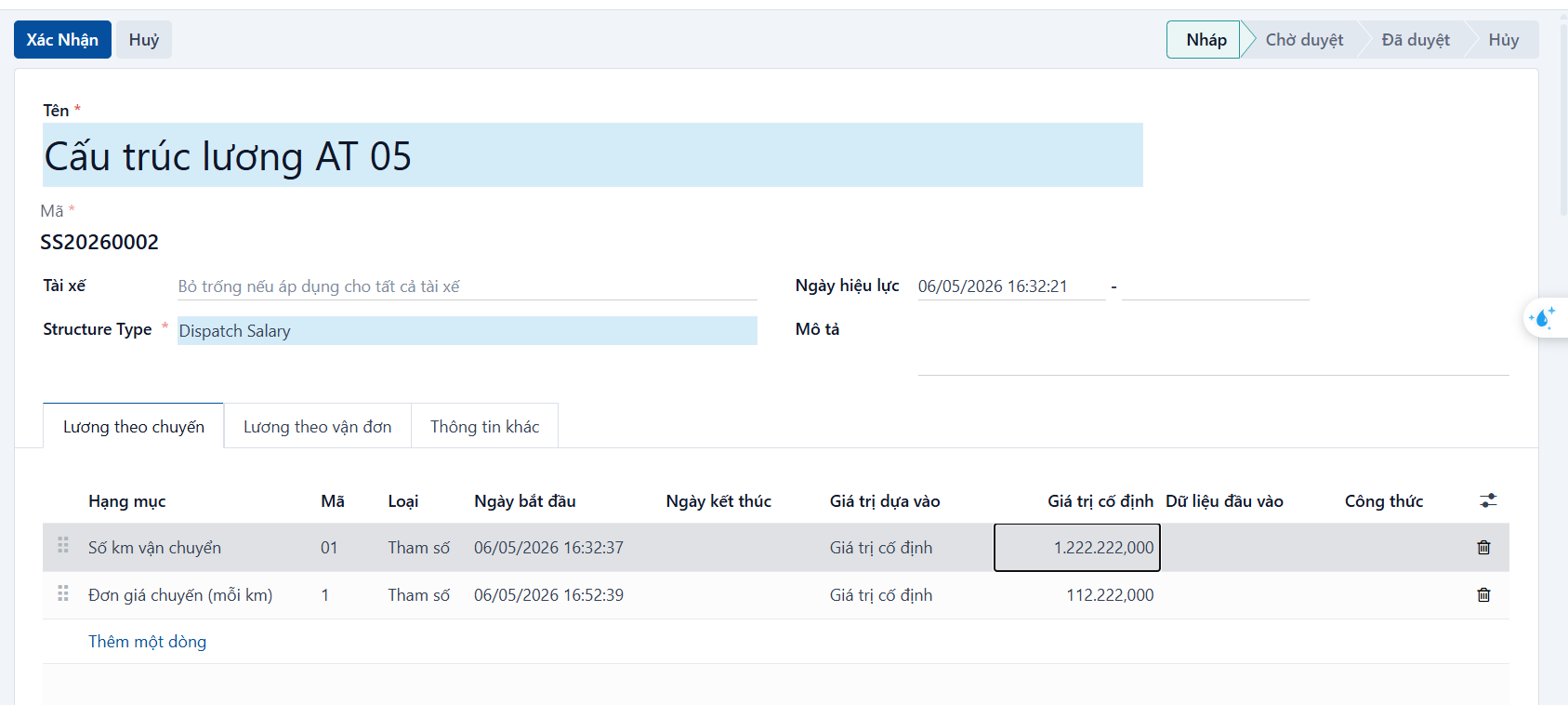
Click Save manually.
Step 6
Run the Confirm and then Approve process again so the structure returns to the Approved state.