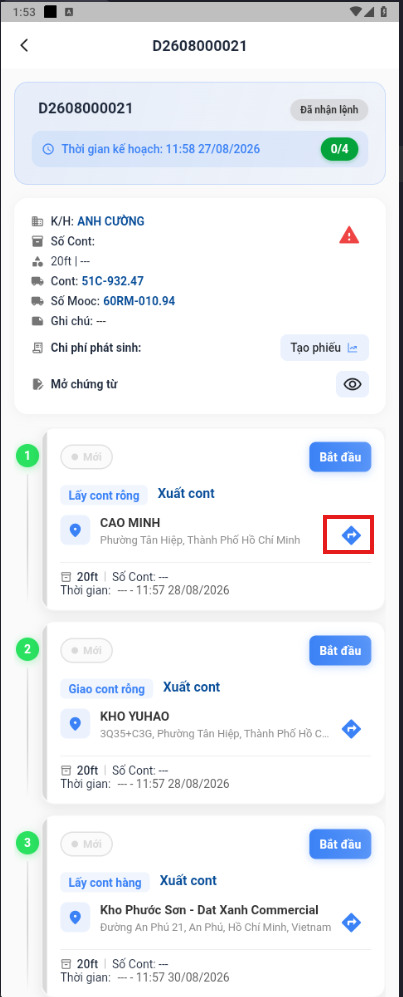
Home screen and today’s dispatch orders
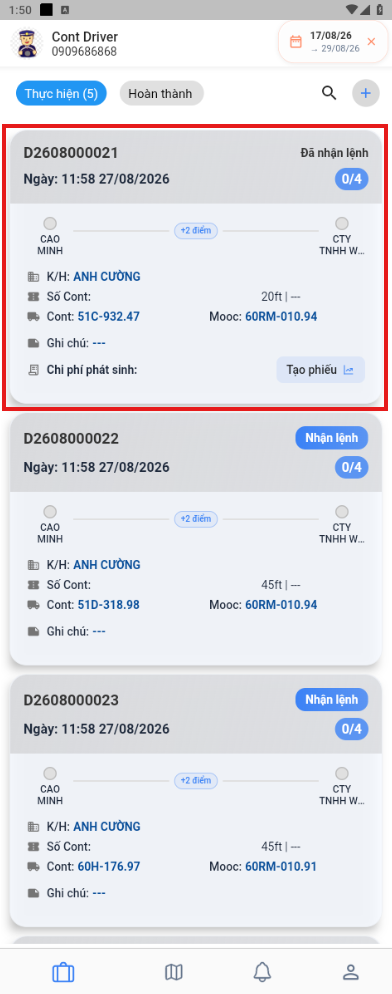
The home screen shows the dispatch orders assigned to the driver. Dispatch orders in progress appear at the top so the driver can continue working right after signing in.
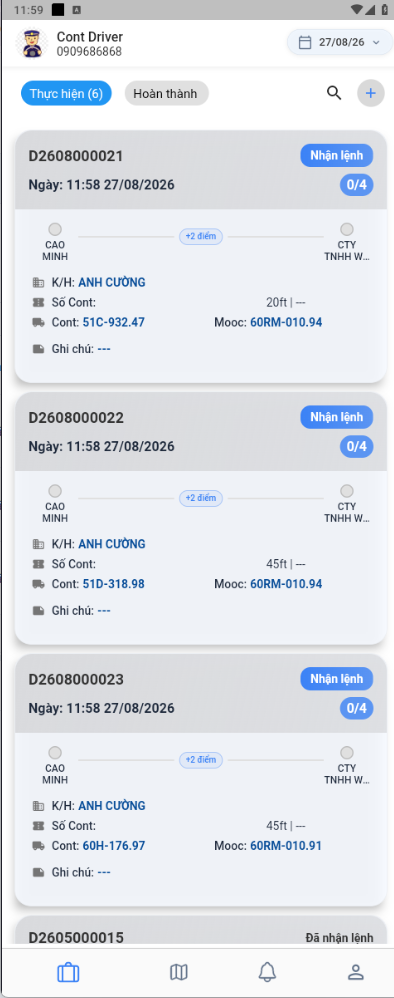
New dispatch orders
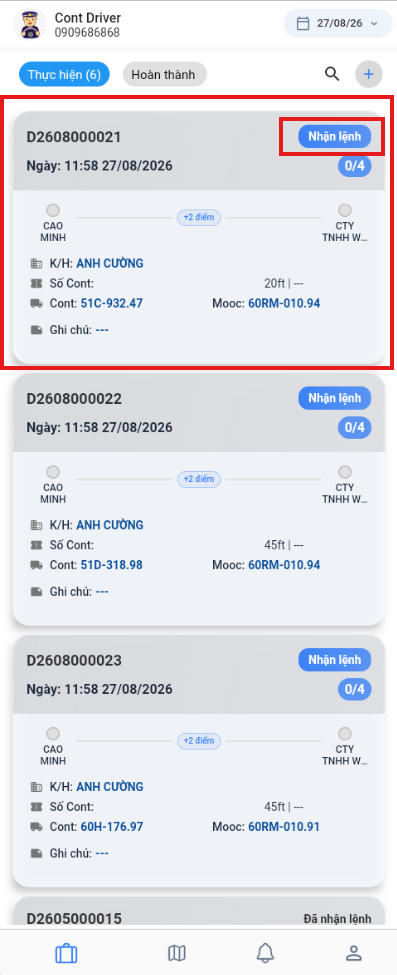
There are two ways for a driver to accept a dispatch order in the mobile app:
- Option 1: On the In progress screen, find the dispatch order with the Accept status and tap Accept to start the trip.
- Option 2: On the Details screen, review the dispatch order information before accepting it.
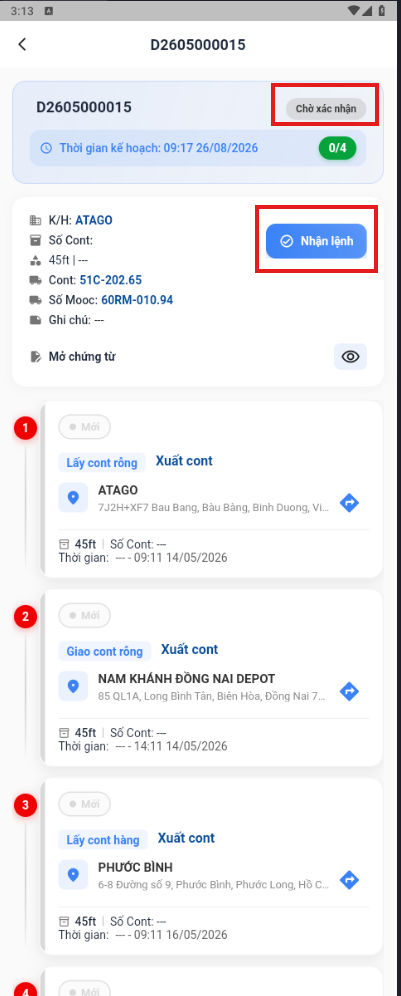
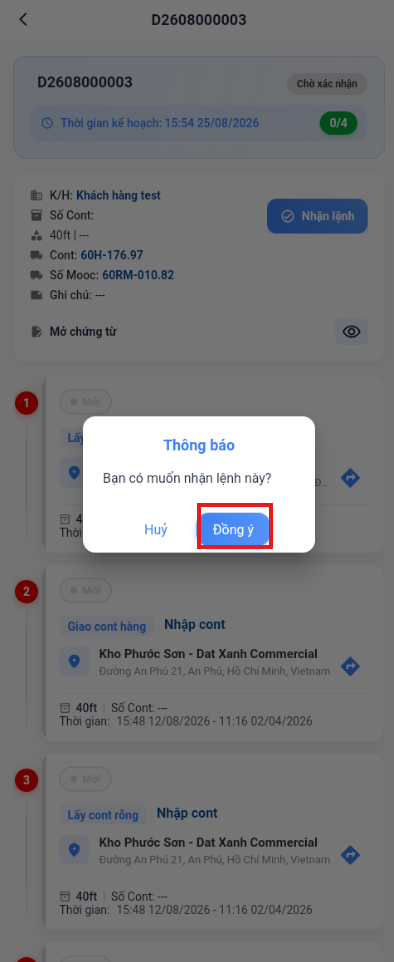
- Once the dispatch order is accepted, the system updates its status to Accepted. The driver can then start the remaining tasks.
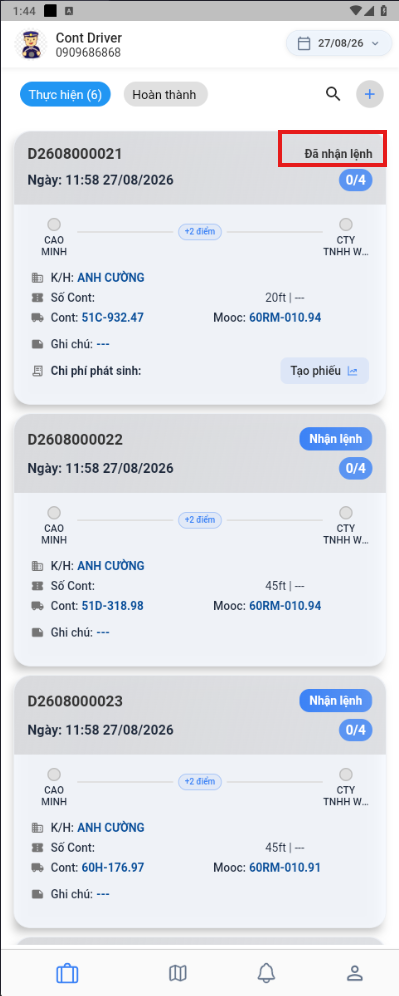
Filtering dispatch orders by status
The filters on the status bar are:
- In progress: dispatch orders that are In progress, Awaiting confirmation, or Accepted by driver.
- Completed: dispatch orders that are Completed.
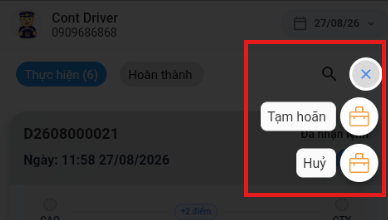
- Suspended: dispatch orders that are Suspended because of an incident.
- Canceled: dispatch orders that have been canceled.
Viewing past dispatch orders
-
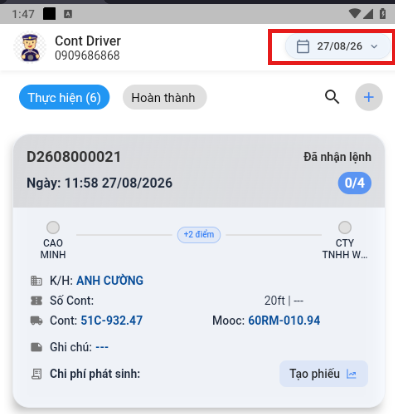
Tap the calendar area at the top of the screen.
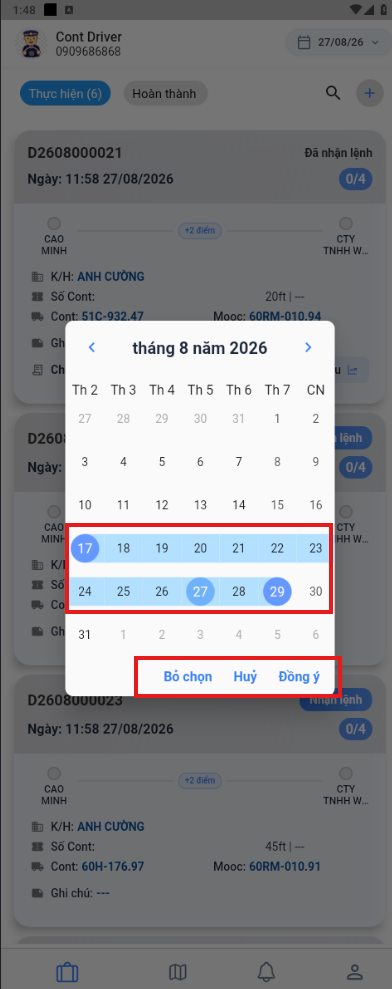
- Select a start date and an end date. The app highlights the selected range in green; you can change it before confirming.
-
Select OK to search. Select Clear then OK to remove the date range, or Cancel to close the picker. If you do not select any date, the system uses the current date.
-
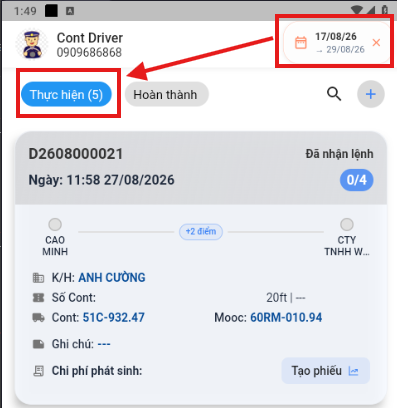
The results show the dispatch orders and tasks within the selected date range.
Viewing the task list quickly
- Tap anywhere on a dispatch order.
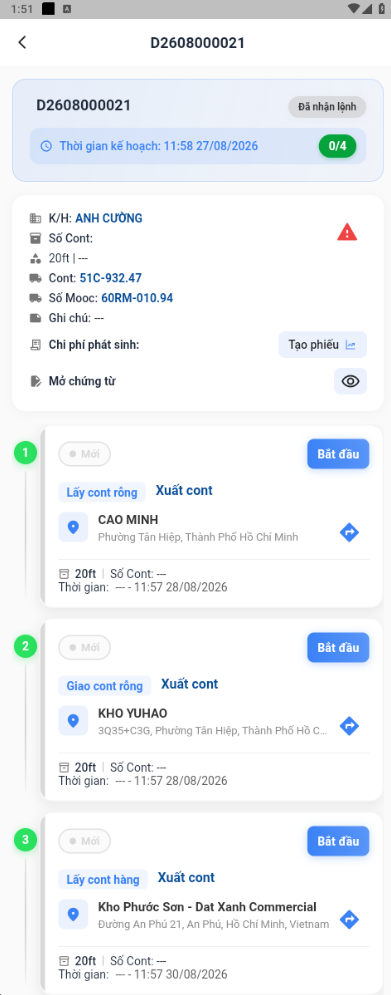
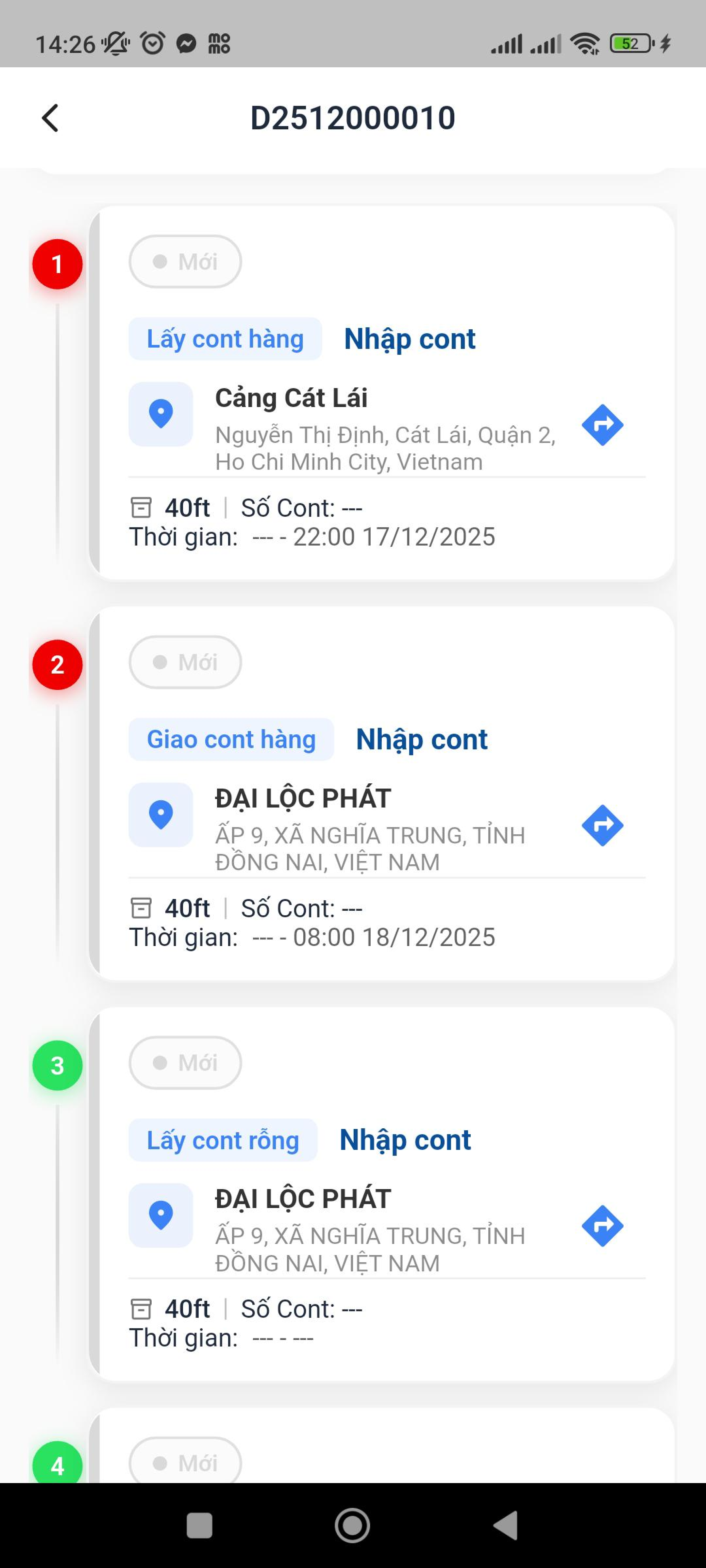
- The system opens the dispatch order details page and shows the task list.
- Tap each task to see its details.
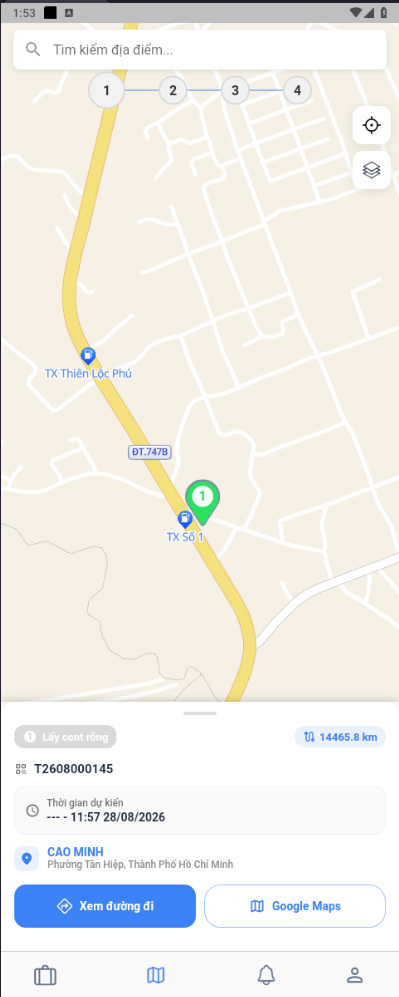
Viewing task locations on the map
On the task details screen, select Directions. The app switches to the map tab and shows the task locations for the dispatch order.