How it works
When a waybill is created, the system automatically creates the matching trip salary record. To calculate the salary, the record must have both a matching salary standard and a matching salary structure. The structure used must be Approved; if either configuration is missing, the system cannot calculate the salary.
When no standard is selected manually, the system finds the matching standard by transport route, area, order type, container size and customer. If the user selects a standard manually, that standard takes priority over the automatic result.
Accessing and viewing the list
Step 1
Go to the Driver salary > Trip salary menu.
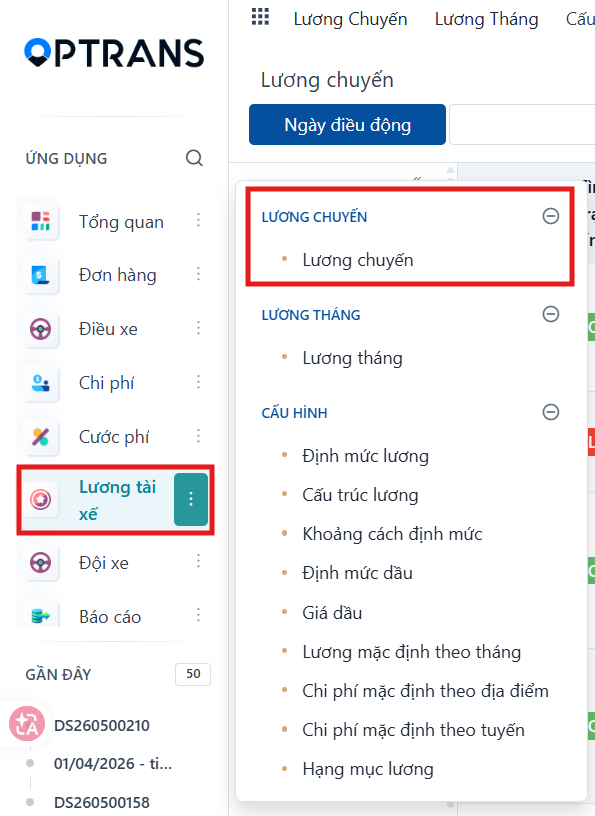
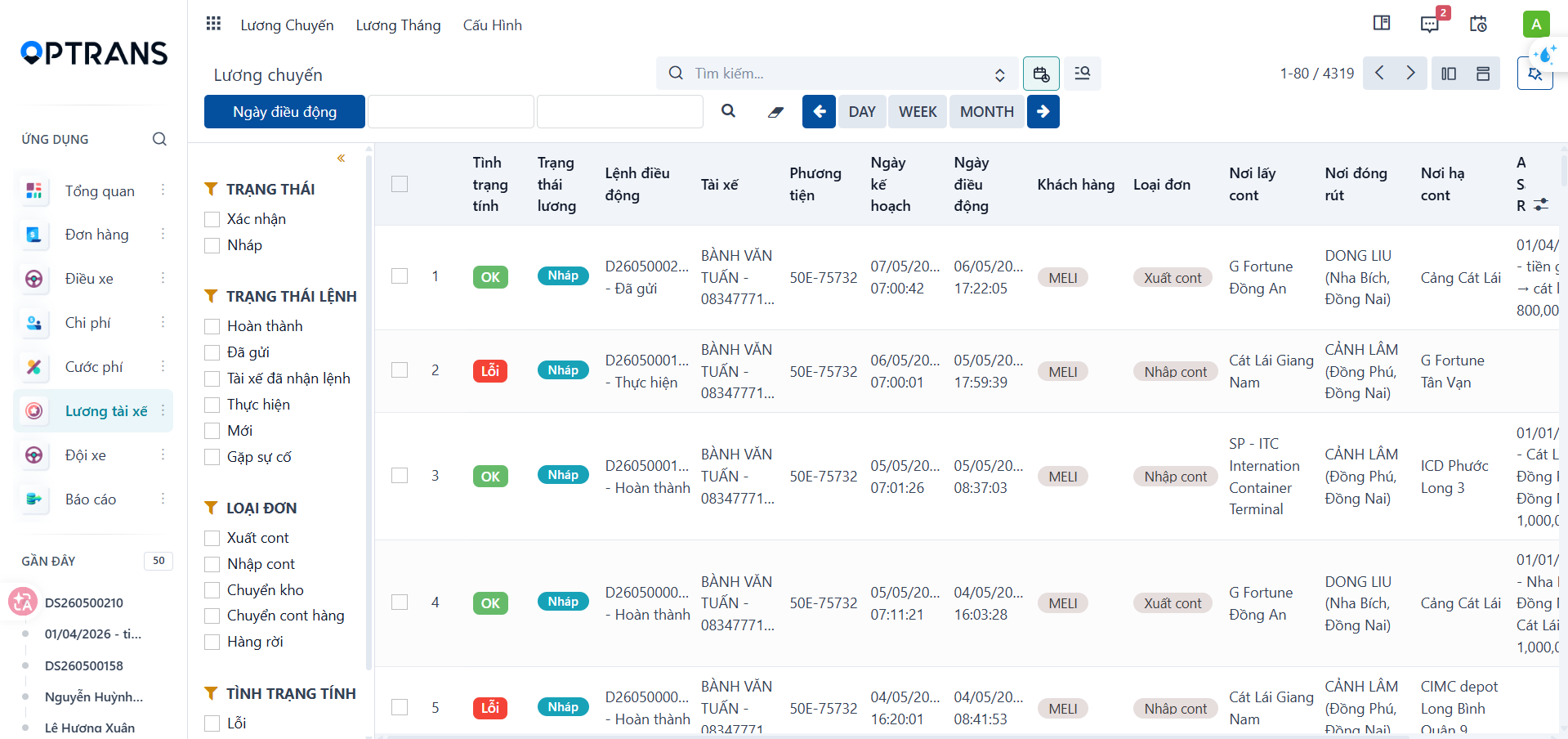
The list screen shows the trip salary records that need handling.
Step 2
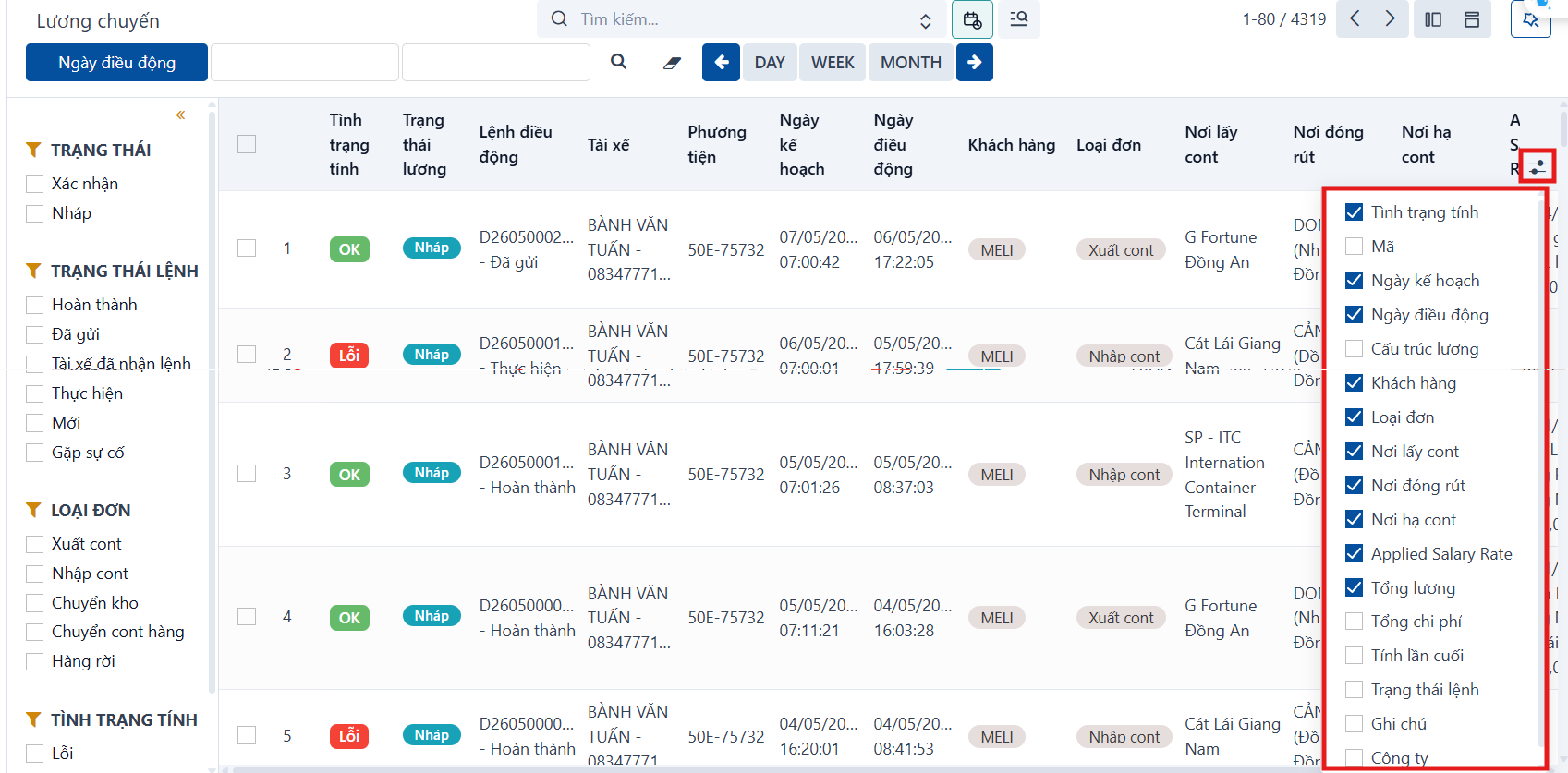
To change which fields the list shows, click the column configuration icon.

Select or clear the columns you want to follow, then apply the configuration.
Calculating and confirming trip salary
Step 1
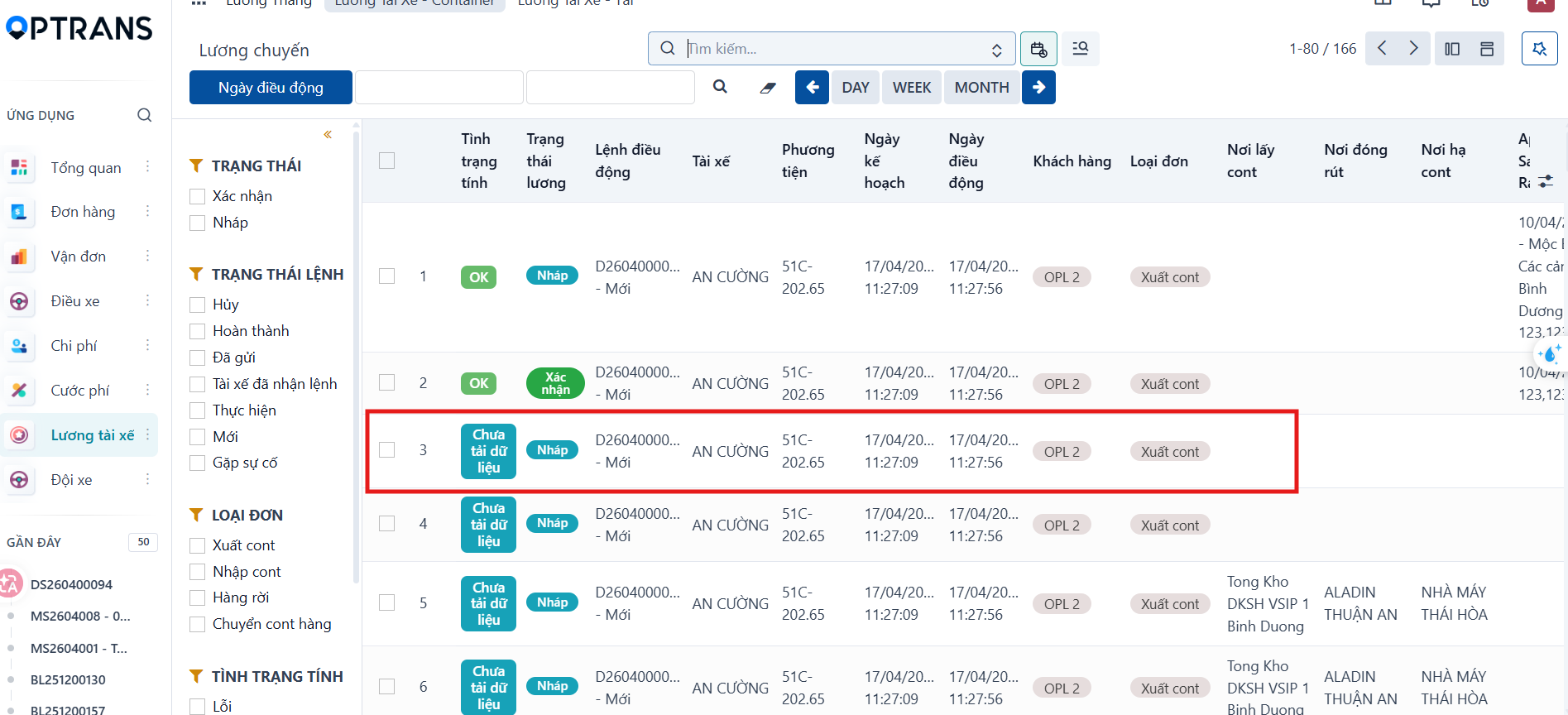
Select the trip salary row you want to calculate to open its details.
Step 2
Check the Salary structure and the Salary standard. If either is missing, or you want to replace the automatic standard, select the structure and/or the standard you need.
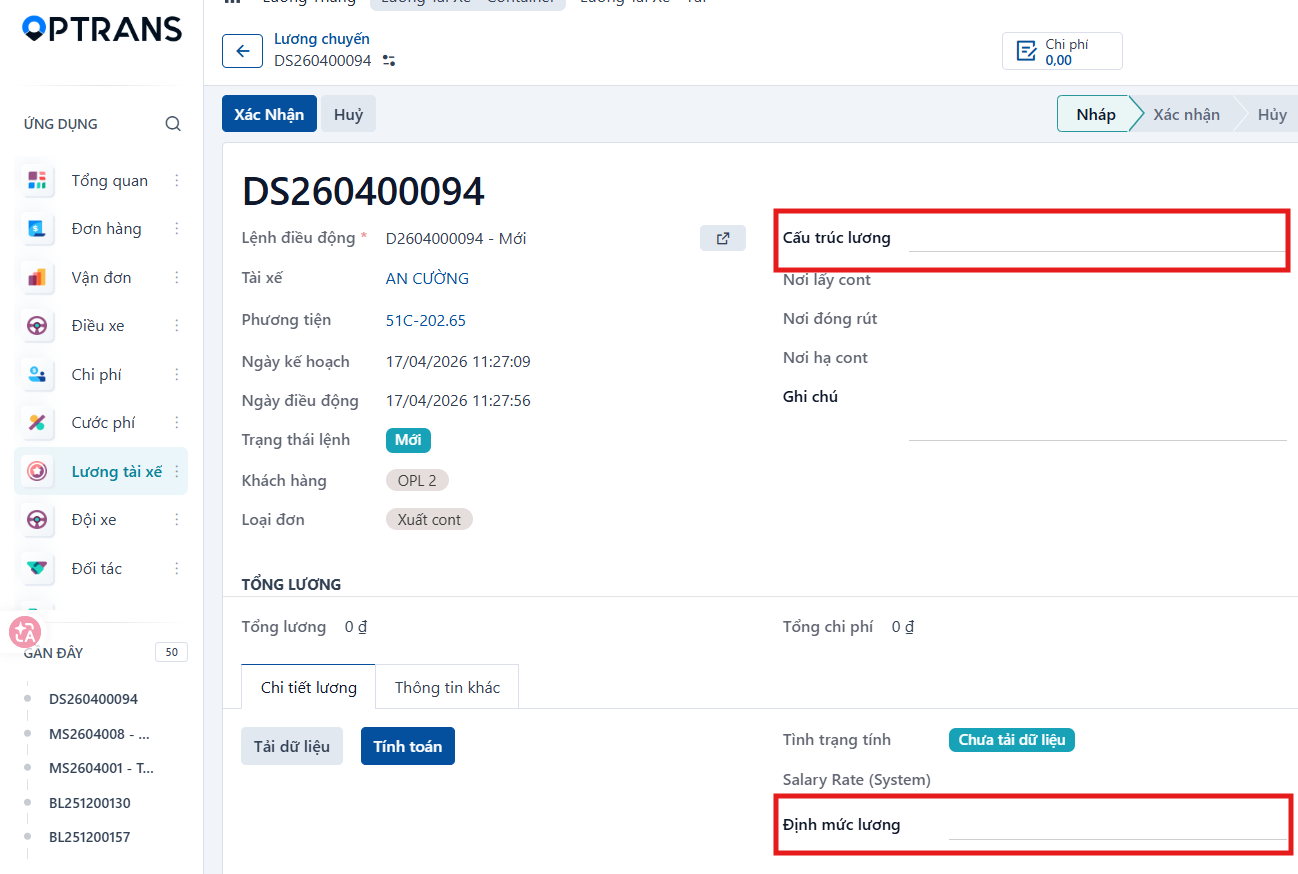
When you select a standard manually, that standard takes priority for the current calculation.
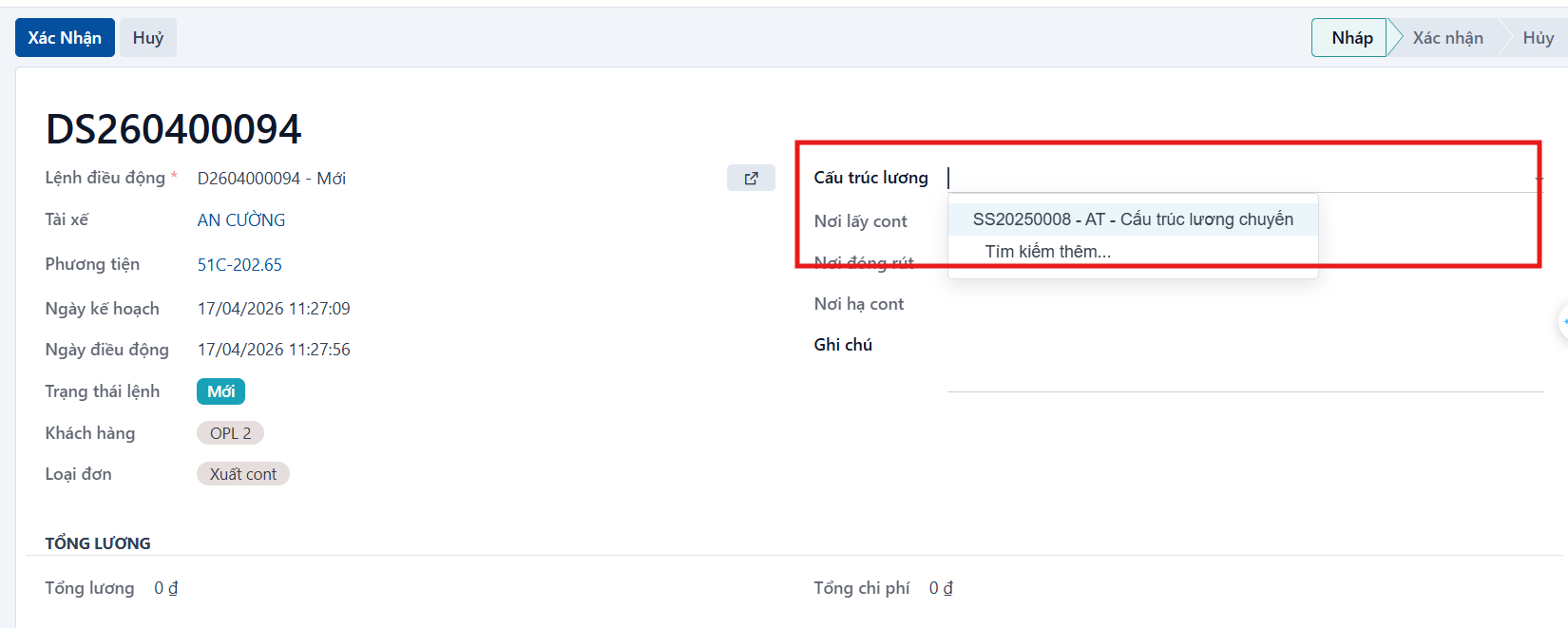
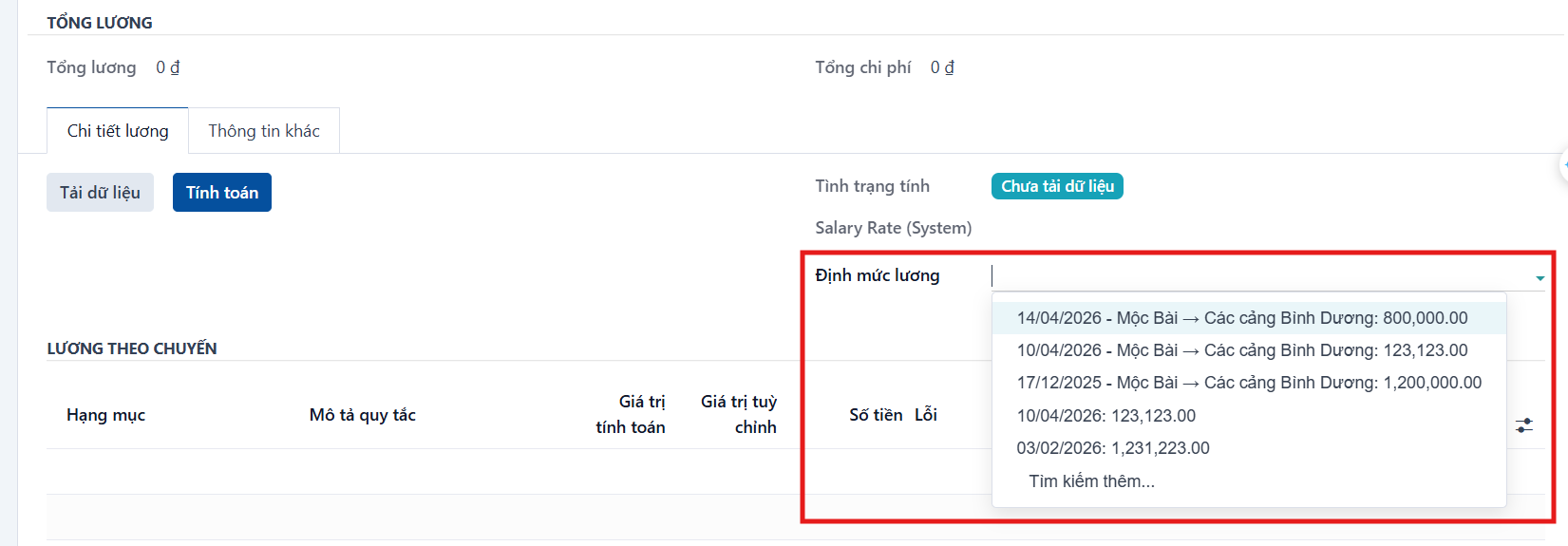
Step 3
Click Save manually to save the structure and standard you selected.
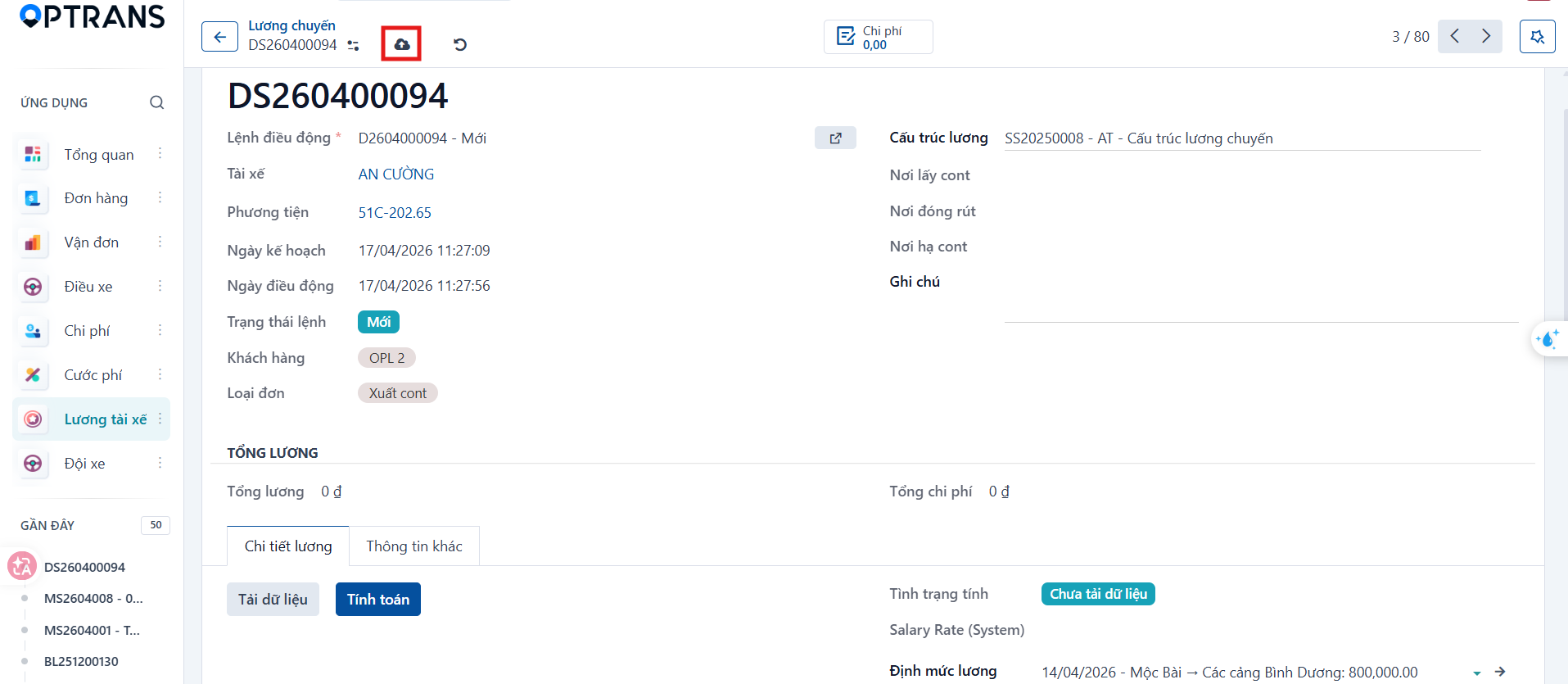
Step 4
Click Load data to load the input data for the calculation.
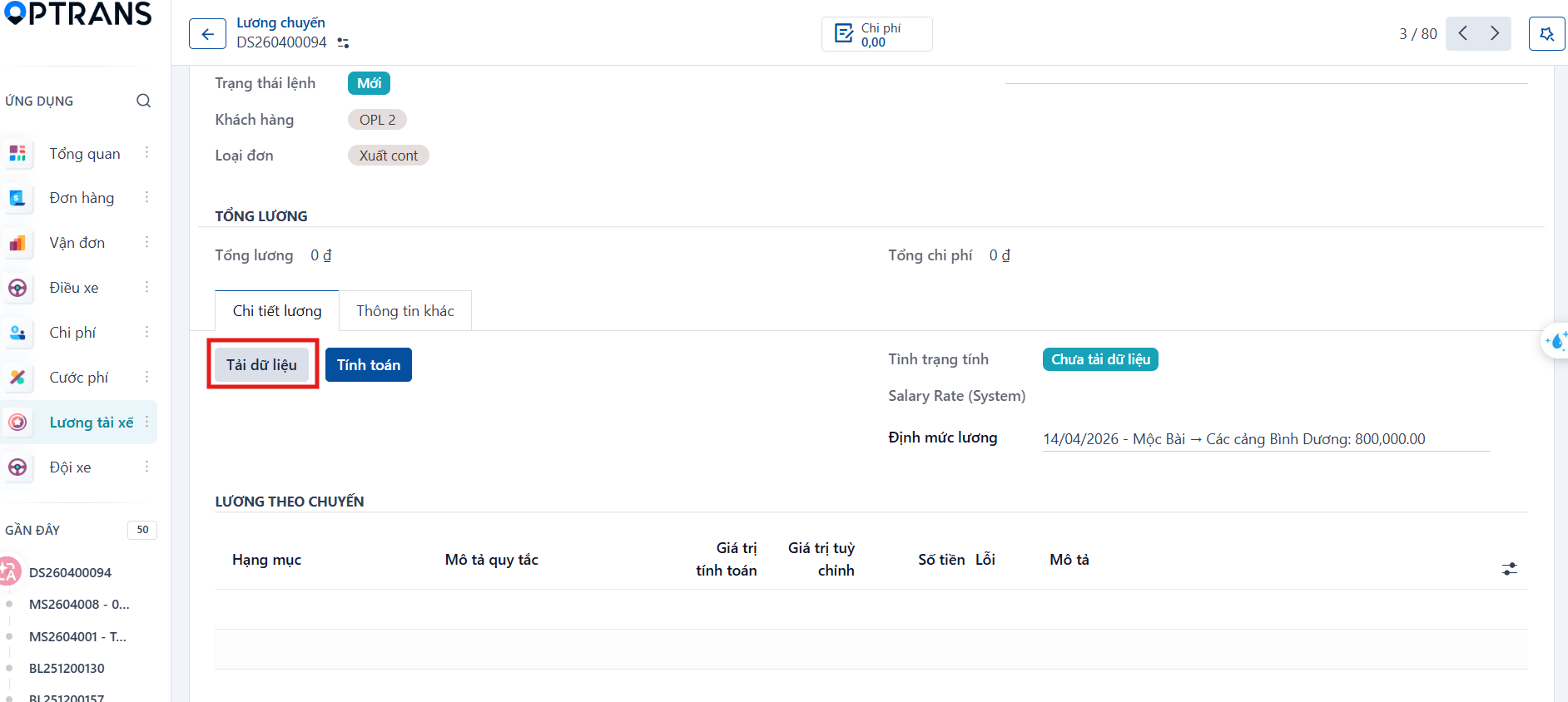
Once it has loaded, check the data on the Trip salary tab.

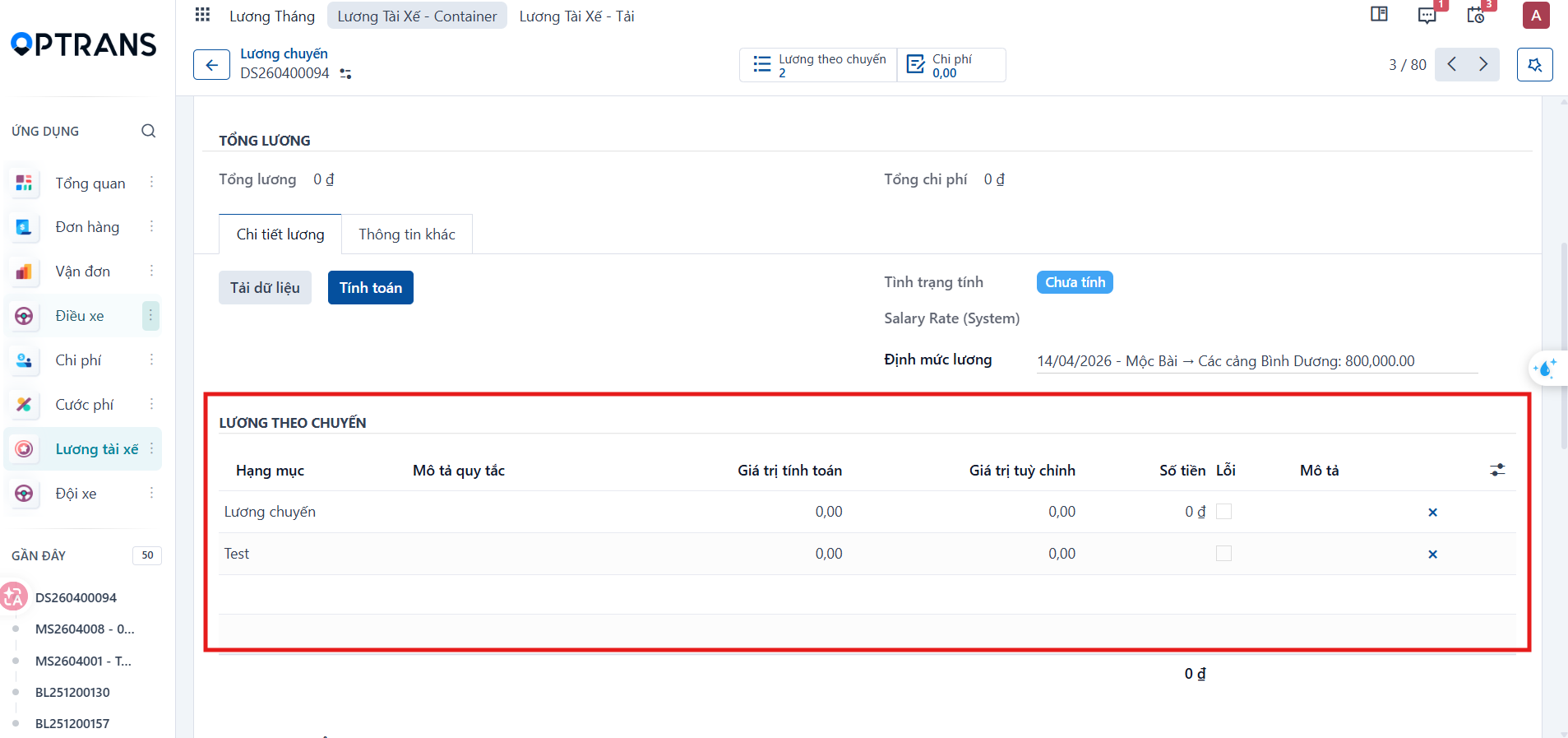
Step 5
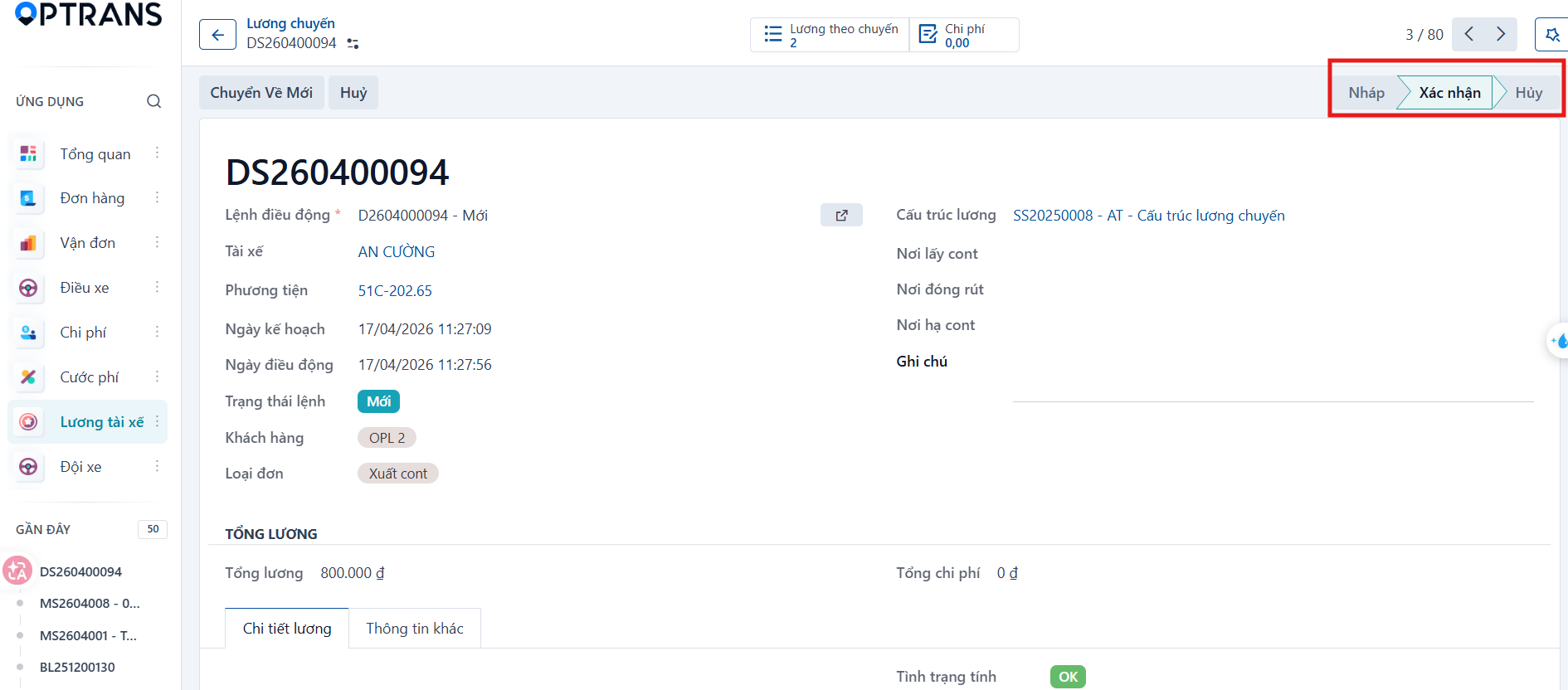
Click Calculate. When the calculation succeeds, the salary status changes to OK and the total salary is updated.
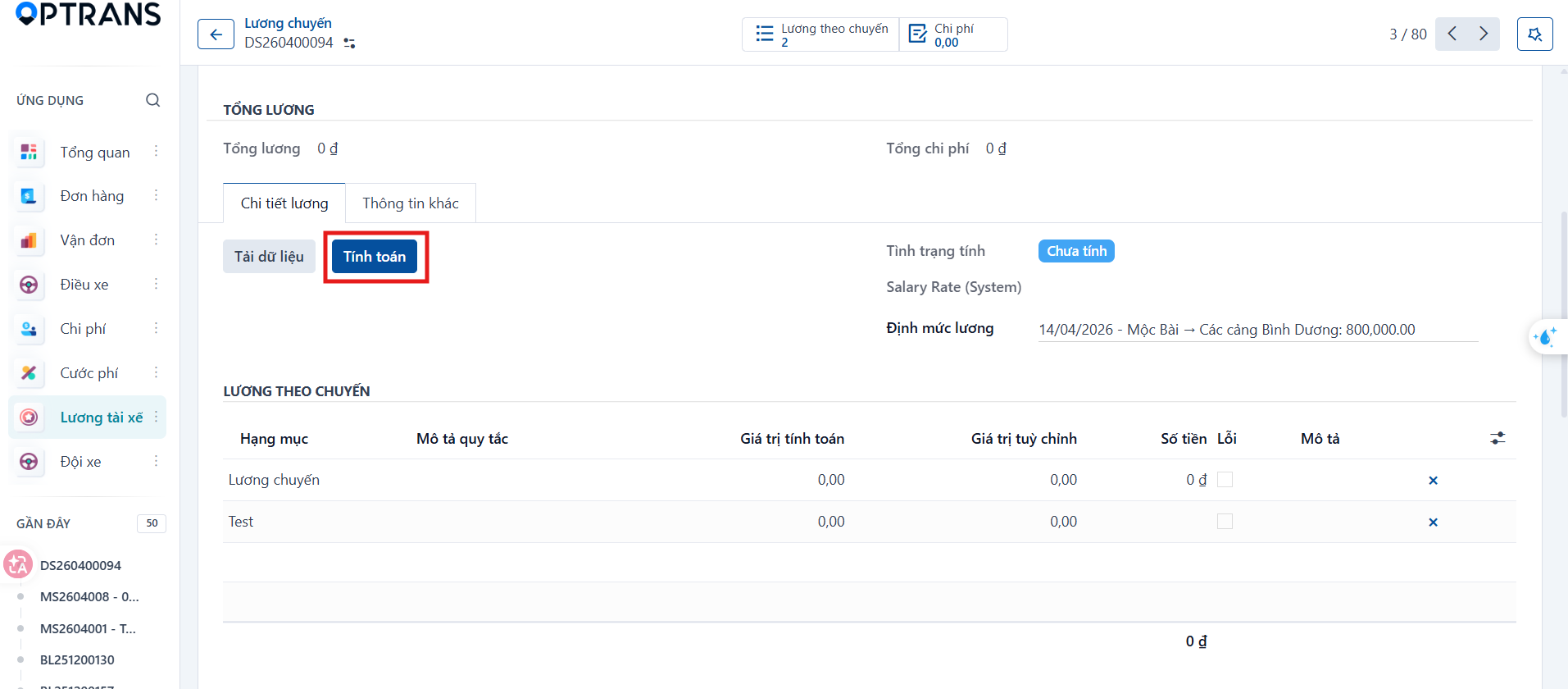
Step 6
Click Confirm to approve the trip salary record, then confirm in the dialog if the system asks.
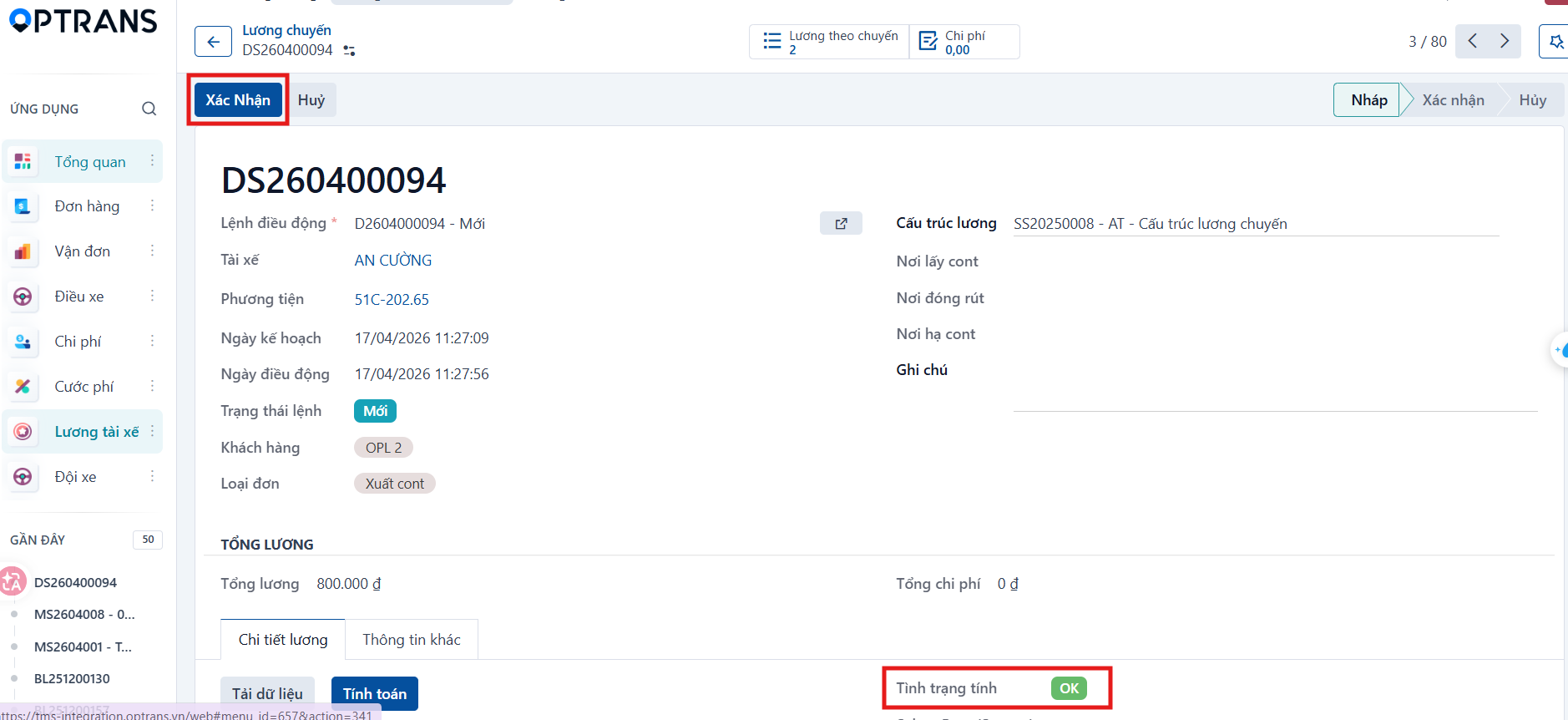

A confirmed record can be used in the monthly salary process.
Notes on handling errors
Do not confirm a record before checking that its status is OK. A trip salary record that has an error or is unconfirmed leaves the monthly salary result incomplete. When you hit an error, check the approved structure, the matching conditions of the standard and the input data, then select a standard manually if needed, save, reload the data and recalculate.