Access
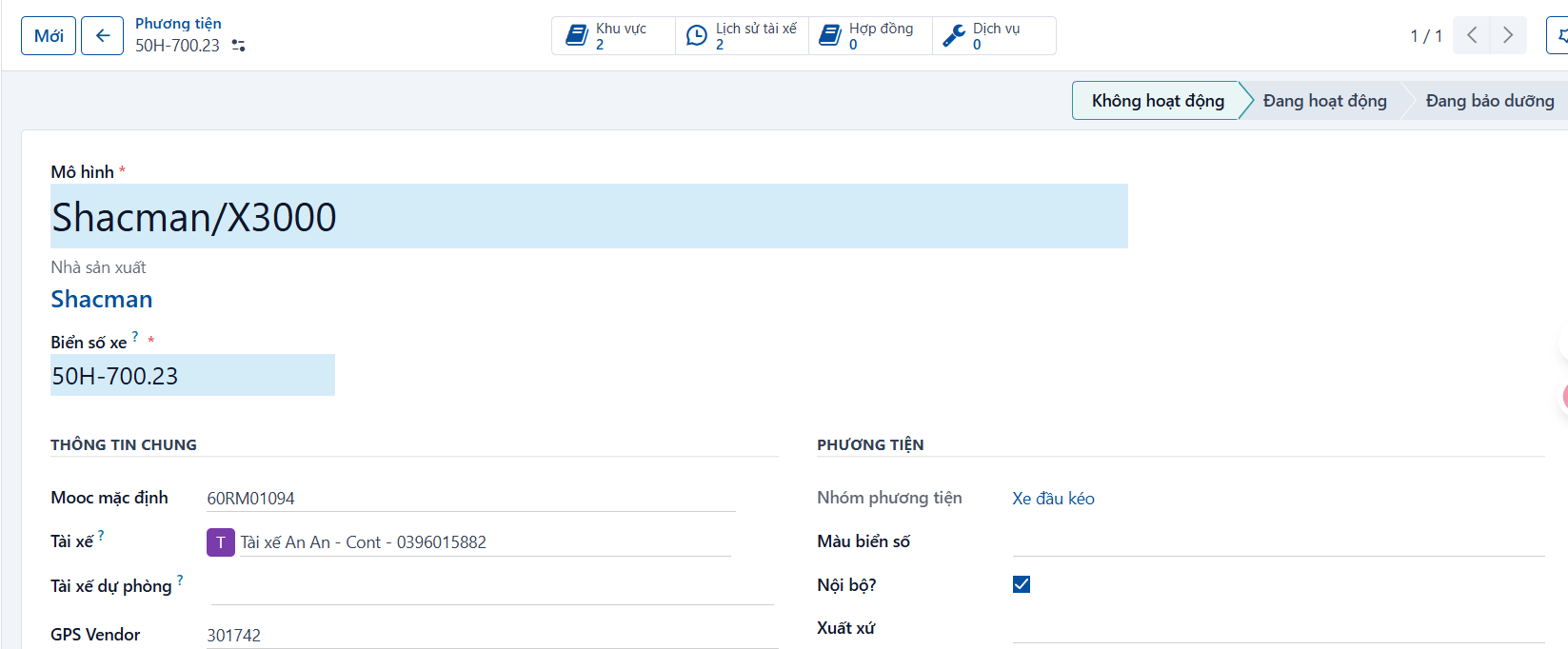
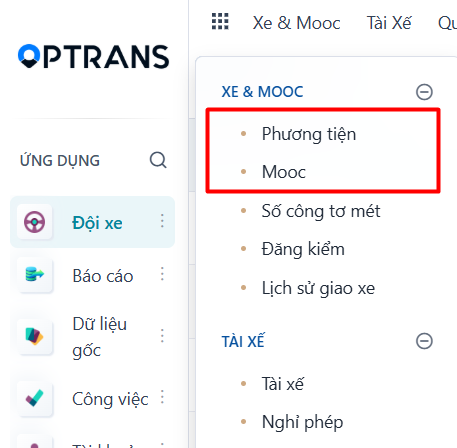
Menu: Fleet > Vehicles/Trailers
Access rights: Master Data User
Use the path above to open the screen where you create a new vehicle.
Steps
Step 1
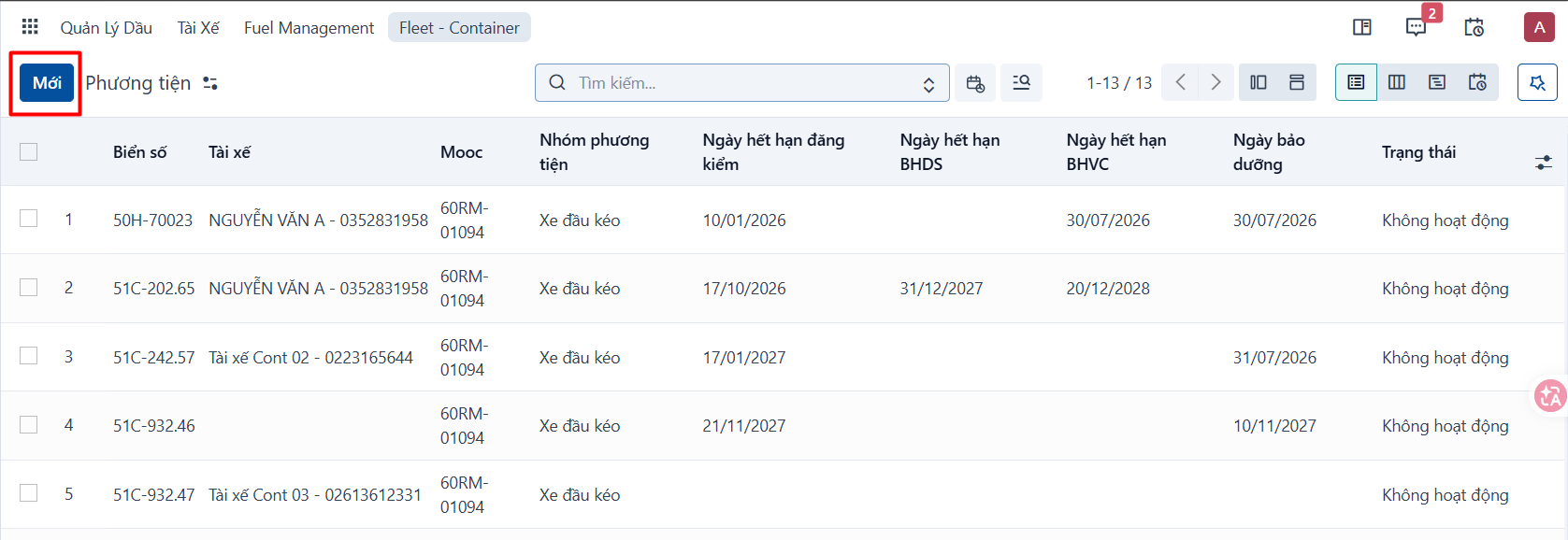
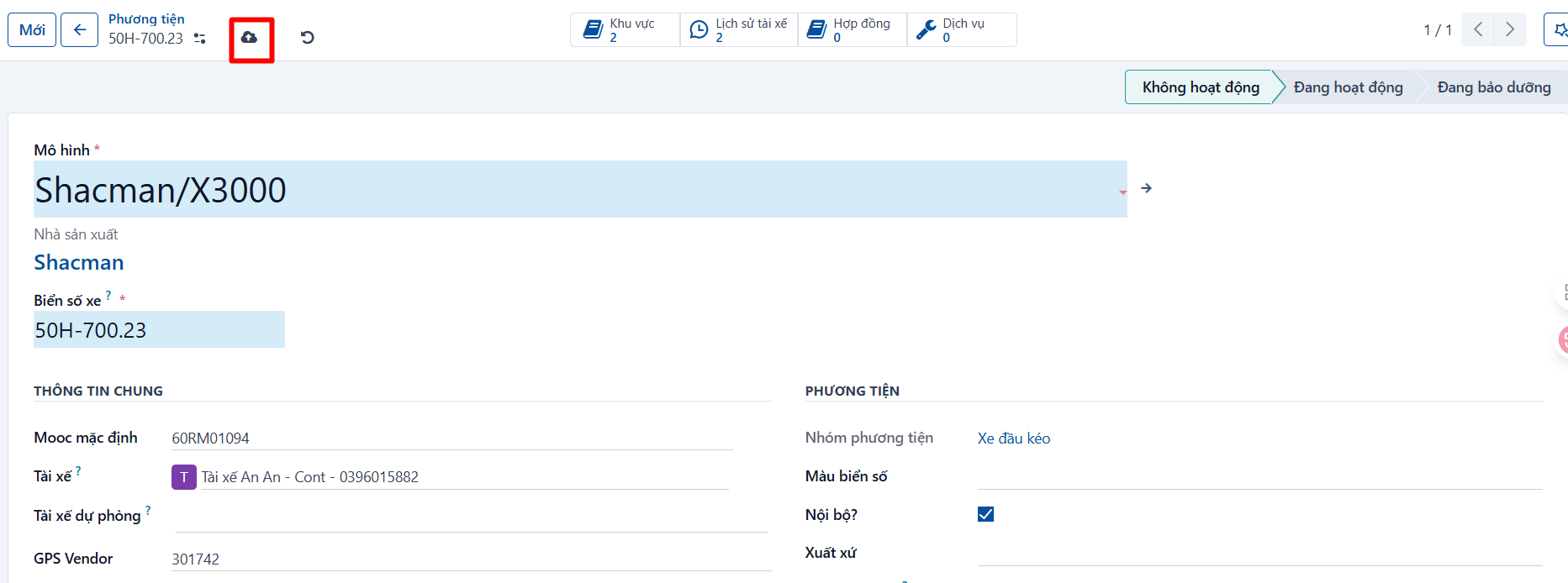
Click NEW to create a new vehicle.
Step 2
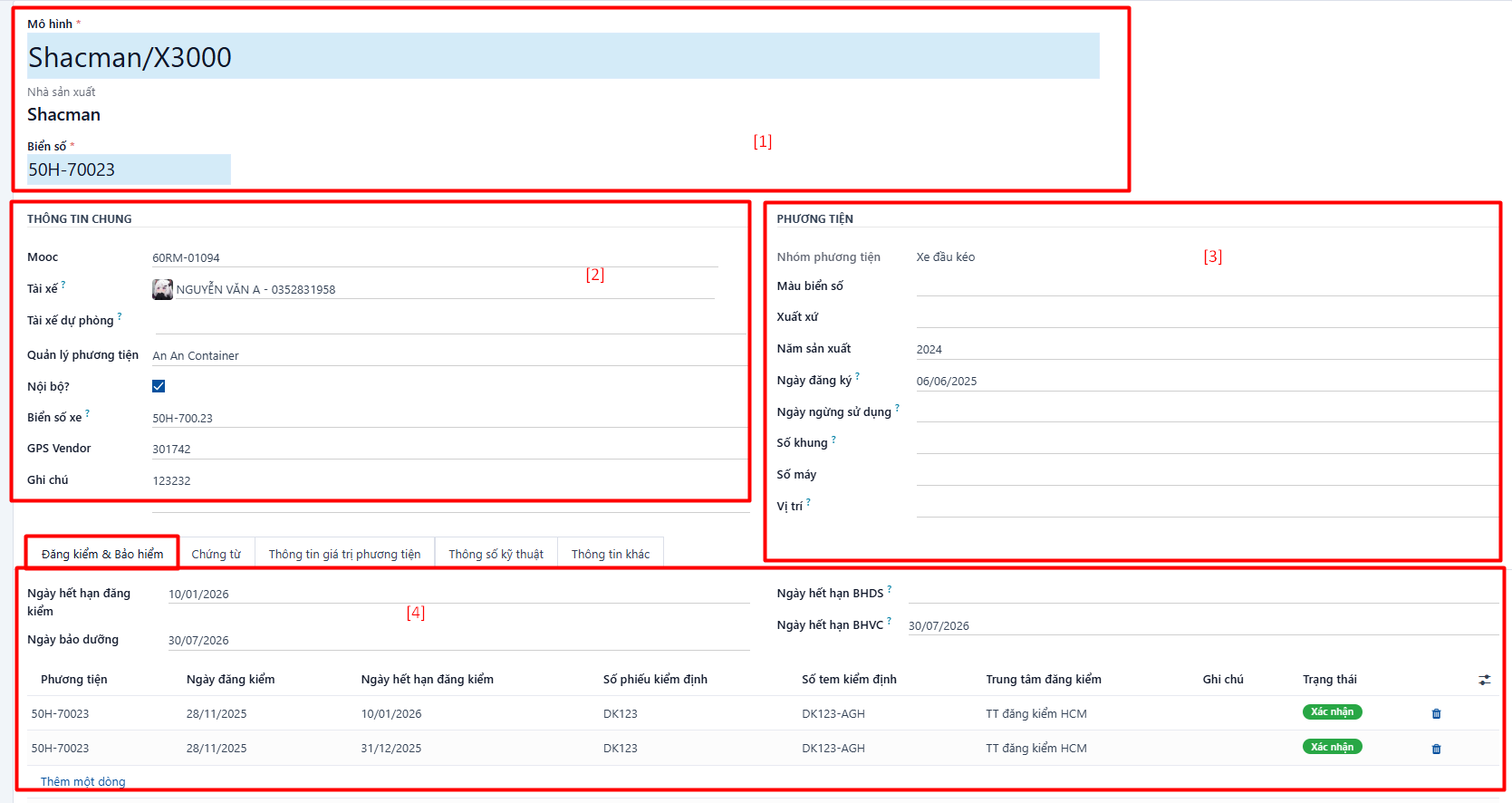
After you click NEW, the system opens the form view. Enter the information to create the new vehicle.
Step 3
Once you have entered the information, click SAVE to save it.
Fields to pay attention to
[1] - GENERAL INFORMATION
| No. | Field | Notes |
|---|---|---|
| 1 | Model | Select the vehicle model. |
| 2 | Brand | Loaded automatically from the vehicle model. |
| 3 | Licence plate | Enter the licence plate. |
[2] - DRIVERS
| No. | Field | Notes |
|---|---|---|
| 4 | Default trailer | Select the trailer assigned to the tractor unit by default. |
| 5 | Default driver | Select the vehicle’s driver. Drivers are configured on the driver screen. |
| 6 | Backup driver | Select the vehicle’s backup driver. Drivers are configured on the driver screen. |
[3] - VEHICLE
| No. | Field | Notes |
|---|---|---|
| 7 | Vehicle group | Vehicle group catalog. The system takes the default from the vehicle model. |
| 8 | Plate color | Select the color of the licence plate. |
| 9 | In-house | The vehicle is in-house. If it is outsourced, In-house = false. |
| 10 | Owner | Only shown when In-house = false. Select the owner of the vehicle. The owner list is configured on the supplier screen. |
| 11 | Origin | Origin of the vehicle. |
| 12 | Registration date | Date the vehicle was registered. |
| 13 | Decommission date | Date the vehicle stops being used. |
| 14 | Chassis number | Chassis number of the vehicle. |
| 15 | Engine number | Engine number of the vehicle. |
| 16 | Vehicle manager | Person who manages and dispatches the vehicle. |
| 17 | Position | Where the vehicle is parked. |
[4] - INSPECTION INFORMATION
| No. | Field | Notes |
|---|---|---|
| 18 | Inspection body | Enter the name of the inspection body. |
| 19 | Inspection certificate number | Enter the inspection certificate number. |
| 20 | Inspection date | Enter the date the inspection was carried out. |
| 21 | Inspection expiry date | Enter the date the inspection expires. |
| 22 | Length (mm) |
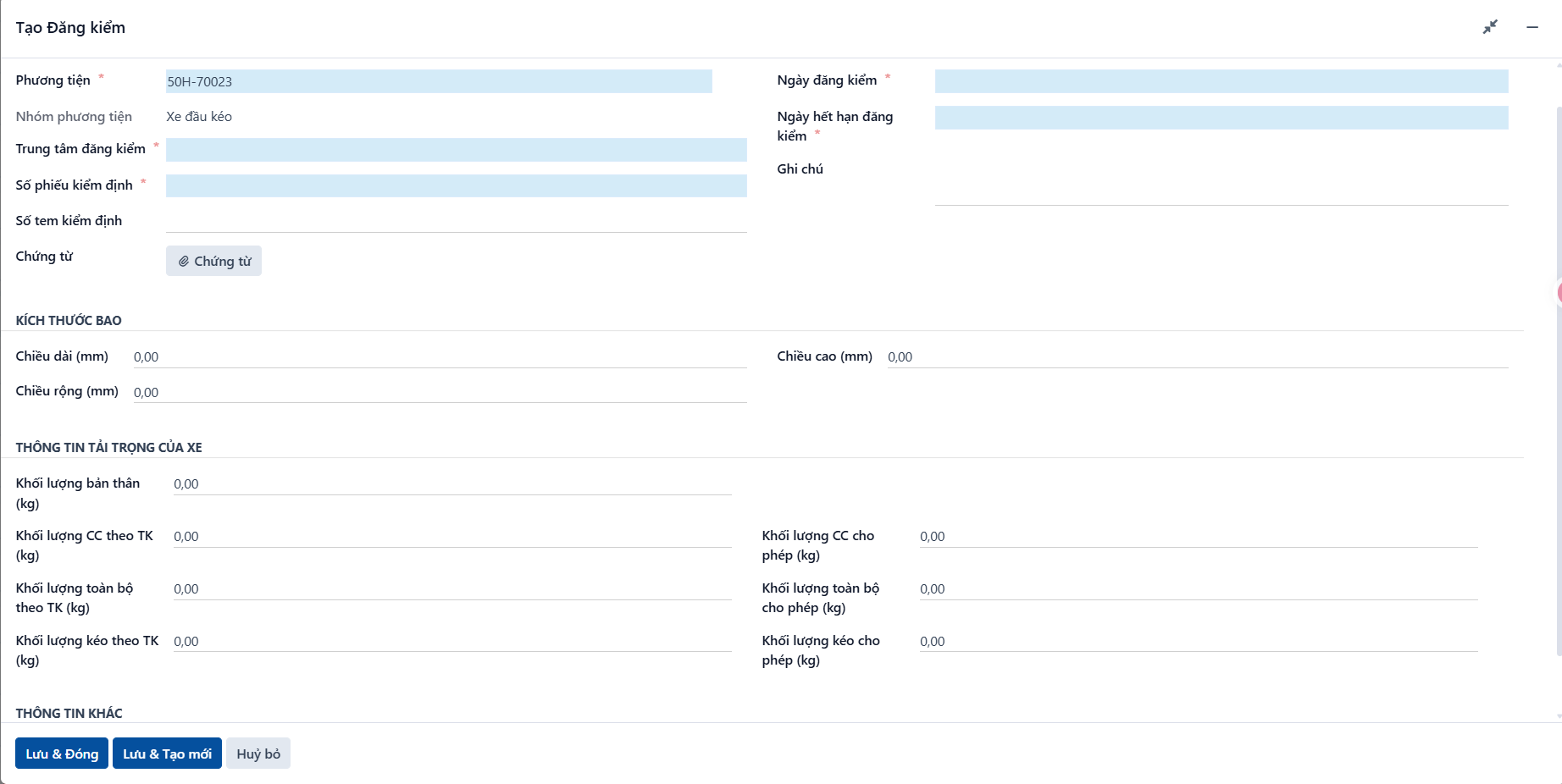
Enter the inspection information, then click Save & Close or Save & New to save it. |
| 23 | Width (mm) | |
| 24 | Height (mm) | |
| 25 | Kerb weight (kg) | |
| 26 | Design payload (kg) | |
| 27 | Design gross weight (kg) | |
| 28 | Design towing weight (kg) | |
| 29 | Permitted payload (kg) | |
| 30 | Permitted gross weight (kg) | |
| 31 | Permitted towing weight (kg) |
Note on the numbering: The source document has no field number 32; the list keeps the numbers 1–31 and 33–51 as they are.
[5] - VEHICLE DOCUMENT INFORMATION
| No. | Field | Notes |
|---|---|---|
| 33 | Document type | 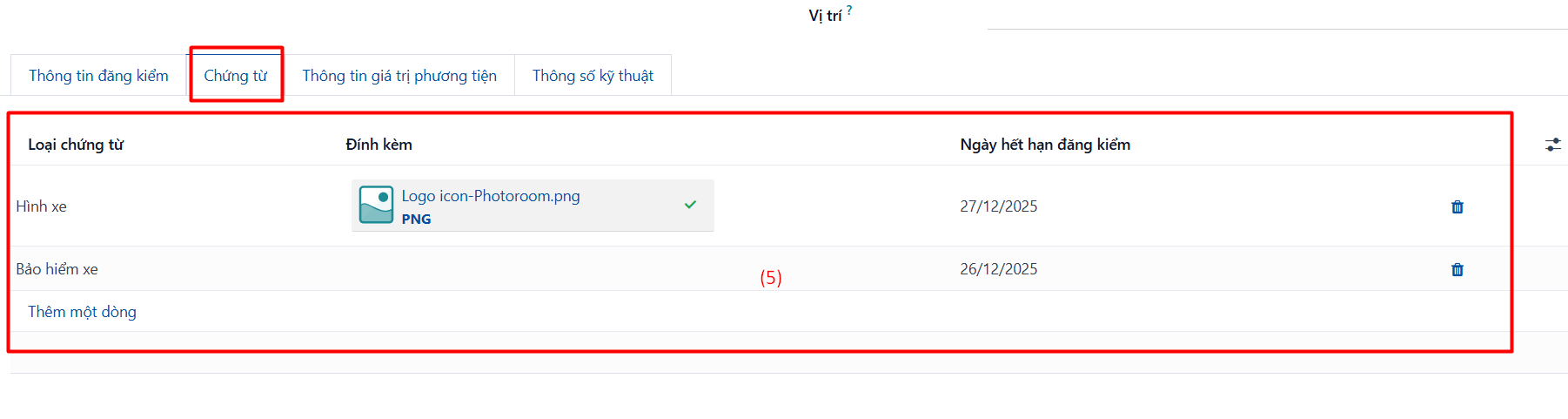 |
| 34 | Attachment | |
| 35 | Document expiry date |
[6] - VEHICLE VALUE INFORMATION
| No. | Field | Notes |
|---|---|---|
| 36 | First contract date | 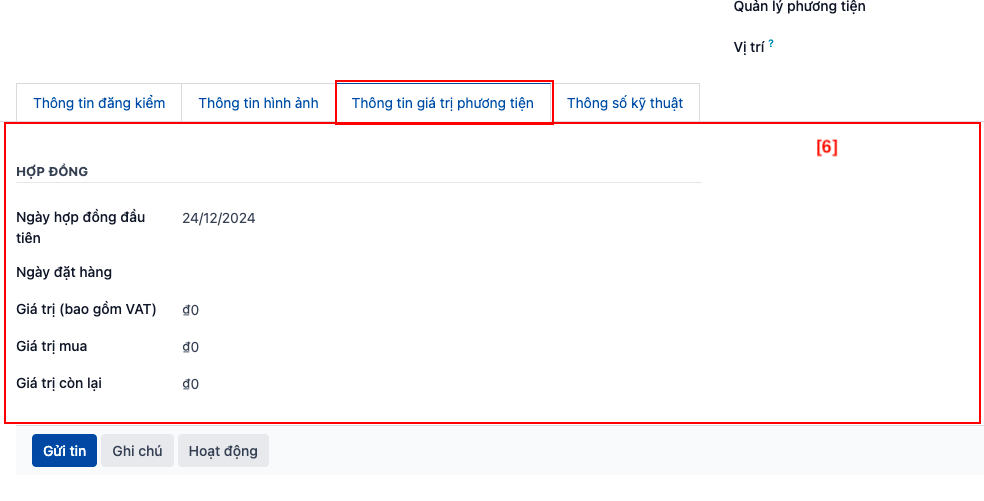 |
| 37 | Order date | |
| 38 | Value (including VAT) | |
| 39 | Purchase value | |
| 40 | Residual value |
[7] - TECHNICAL SPECIFICATIONS
| No. | Field | Notes |
|---|---|---|
| 41 | Model year | 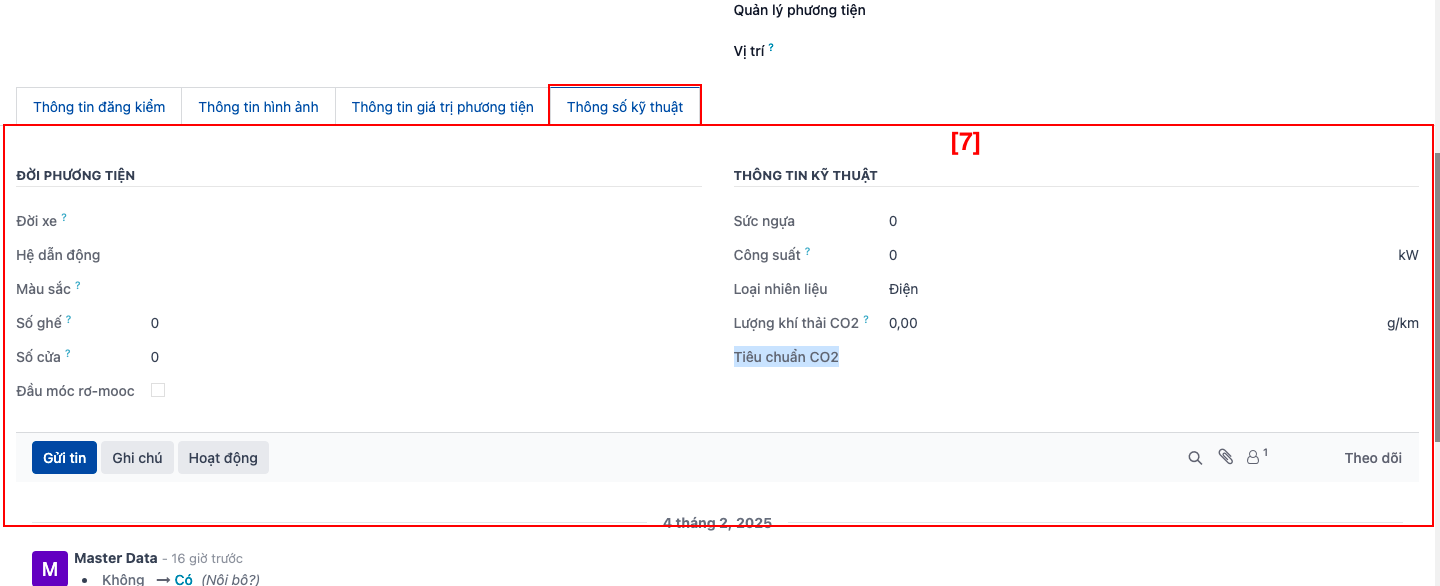 |
| 42 | Drivetrain | |
| 43 | Color | |
| 44 | Number of seats | |
| 45 | Number of doors | |
| 46 | Trailer hitch | |
| 47 | Horsepower | |
| 48 | Power | |
| 49 | Fuel type | |
| 50 | CO2 emissions | |
| 51 | CO2 standard |
Result
The vehicle record has been created successfully.