Access
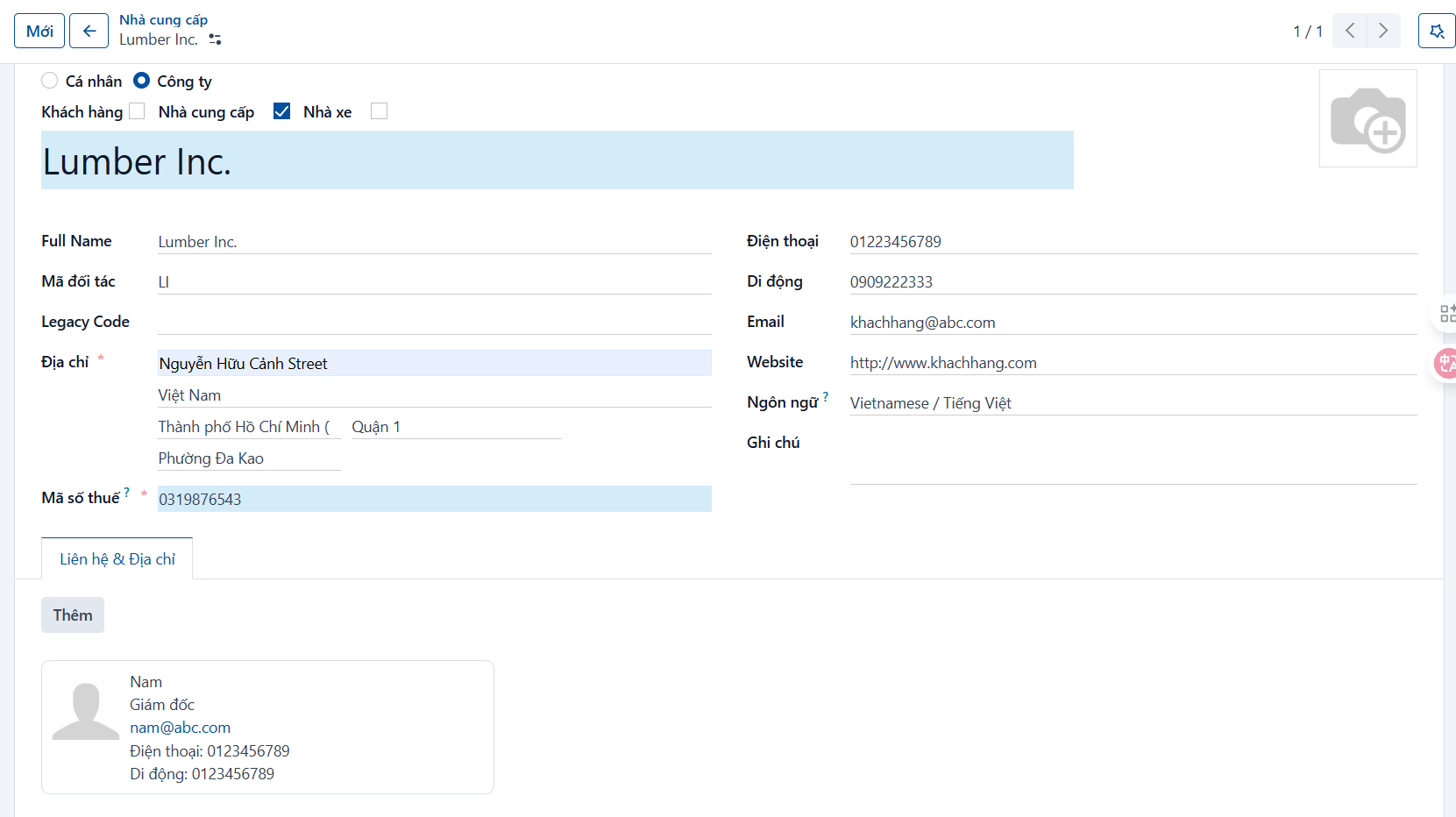
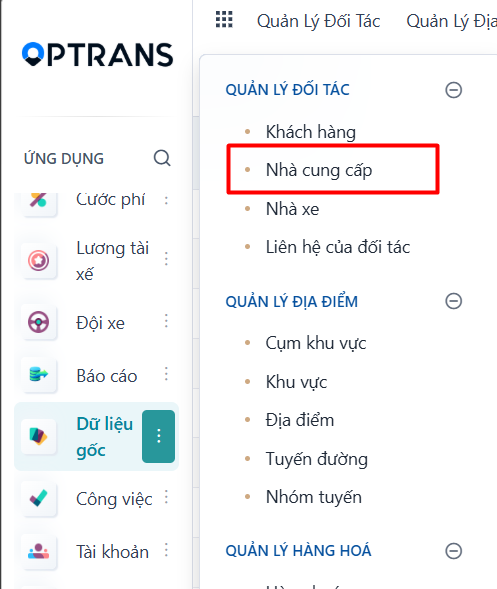
Screen: Master data > Suppliers
Access rights: Users with Master Data management rights
Use the path above to open the screen where you create a new supplier.
Steps
Step 1
Click NEW to create a new supplier.

Step 2
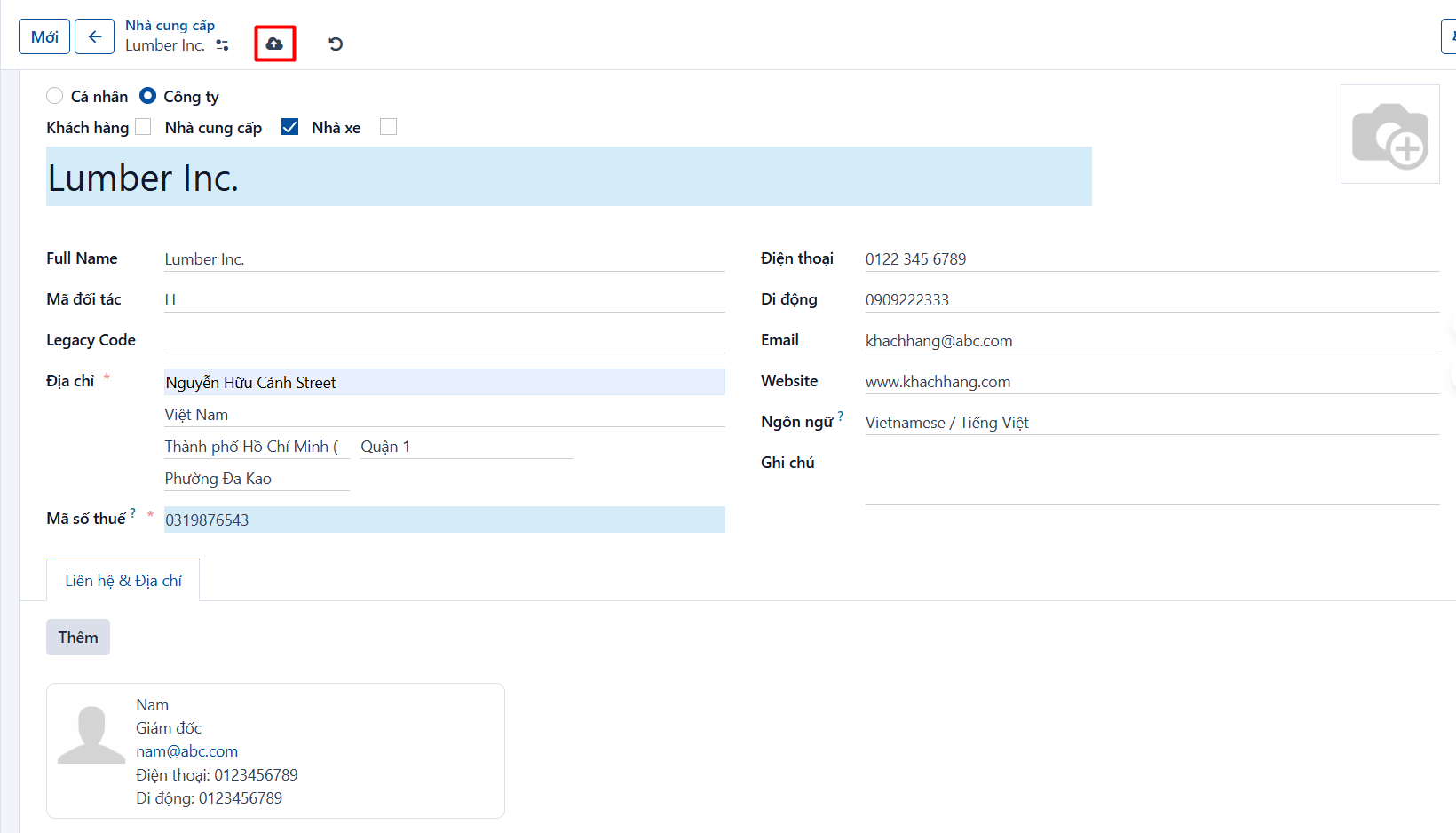
After you click NEW, the system opens the form view. Enter the information to create the new supplier.
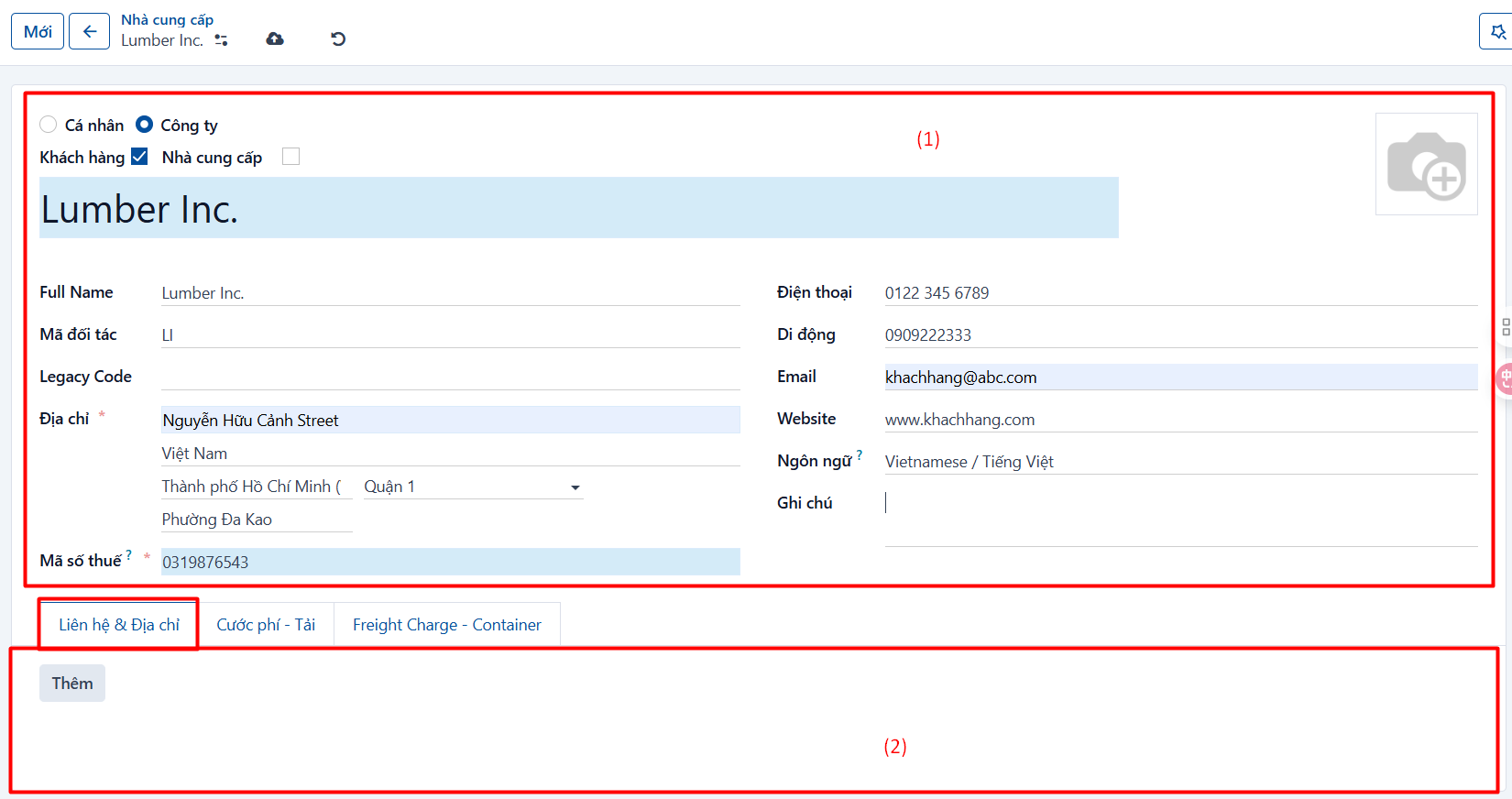
General information [1]
| No. | Field | Notes |
|---|---|---|
| 1 | Partner type | Required. Whether the supplier is an Individual or a Company. |
| 2 | Supplier type | Required. Select Supplier. |
| 3 | Name | Required. Enter the name of the supplier you are creating. |
| 4 | Company | Only select this when “Partner type” is Individual. Select the company that individual supplier belongs to. Not required. |
| 5 | Full name | Enter the full name of the supplier, if any. |
| 6 | Partner code | Enter a unique code so you can tell supplier and partner records apart. You can use the supplier’s abbreviation. |
| 7 | Address | Required. Address of the supplier. |
| 8 | Tax code | Required. Tax code of the supplier. |
| 9 | Phone | Phone number of the supplier. |
| 10 | Mobile | Mobile number of the supplier. |
| 11 | Email of the supplier. | |
| 12 | Website | Website of the supplier. |
| 13 | Language | Language the supplier uses. |
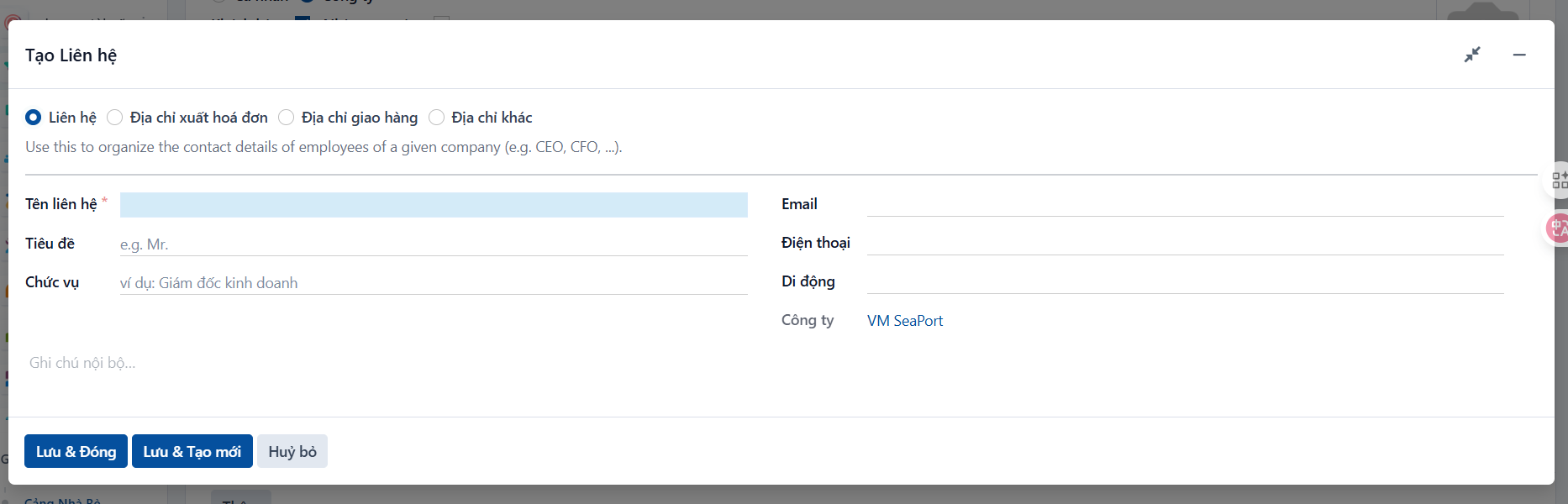
Contact information [2]
| No. | Field | Notes |
|---|---|---|
| 12 | Contact type | Select the contact type: Contact (for ordinary contact details), Invoice address (this contact is the invoicing address), Delivery address (this contact is where goods are delivered) or Other address. |
| 13 | Contact name | Enter the name of the contact. |
| 14 | Address | Address of the contact. |
| 15 | Email of the contact. | |
| 16 | Phone | Phone number of the contact. |
| 17 | Mobile | Mobile number of the contact. |
| 18 | Company | The company this contact belongs to. |
Step 3
Once the information is entered, click  to save it.
Result
The record after it has been created successfully.