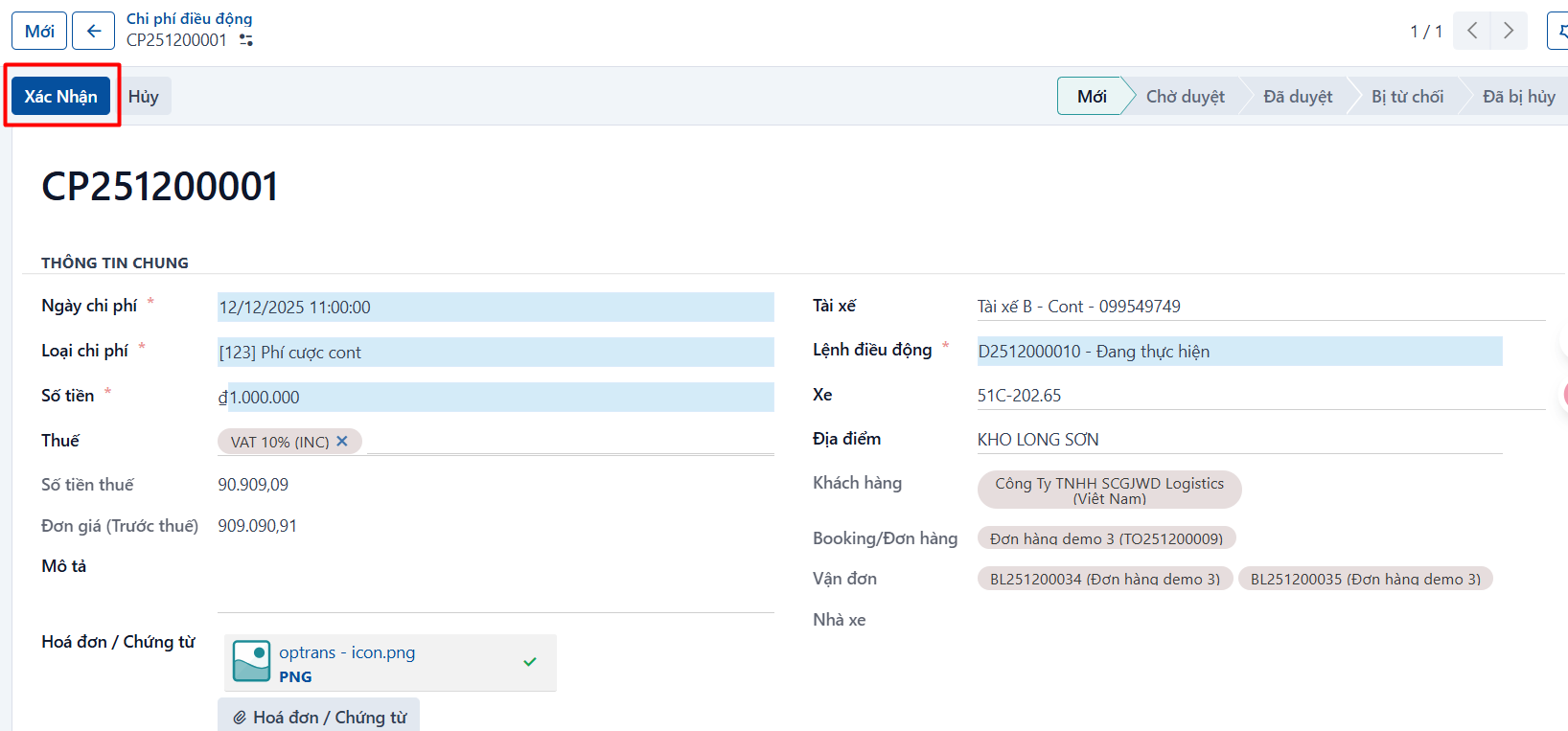
Note
The driver mobile app already lets drivers record their additional costs and upload the invoices and documents. Use this function when a dispatcher needs to create the cost themselves.
Steps
Step 1
Go to the All costs menu and click the create button.
Step 2
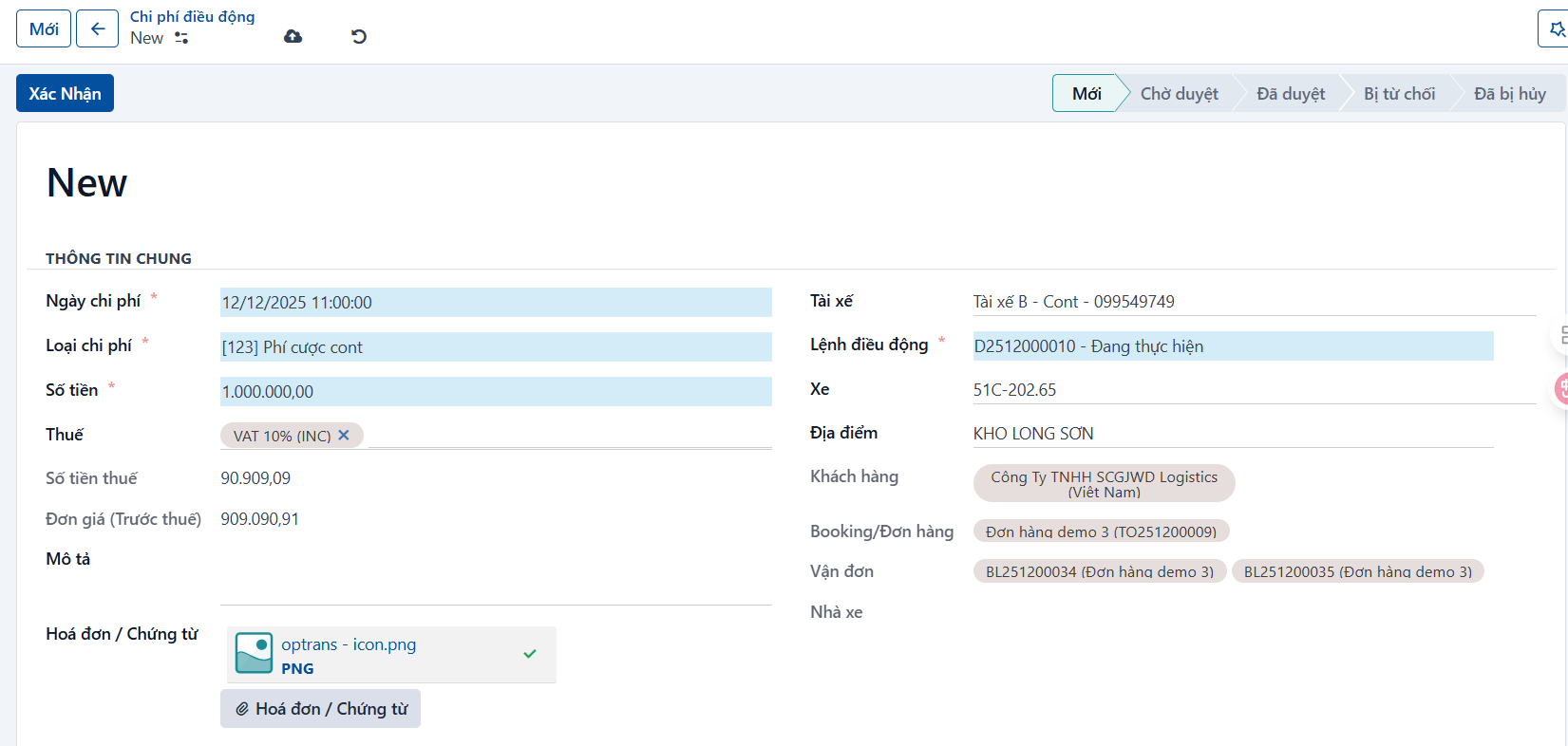
Enter the information:
-
Cost date: select the date the cost was incurred.
-
Cost type: select the type of cost.
-
Amount: enter the amount, including tax.
-
Tax: select the tax type, if any.
-
Description: enter a description of the cost, if any.
-
Invoice / Document: attach the invoice or document.
-
Driver: select the driver.
-
Dispatch order: select the dispatch order the cost belongs to, if required.
-
Vehicle: select the vehicle that incurred the cost, if required.
-
Location: select the location where the cost was incurred, if required.
-
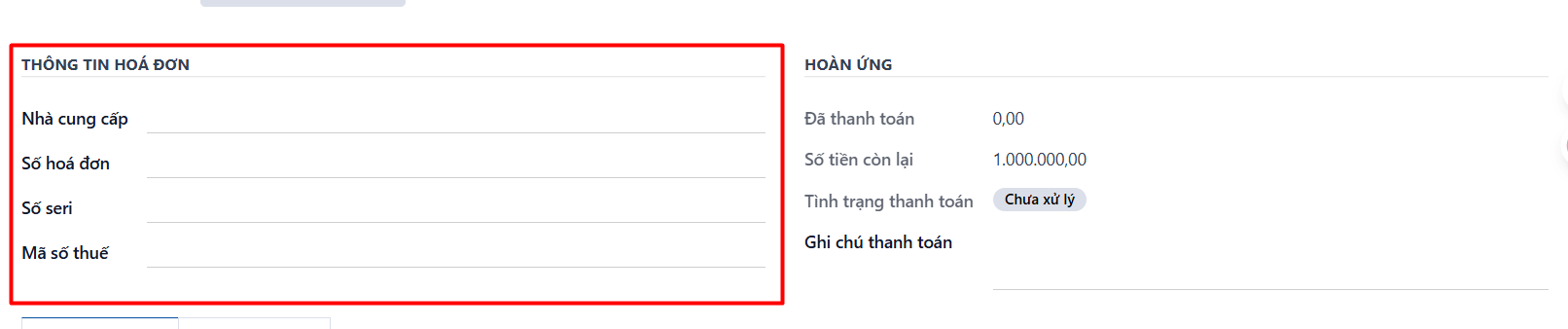
Some additional information:
-
Supplier: select the service supplier, if that supplier already exists in the system.
-
Invoice number: enter the invoice number.
-
Serial number: enter the invoice serial number.
-
Tax code: enter the tax code of the service supplier.
-
Step 3
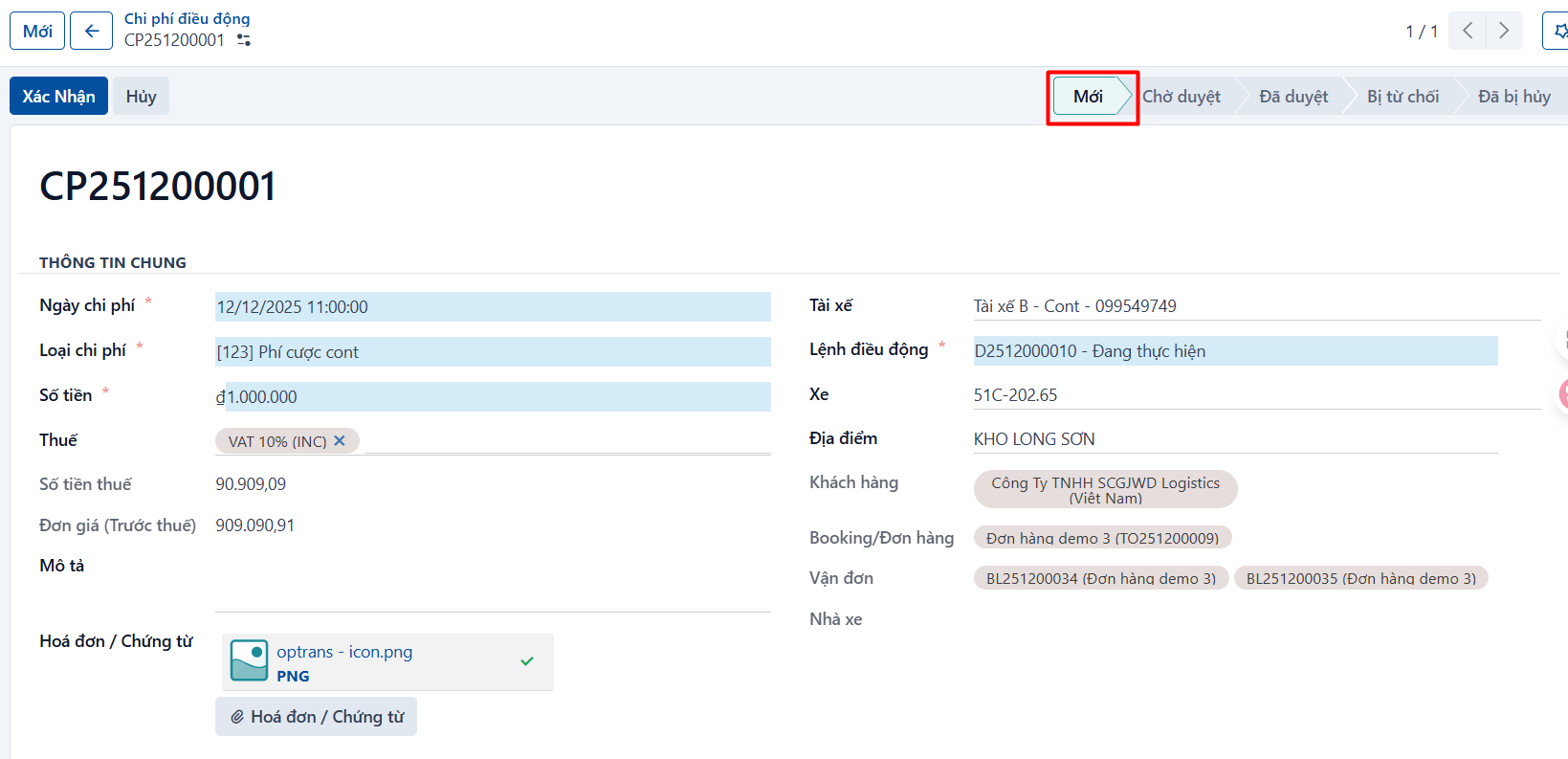
Click the save button to finish creating the cost record. A newly created record is in the NEW state.
Step 4
Click CONFIRM to confirm the cost record.
-
If the cost type is configured to need approval, the record moves to WAITING FOR APPROVAL after you confirm it.
-
If the cost type is not configured to need approval, the record moves straight to APPROVED after you confirm it.