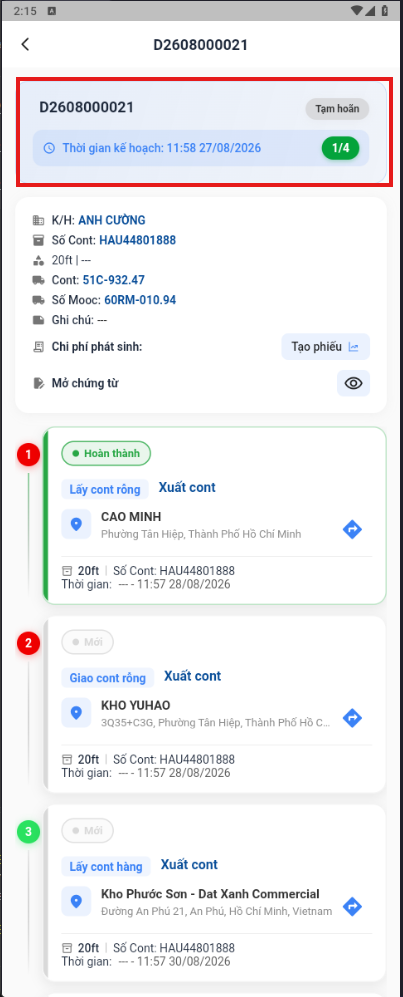
Starting a task
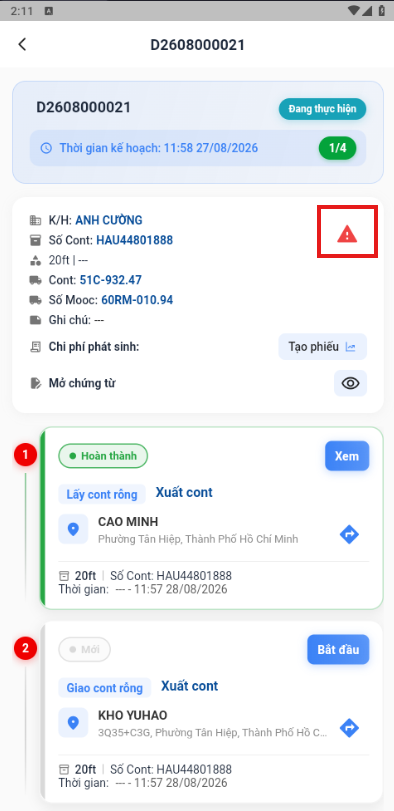
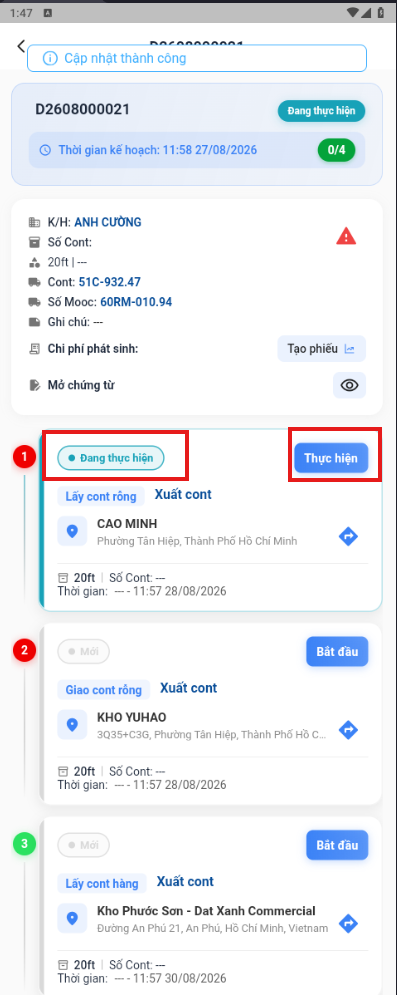
- Select a dispatch order on the home screen.
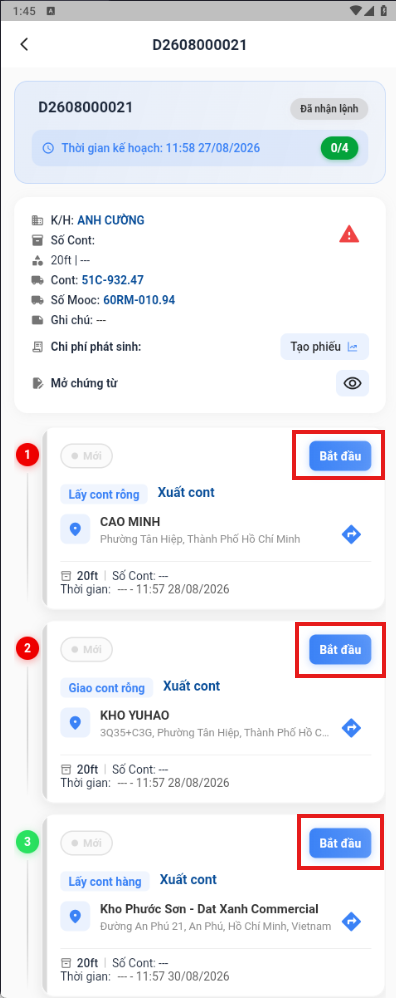
- For each task, select Start. The task moves to Accepted and shows the Perform button. The status is also synchronized with the dispatcher’s web system.
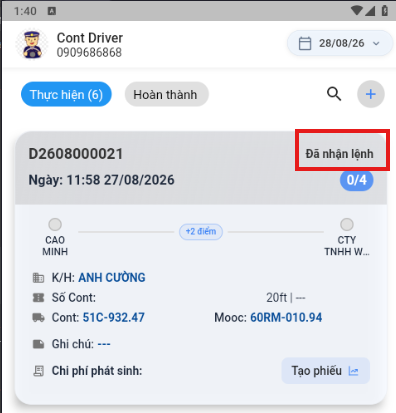
Dispatch order details screen
- After accepting the dispatch order, the driver starts the tasks from the dispatch order details screen.
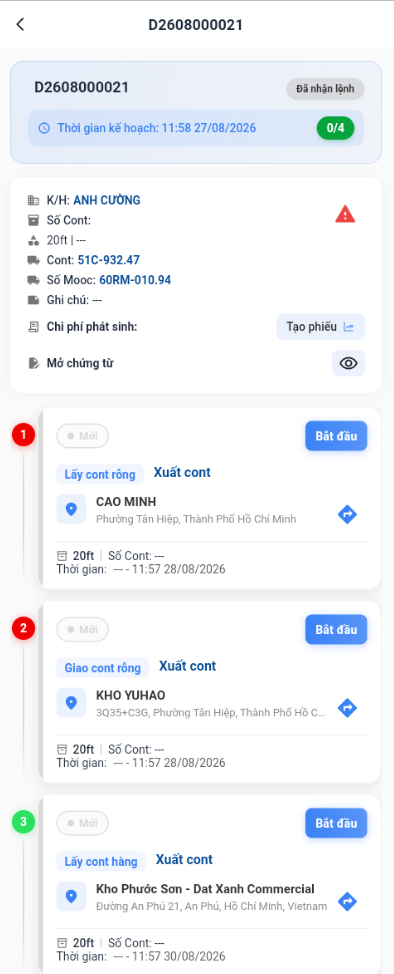
- Tap the Start button on the task you want to perform, such as Pick up empty container, Drop off empty container or Pick up laden container.
Viewing attached document images
On the details screen of a dispatch order, tap the icon under Open documents to view the related documents.
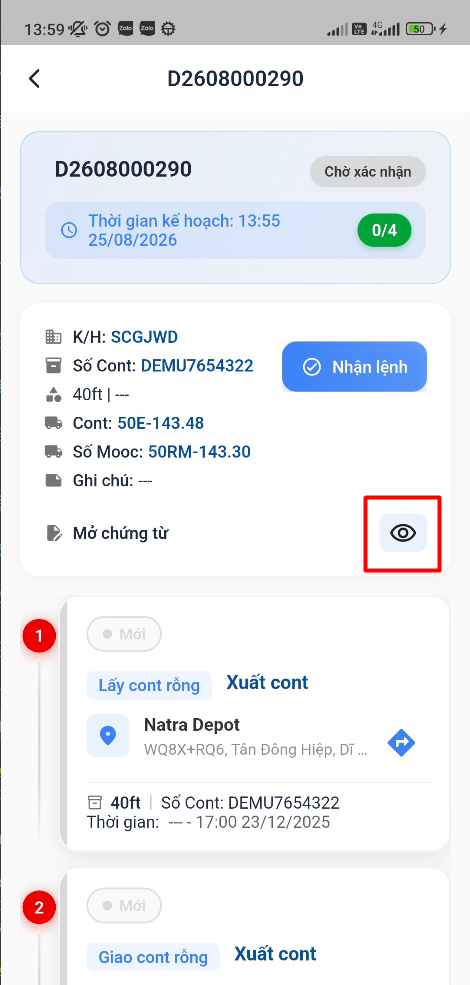
There are two groups of documents:
- Order documents
- Dispatch order documents
Viewing order documents
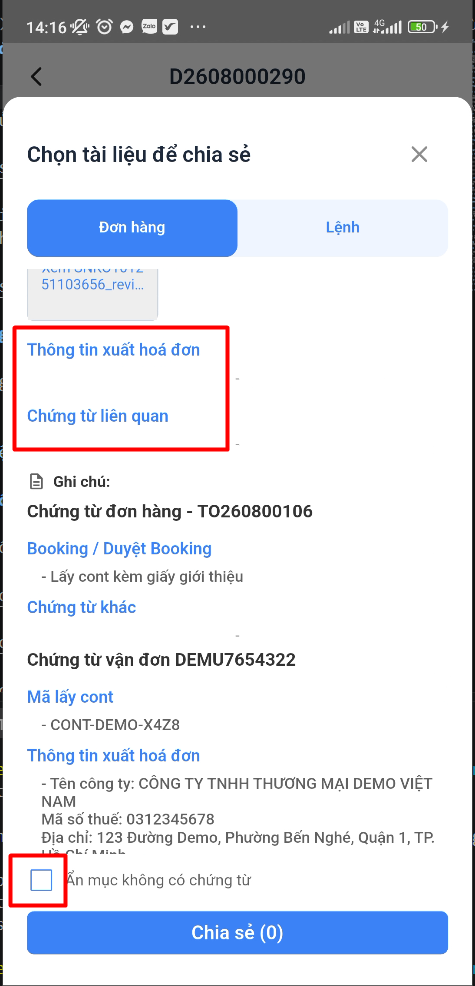
Select the Order tab to view documents related to the current order, including:
- Bookings and documents belonging to the order
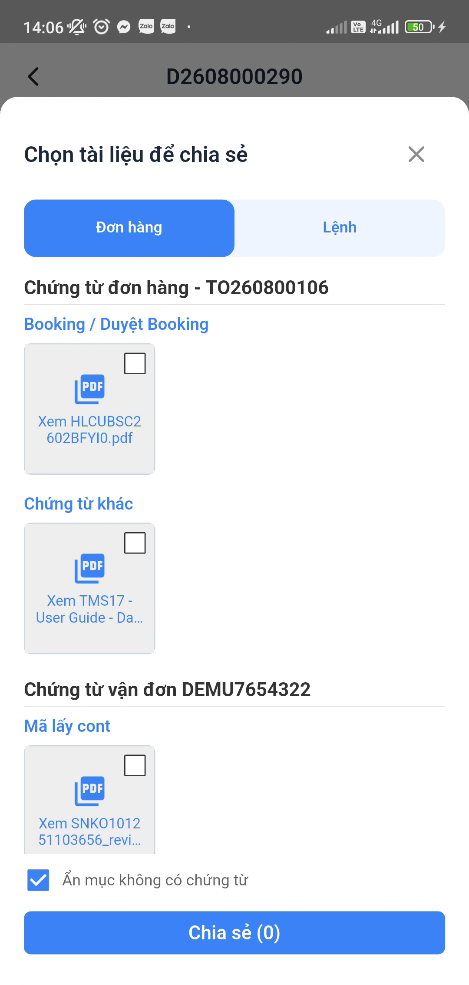
- Documents and notes related to the waybill or container (for example the container pickup code or invoicing details)
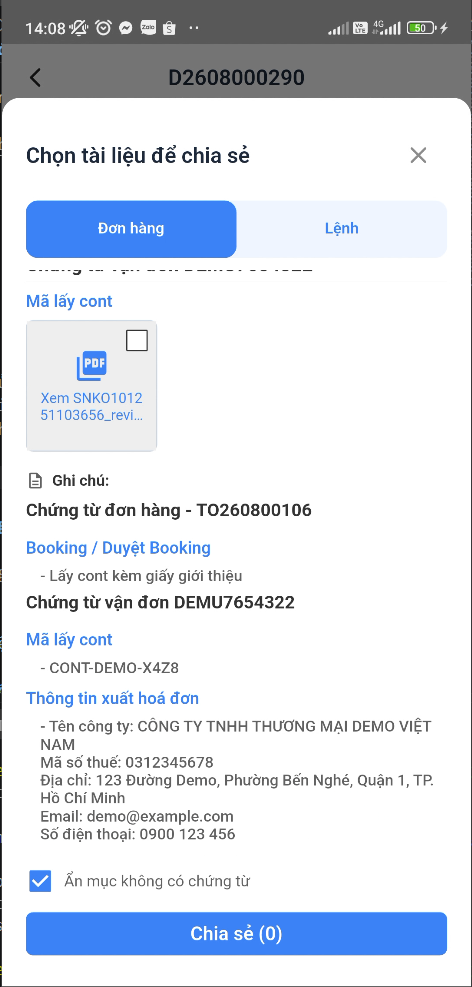
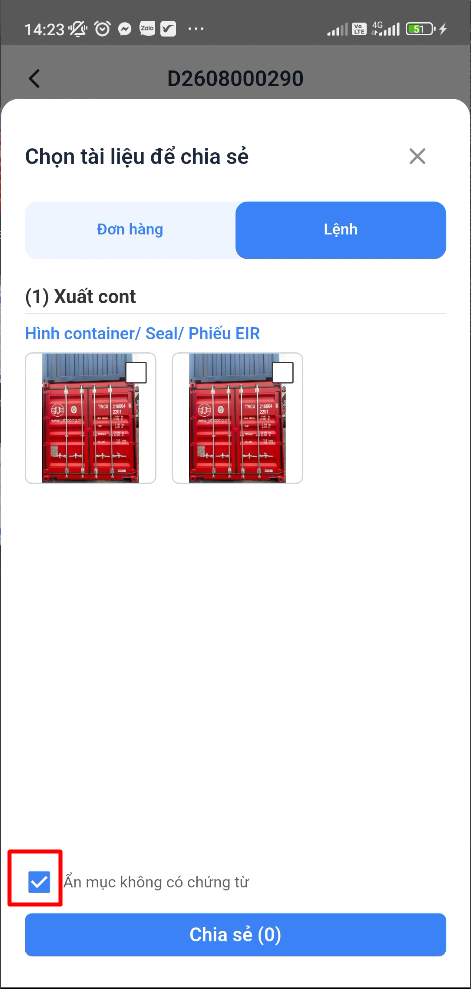
NOTE: Select Hide items without documents so the app only shows items that have an attachment or a note.
Viewing dispatch order documents
Select the Dispatch order tab to view documents related to the current dispatch order, including:
- Images and documents related to the dispatch order that the driver or the dispatcher uploaded to the system
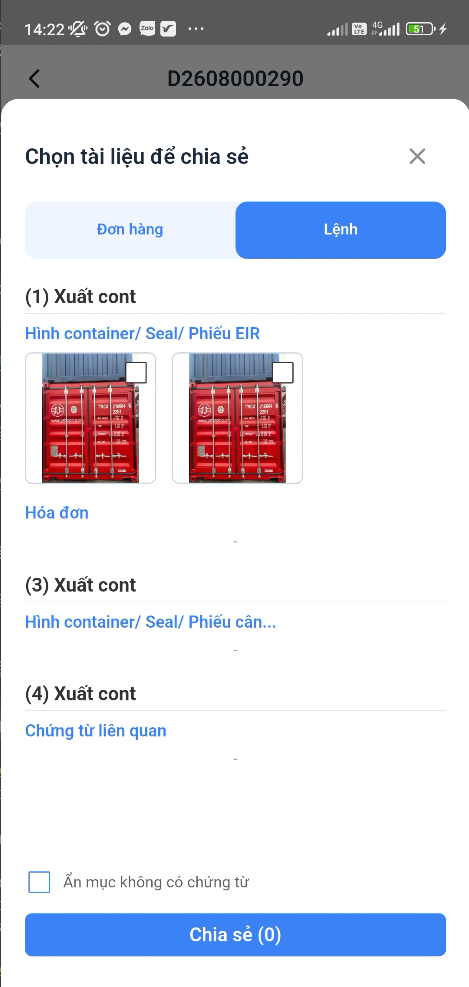
NOTE: Select Hide items without documents so the app only shows items that have an attachment or a note.
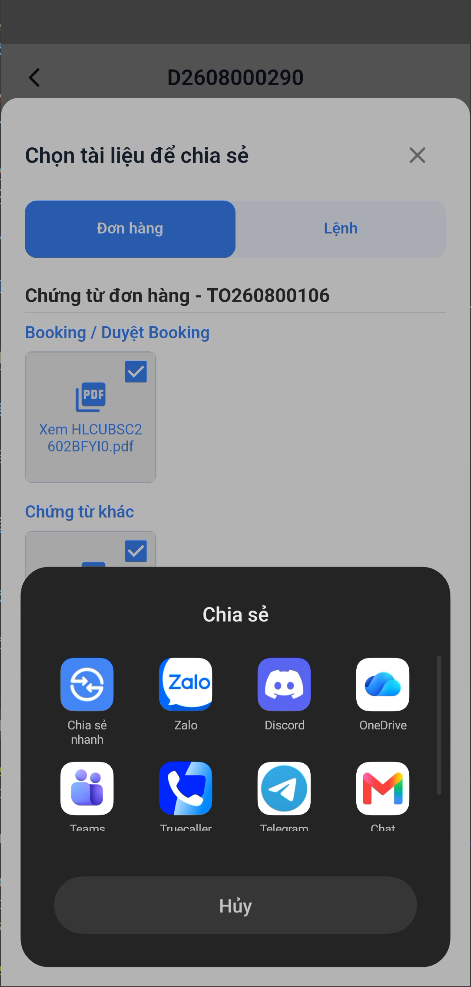
Sharing documents and images with other apps
Select the checkbox for each file or image you want to share, then tap Share.
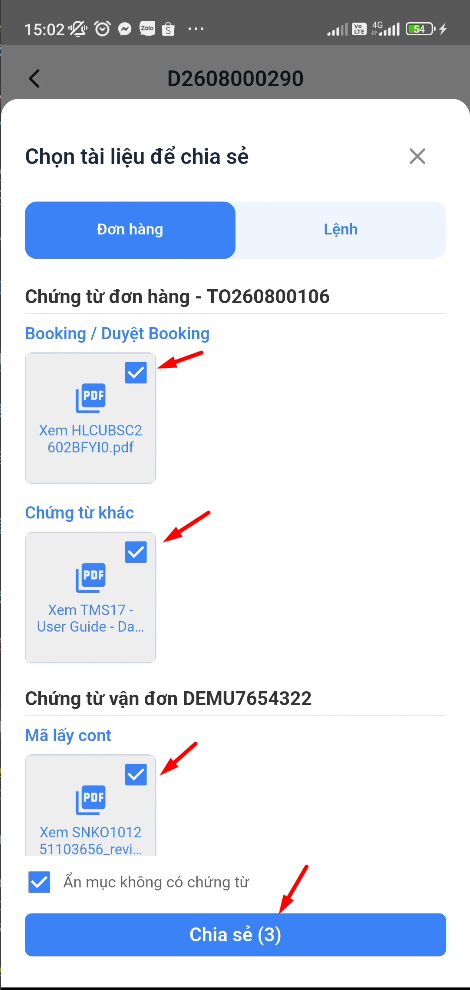
Then choose the app you want to share the selected items with.
Updating task information
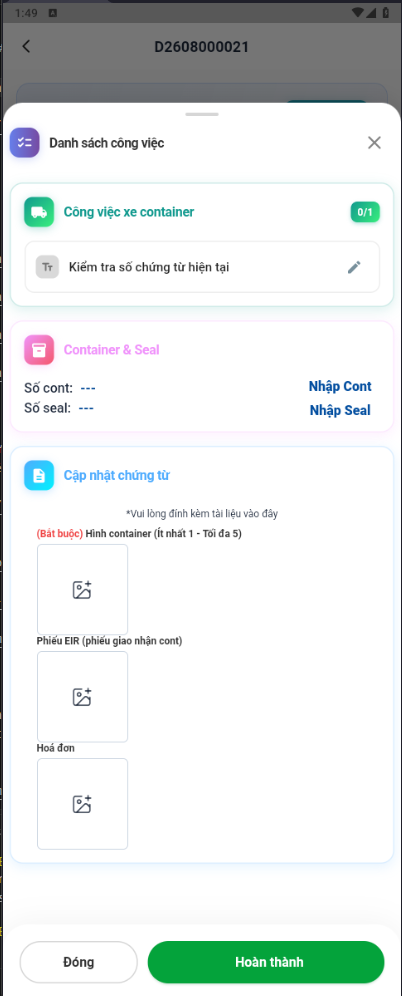
When you arrive at the task location, select Perform to open the task popup.
Updating the container and seal numbers
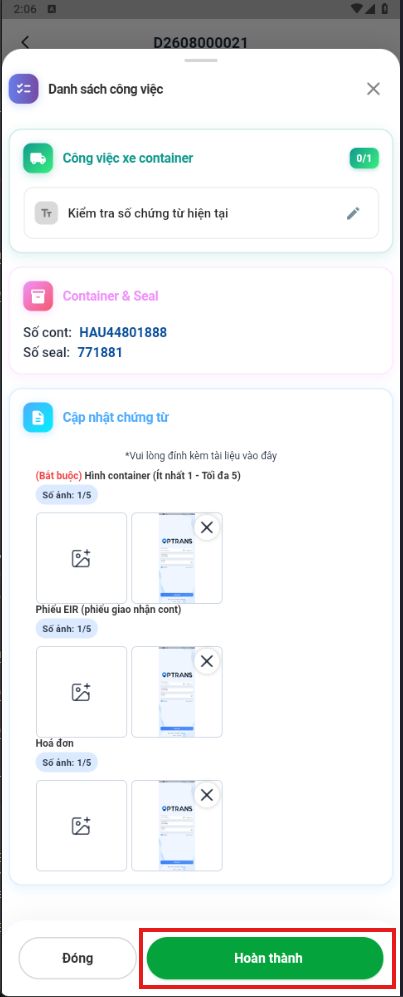
- The system shows the task list. The driver needs to record the container and seal numbers.
- Tap Enter container or Enter seal to record the container number and the seal number.
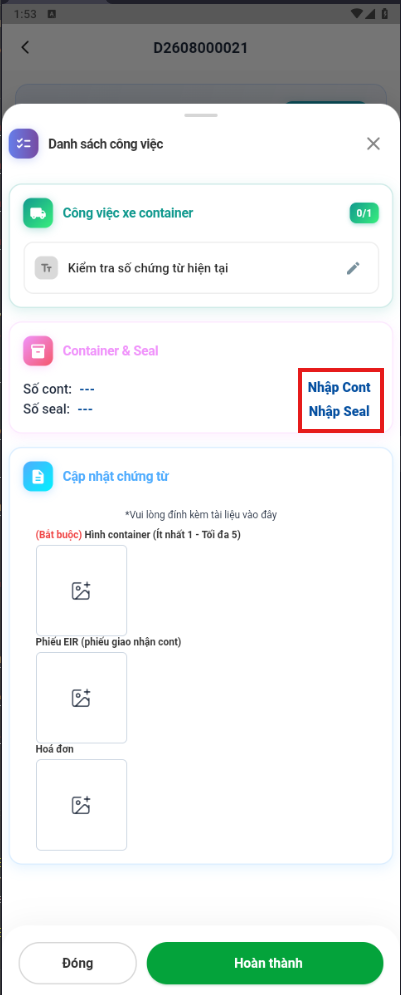
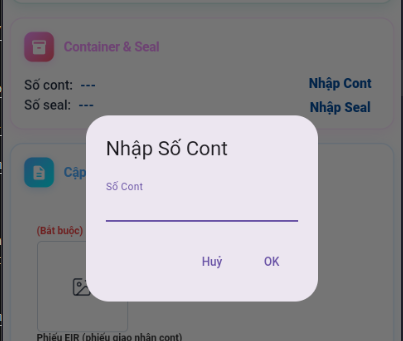
- The system records the container and seal numbers successfully.
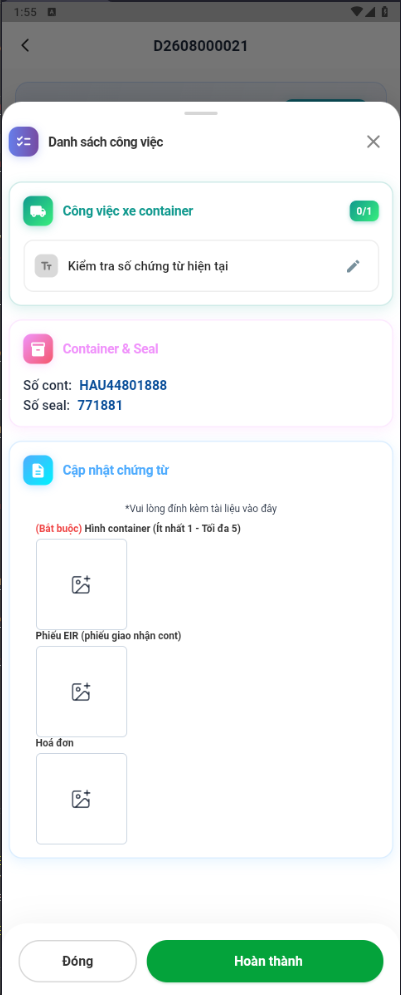
Updating images and documents
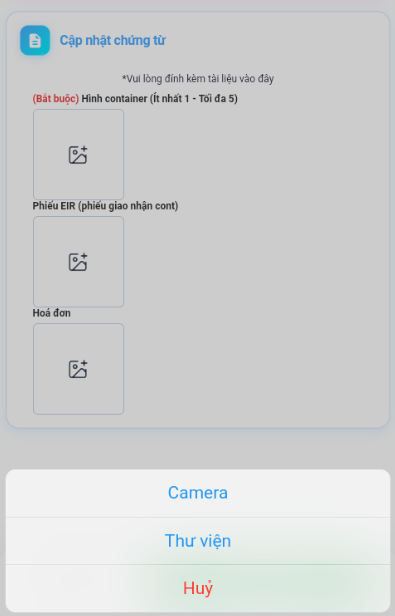
Select the option to add an image or document, take a photo or pick an existing one, review the preview, and upload it to the task.
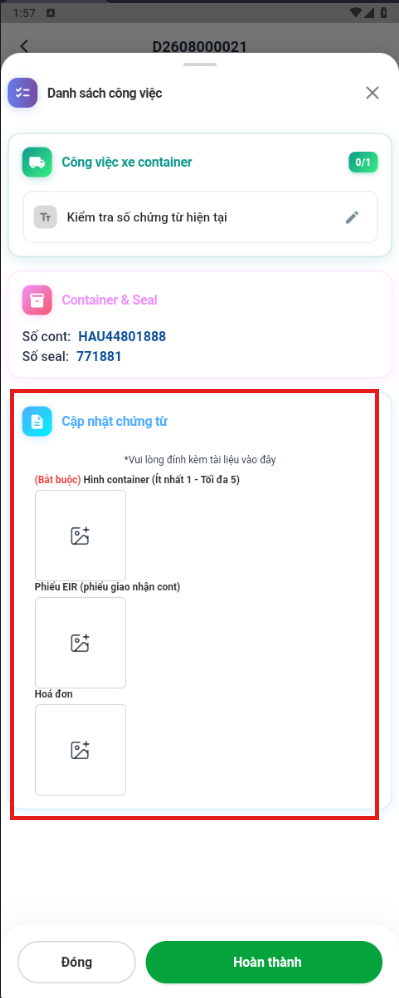
Note: The driver must upload the required number of images for every item labeled (Required) before the dispatch order can be completed. If any required item is missing an image, the system will not allow the driver to complete the dispatch order.
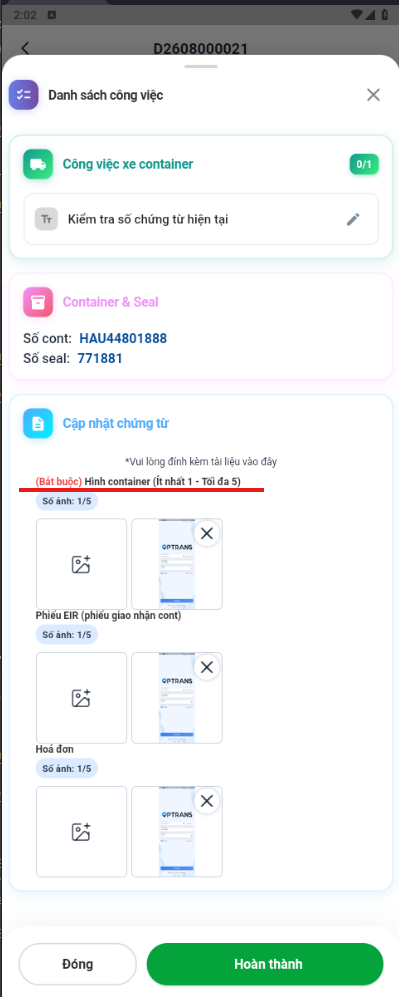
Completing a task
Once all the work is done, select Complete.
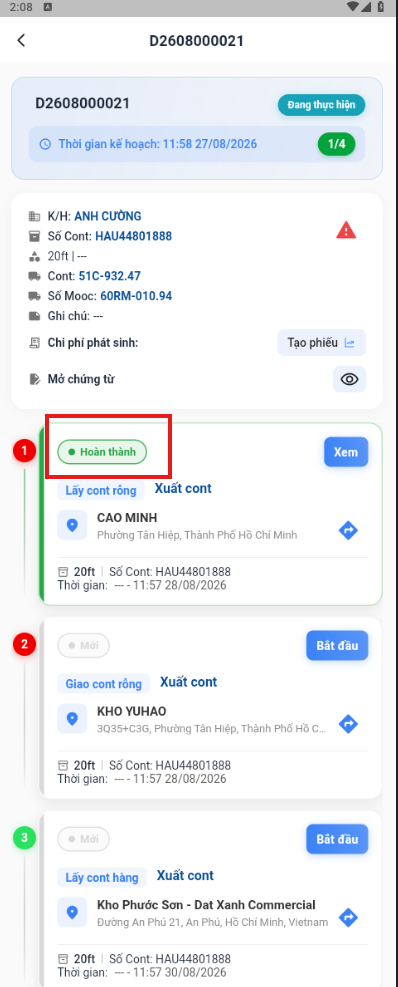
The system updates the first task to the Completed status.
Reporting an incident
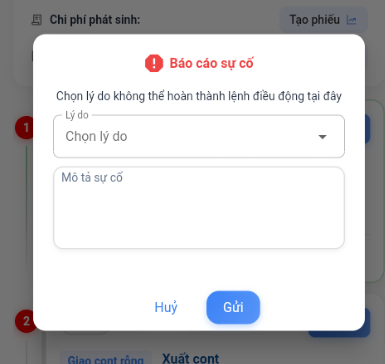
If an accident or incident forces the driver to pause the trip or makes it impossible to continue, select the warning icon.
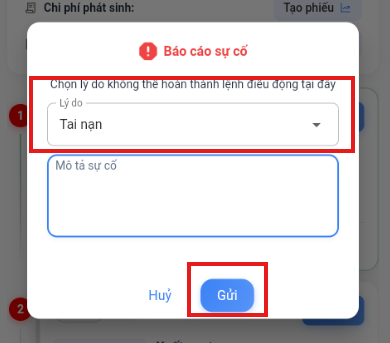
- Select a reason, enter a description and tap Send.
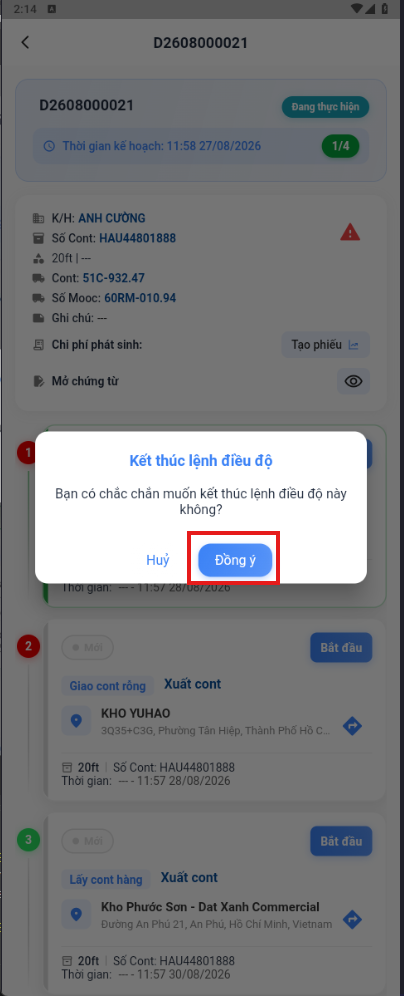
- On the confirmation screen, tap OK.
- The dispatch order moves to Suspended. In the web system the dispatch order moves to Incident, and the details are stored in the Incident history tab.