There are two ways to confirm a booking or order
-
Option 1: confirm one specific booking or order.
-
Option 2: confirm many bookings or orders at once.
Option 1
Confirming one specific booking or order
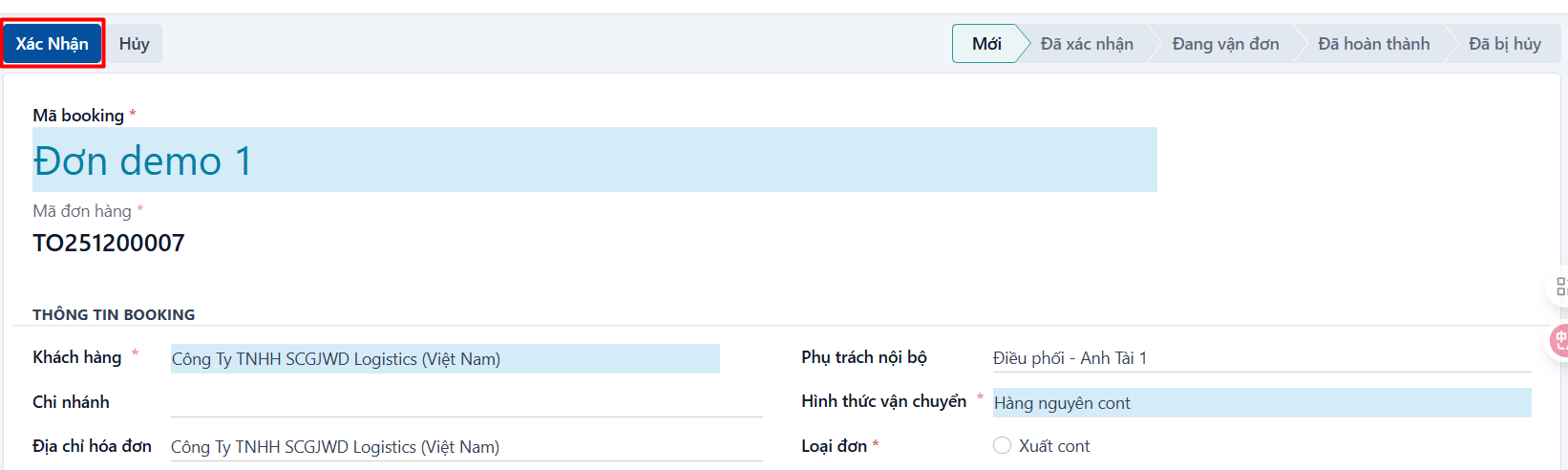
- Step 1: on the details screen of an order → click CONFIRM. When you confirm, the system checks whether all the required documents are attached and whether the task route table is filled in.
- If the system warns you, complete the missing information and confirm again.
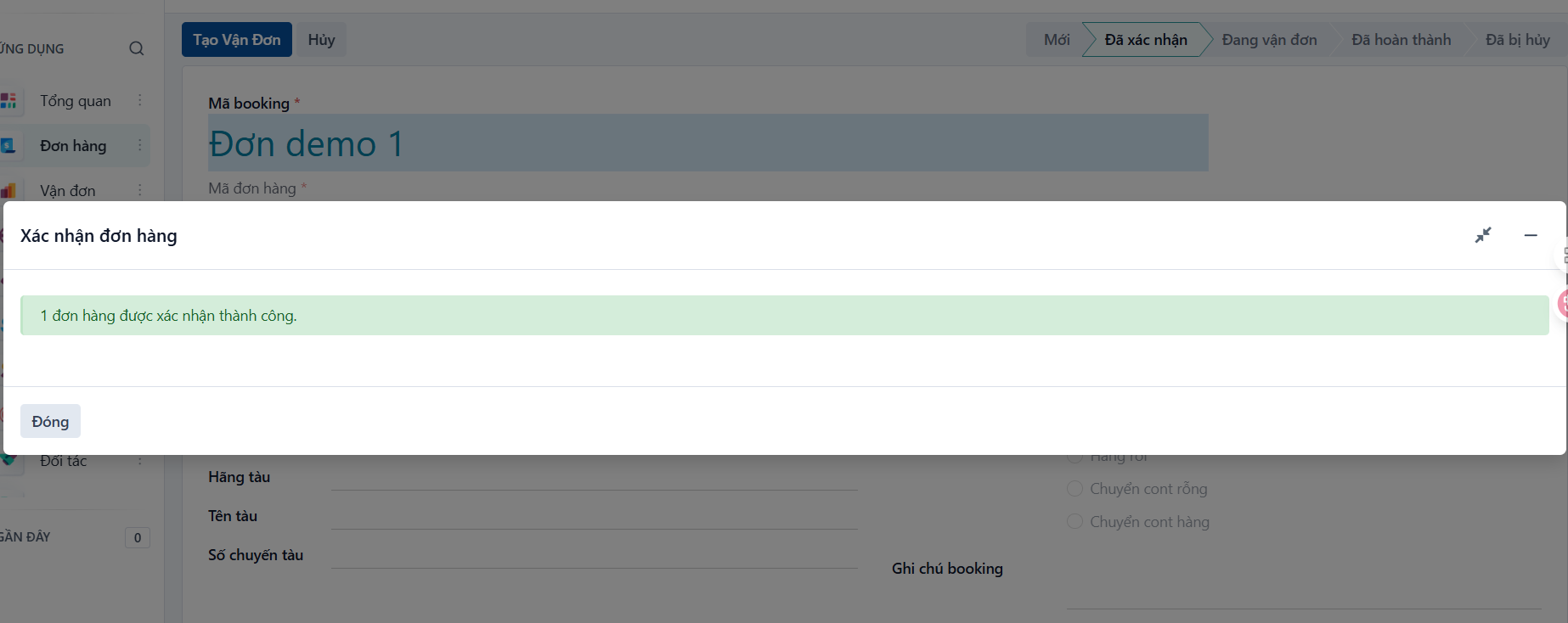
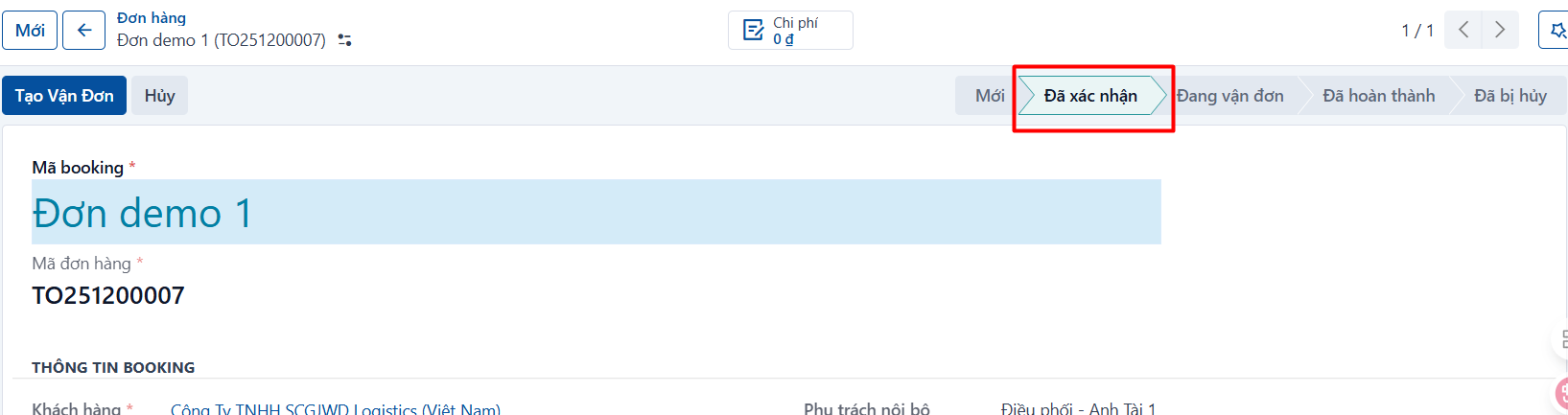
- Step 2: a successfully confirmed order shows the message below. Click CLOSE, or press ESC, to dismiss it. The order then moves to the CONFIRMED state.
Option 2
Confirming many bookings or orders at once
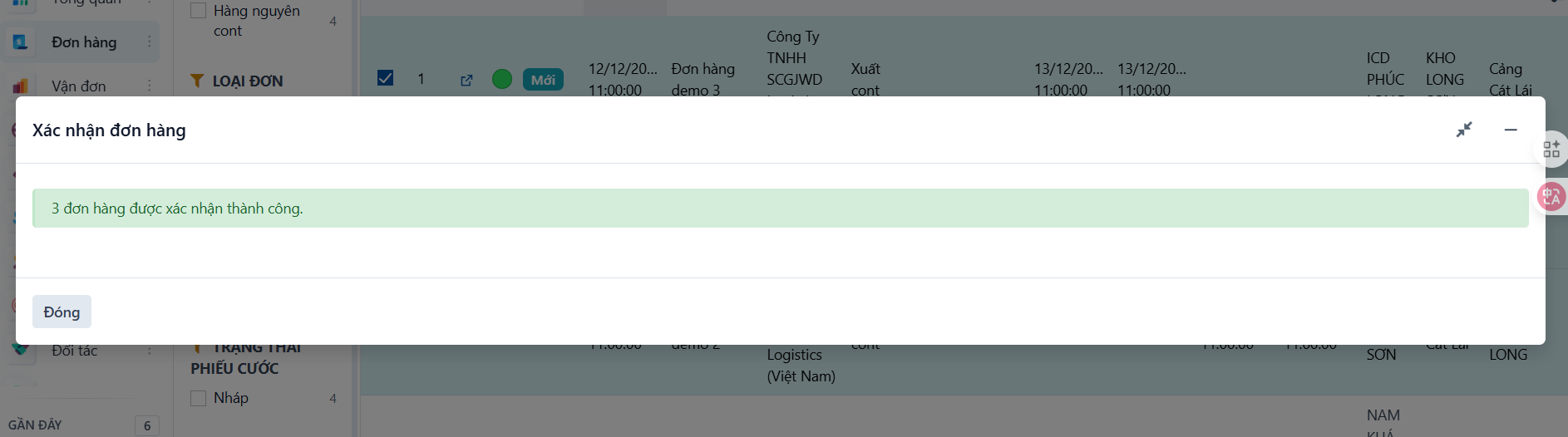
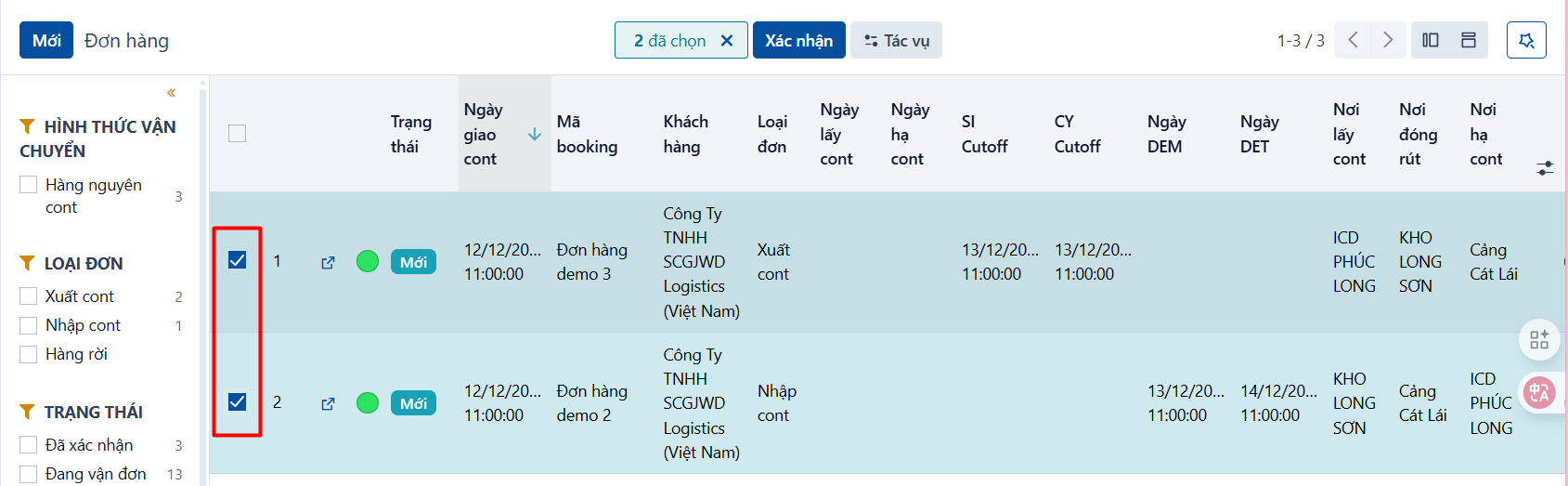
- Step 1: open the booking or order list → tick the bookings and orders you want to confirm.
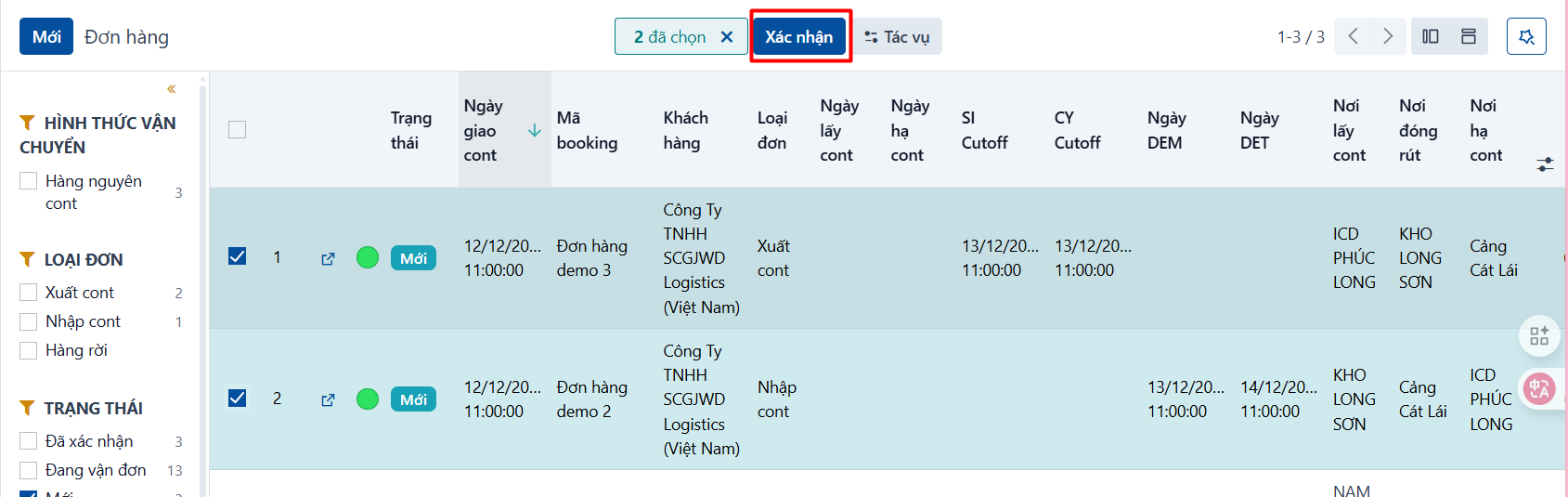
- Step 2: click CONFIRM. When you confirm, the system checks whether all the required documents are attached and whether the task route table is filled in for each order. If the system warns you, complete the missing information and confirm again.
- Step 3: a successfully confirmed order shows the message below. Click CLOSE, or press ESC, to dismiss it. The order then moves to the CONFIRMED state.