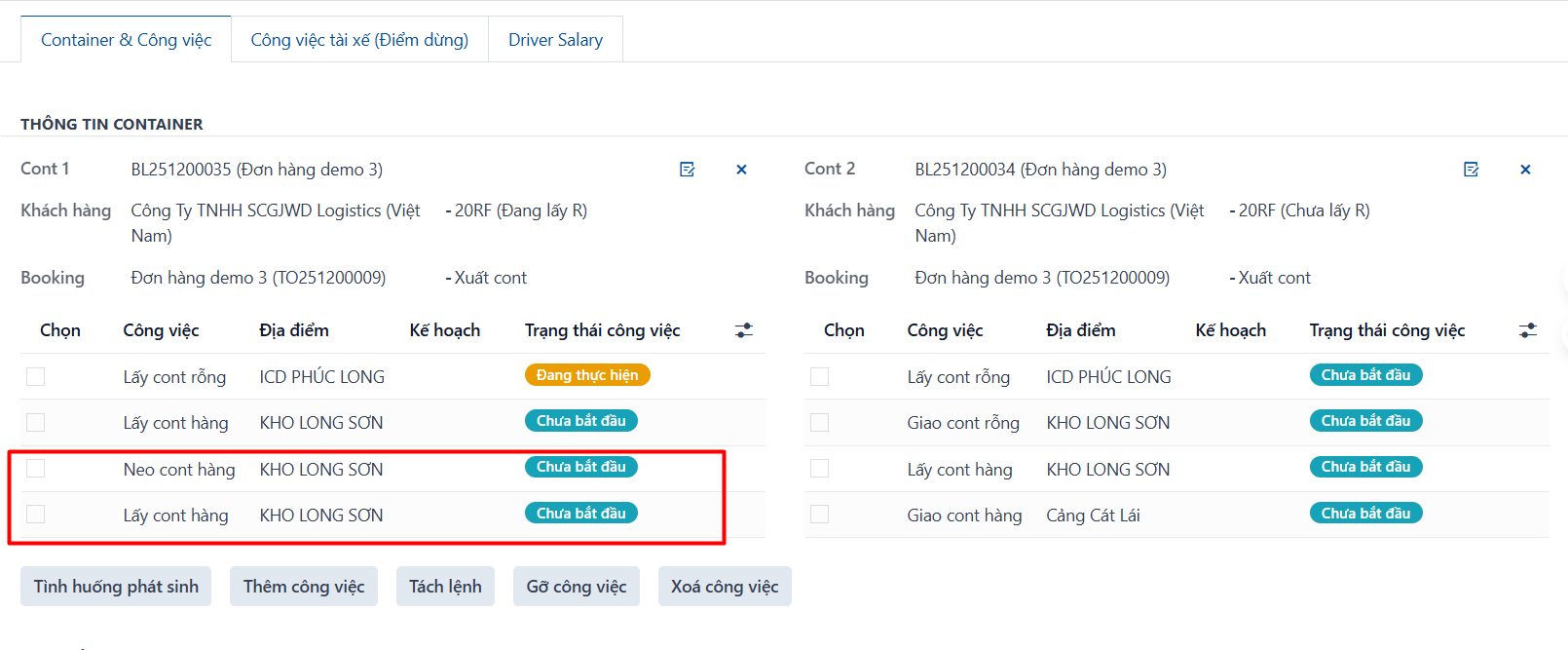
Example: An “Import a full container” order has these tasks: pick up laden container, deliver laden container, pick up empty container, return empty container.
The driver has picked up the laden container but the customer postpones its delivery.
The laden container now has to be stored at a depot and the tasks “Hold laden container” and “Pick up laden container” added to the dispatch order → the dispatcher can do this manually, or use this exception feature to save work.
Steps
Step 1
Open the dispatch order → click EXCEPTION.
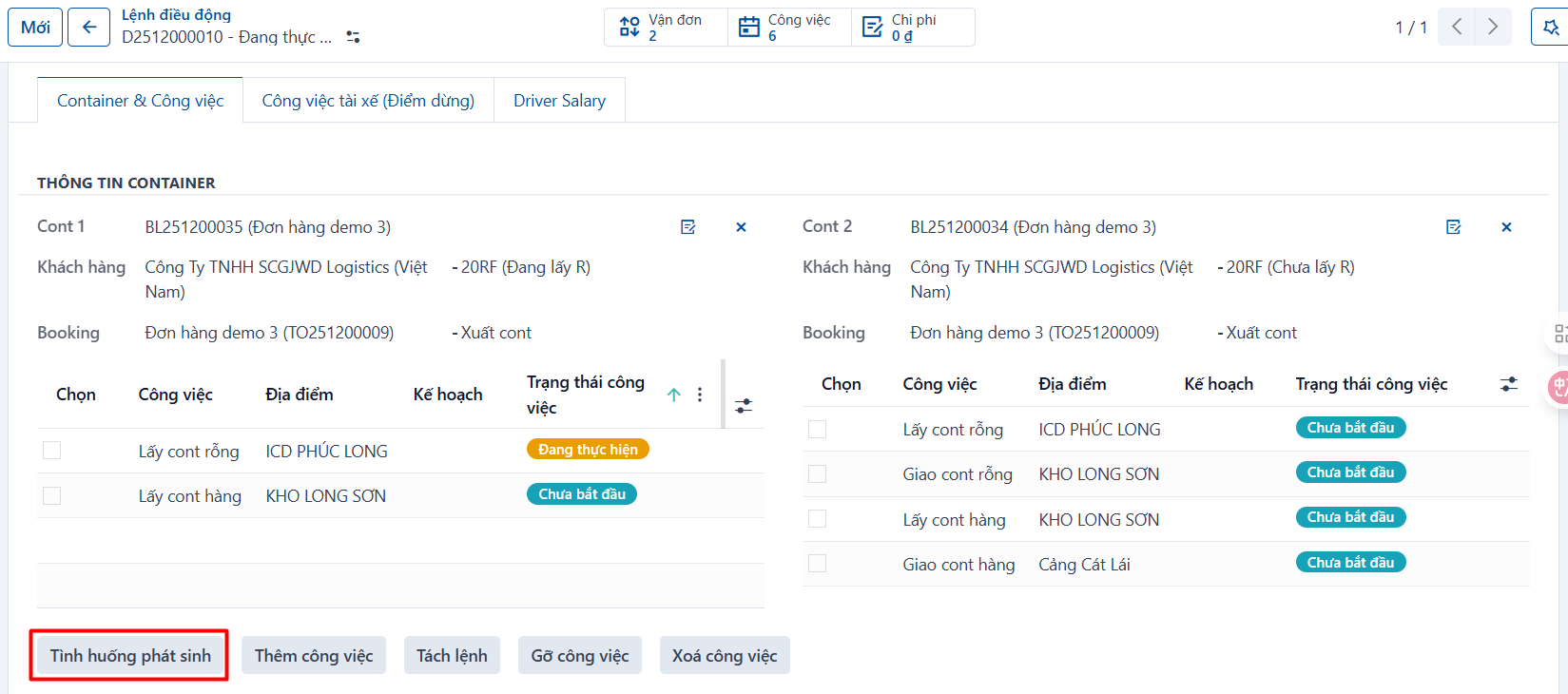
Step 2
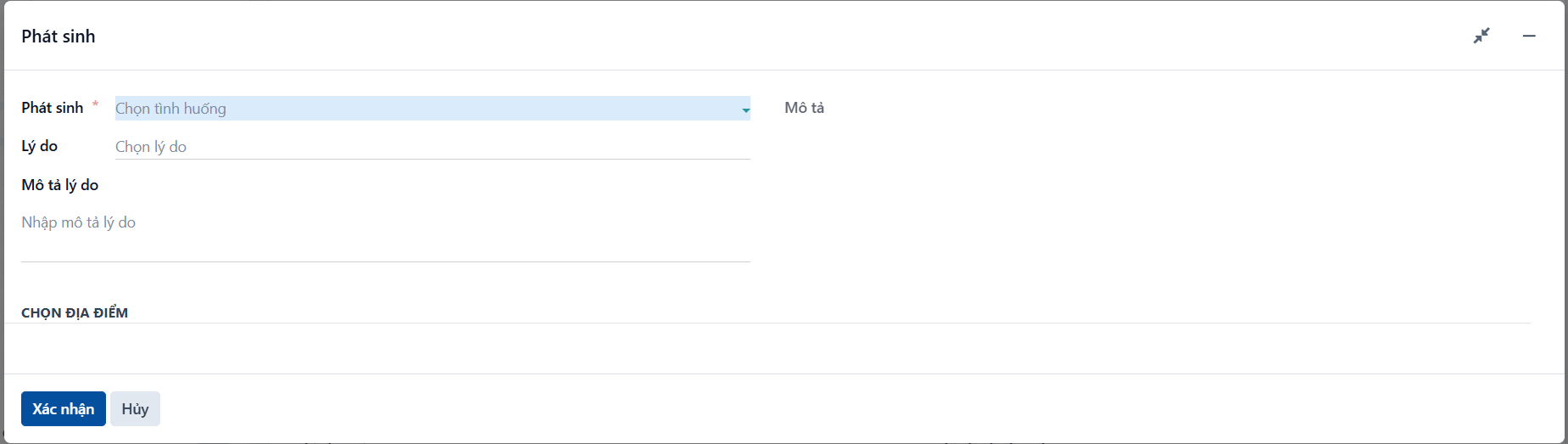
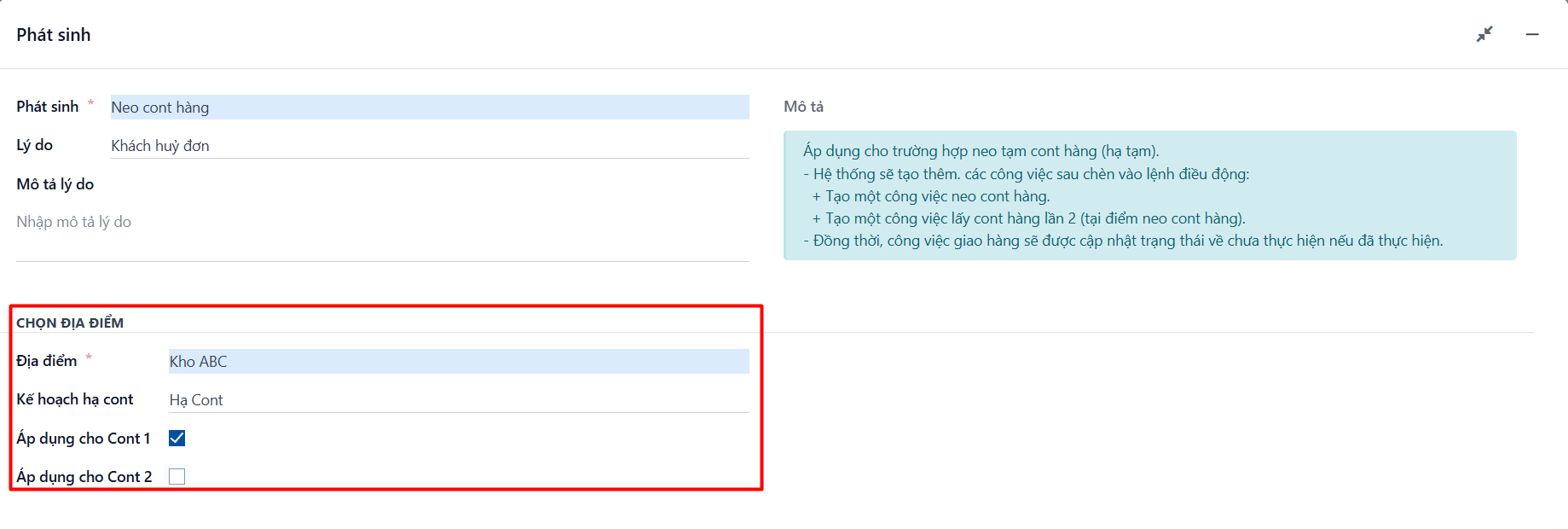
The system shows the exception handling popup as below.
-
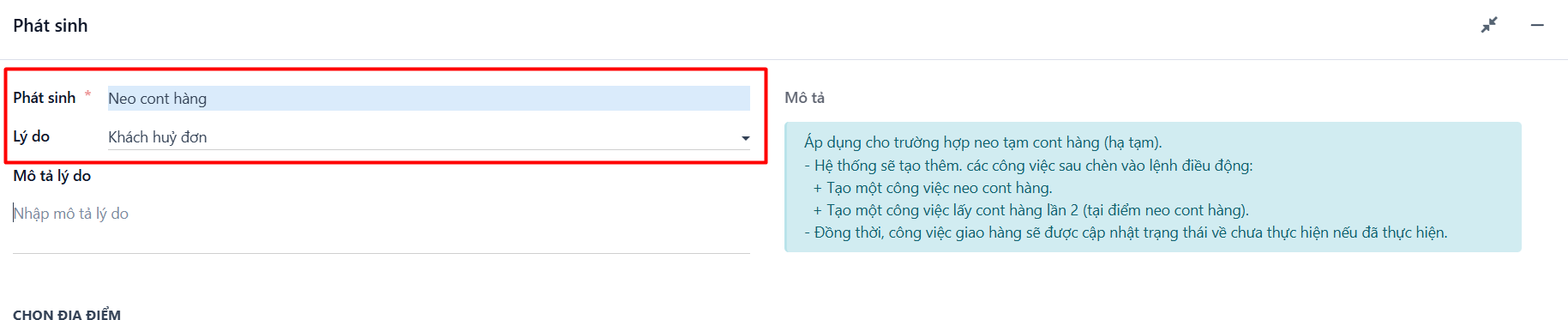
Select the situation and the reason:
-
Situation: the available situations are hold laden container, hold empty container and return empty container.
-
Reason: select the reason for the exception.
-
-
Select where the container is handled and the plan for dropping it:
-
Location: select where the container is stored.
-
Plan: select the storage plan. Here only the container is stored, so select “Drop container”. If both the container and the trailer are stored, select “Detach trailer”. If the container, the trailer and the vehicle are all stored, select “Store vehicle”.
-
Applies to Container 1 / Container 2: select according to the number of containers on the waybill. If the dispatch order carries two 20ft containers, select both.
-
Step 3
Once everything is filled in, the dispatcher clicks CONFIRM:
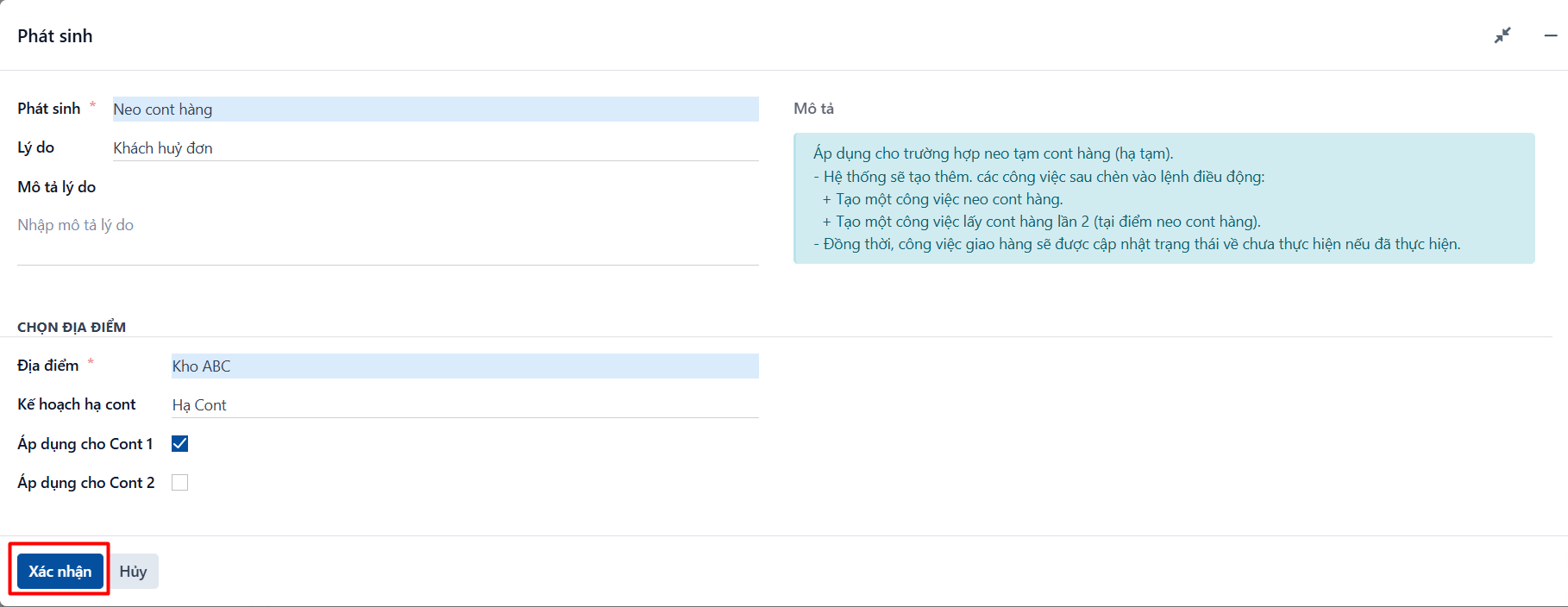
The system adds the tasks “Hold laden container” and “Pick up laden container” into the middle of the laden container delivery of the current dispatch order, then returns to the previous dispatch order screen.