Access
Menu: Master data > Routes
Access rights: Master Data User
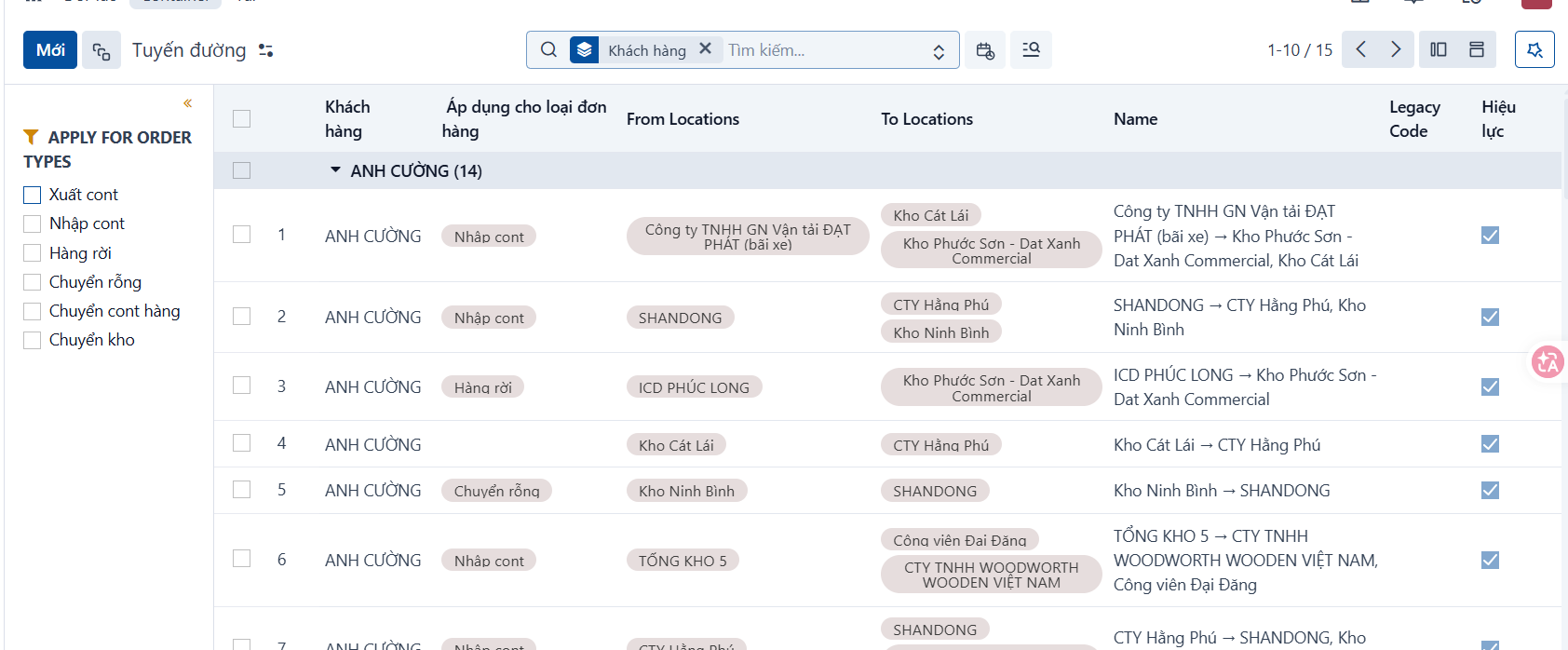
Routes can also be created from a Customer record, on the Route list tab. A route created from a customer record also appears on this screen.
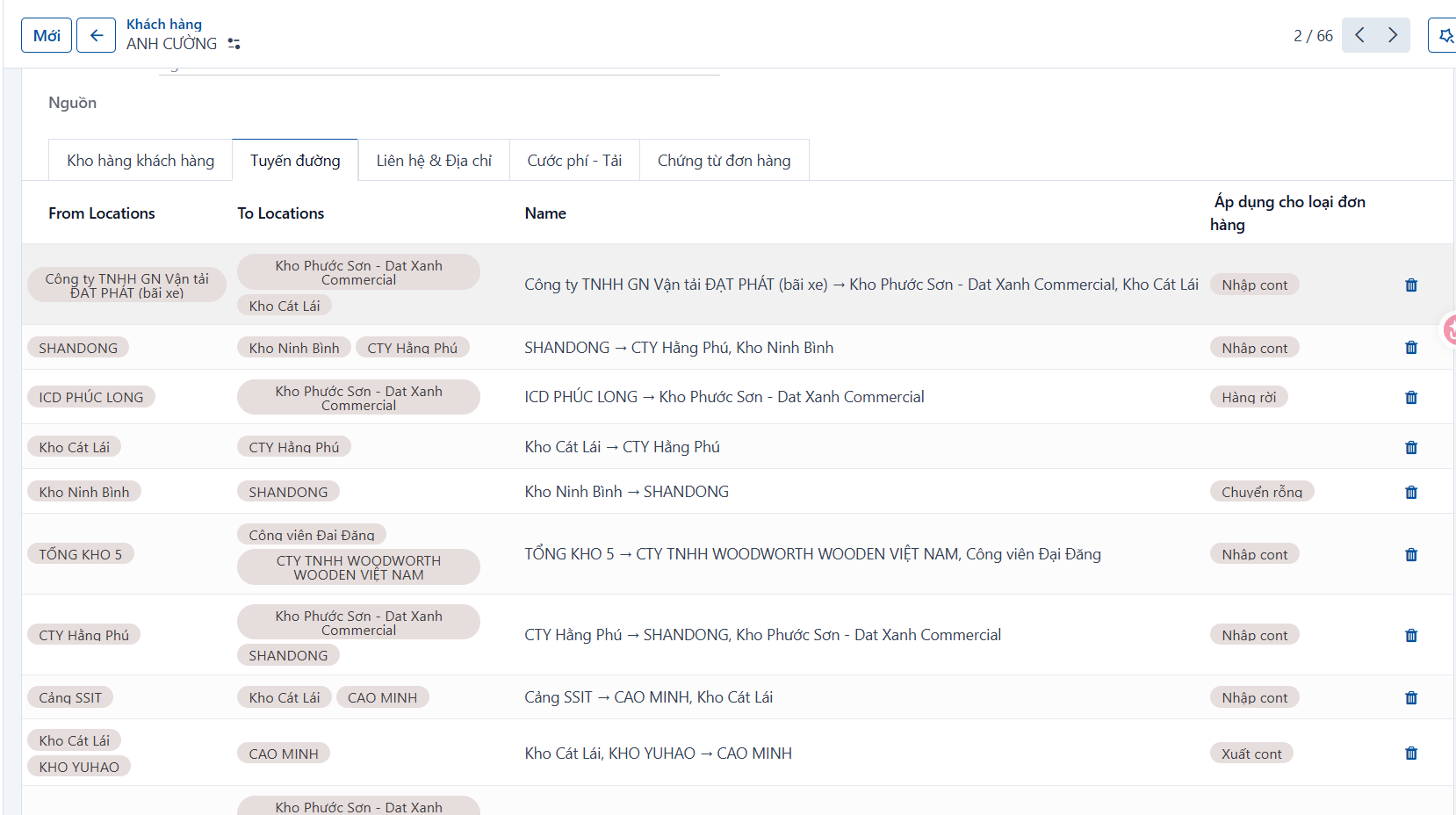
Use the path above to open the screen where you create a new route.
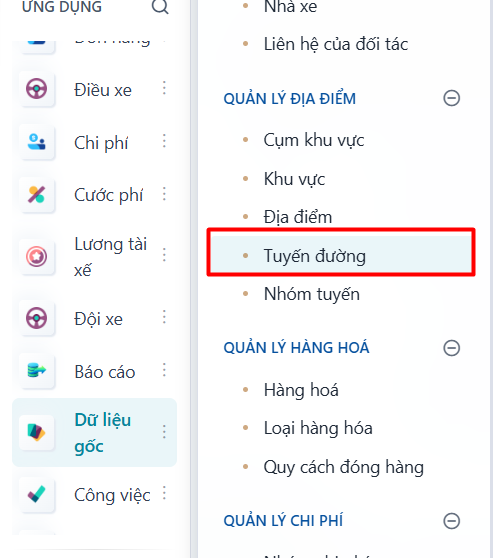
Steps
Step 1
Click NEW to create a new route.
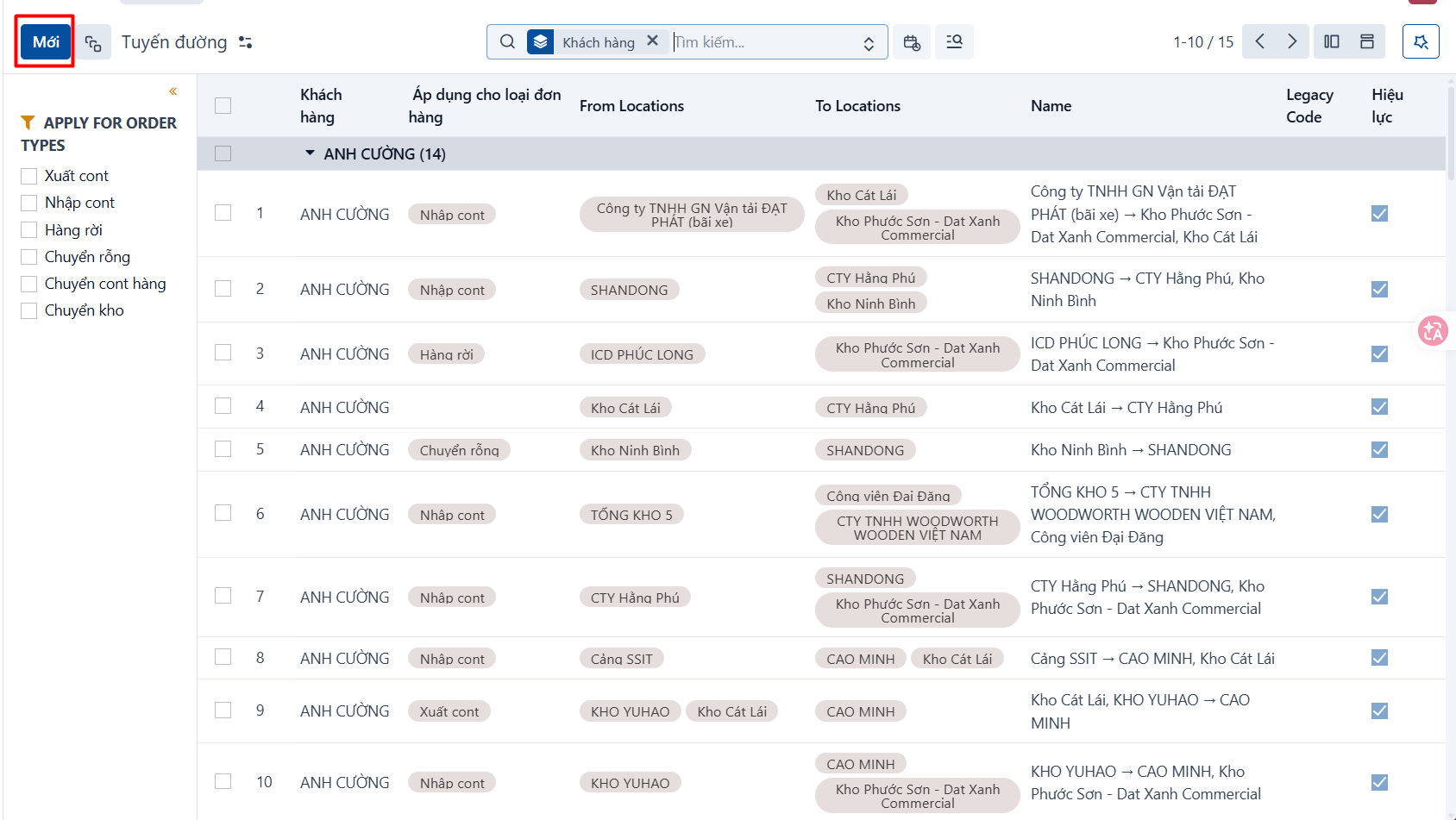
Step 2
After you click NEW, the system adds a new data row on the list view. Enter the route information in that row.
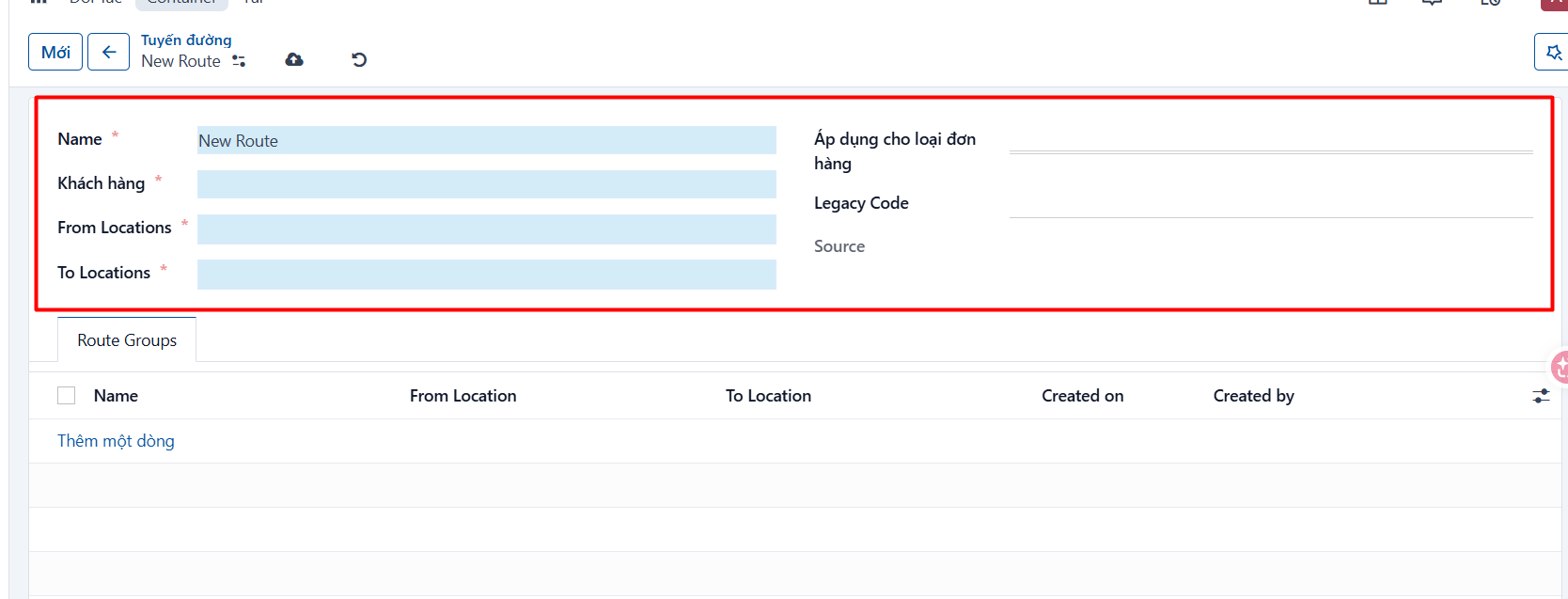
Information to fill in
| No. | Field | Notes |
|---|---|---|
| 1 | Name | An easy-to-remember route name. |
| 2 | Customer | Required. Select the customer this route applies to. |
| 3 | From | Required. Origin location, taken from the location list. |
| 4 | To | Required. Destination location, taken from the location list. |
| 5 | Applies to order | Select the order type the route you are creating applies to. |
Step 3
Click SAVE to save what you have entered.
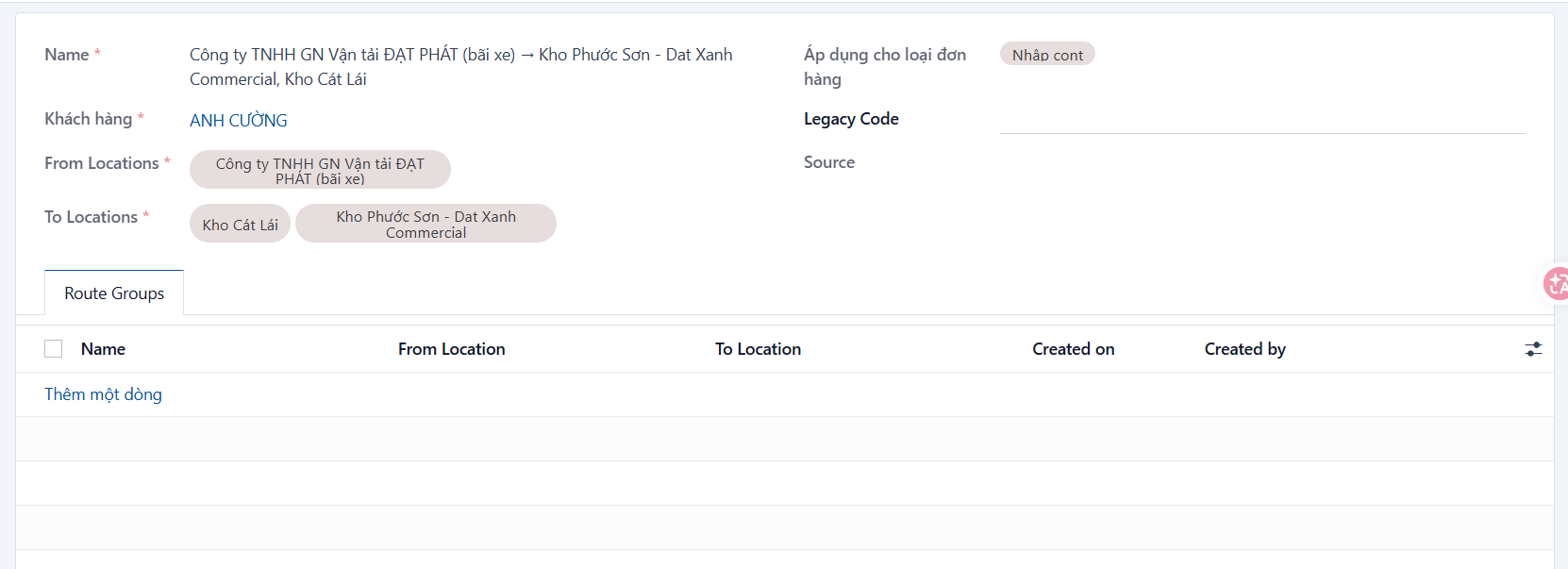
Result
The record after it has been created successfully.
PREVIOUSLocations
NEXTRoute groups